This is an old revision of the document!

Scripts Plugin For OMV8
Summary
- openmediavault-scripts provides a tool to create scripts from the OMV GUI, execute those scripts, and/or schedule their execution.
- Each script will be stored in the OMV database, plus a copy of each script will be created in the shared folder configured in the plugin.
| Warning | |
|
A script has the potential to perform absolutely any action on your system, from damaging essential files to introducing a virus or hacking the server. Be very careful about copying and running a third-party script. If you don't know exactly what that script is doing, you may lose control of your server. Use this plugin with this in mind. | |
Prerequisites
- OMV-Extras must be pre-installed.
Installation
In OMV8's GUI:
Under System, Plugins, find and highlight openmediavault-scripts 8.X, and click the Install button.
- Installing the openmediavault-scripts plugin will also install the openmediavault-sharerootfs plugin as a dependency.
| Warning | |
| Do not uninstall the openmediavault-sharerootfs plugin. It is a dependency of the openmediavault-scripts plugin. Uninstalling it while the Scripts plugin is installed will cause the Scripts plugin to be uninstalled. | |
Settings tab
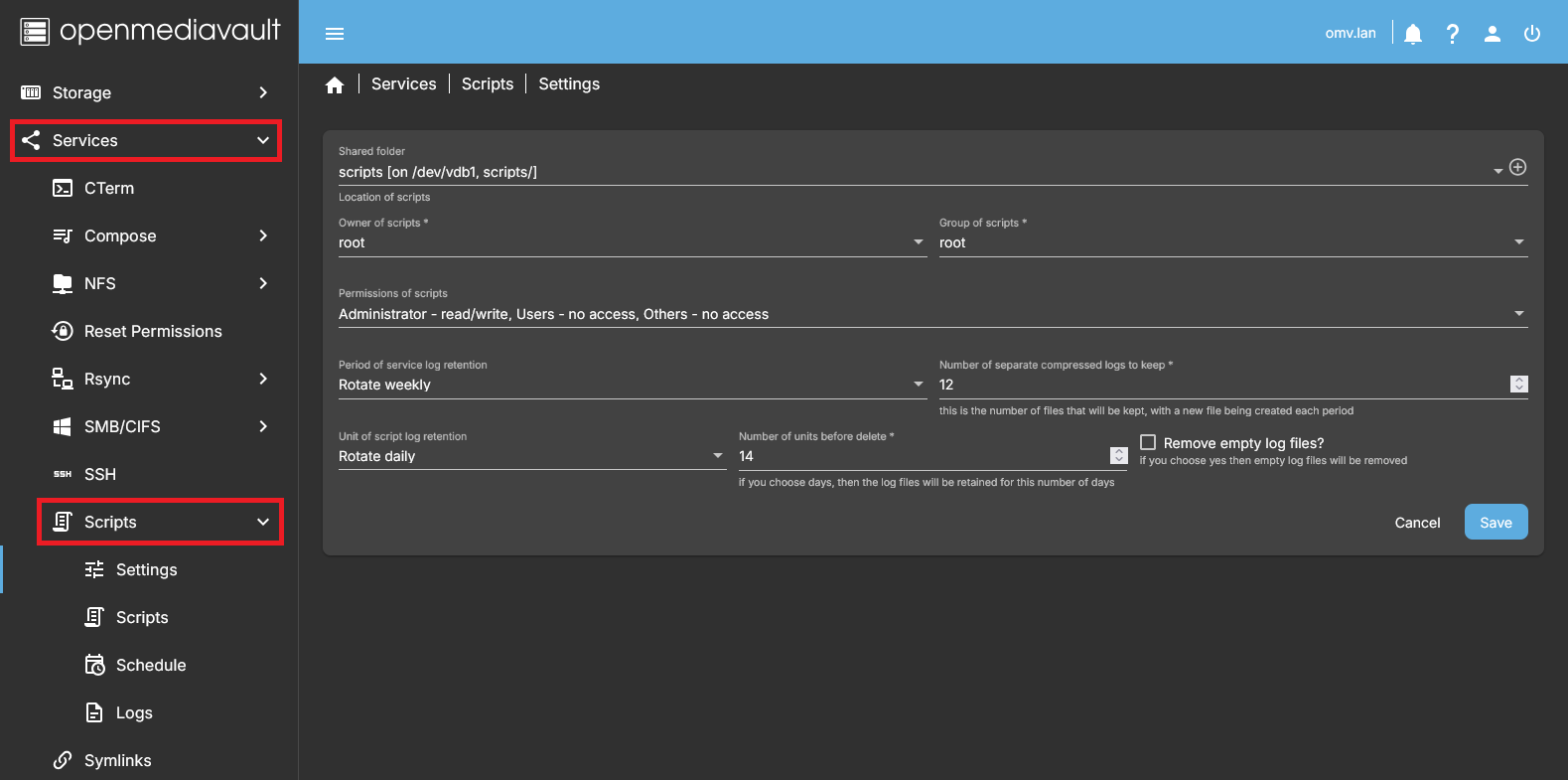
* Go to Services > Scripts > Settings and configure the initial parameters of the plugin.
Shared folder
- Choose a Shared folder (or create a new one by clicking the Create button on the right).
- A copy of each script created with the plugin will be stored in this folder.
- This file is just a backup copy of the script. Modifications made to this file manually will not be reflected in the OMV GUI and will be overwritten if you modify the script from the plugin GUI. Use the GUI to edit your script.
- Define the Owner of scripts, the owner Group of scripts, and the Permissions of scripts that the files stored in this folder will have using the corresponding fields.
Logs Management
- Period of service log retention: Choose between Rotate daily, Rotate weekly (default), or Rotate monthly.
- Number of separate compressed logs to keep \*: Number of files to retain, a new file is created each period. Default is 12.
- Unit of script log retention: Unit for script logs retention. Default is Rotate daily.
- Number of units before delete \*: Number of days/weeks/months to keep logs. Default is 14.
- Remove empty log files: Checkbox to remove empty log files. Default is unchecked.
Scripts tab
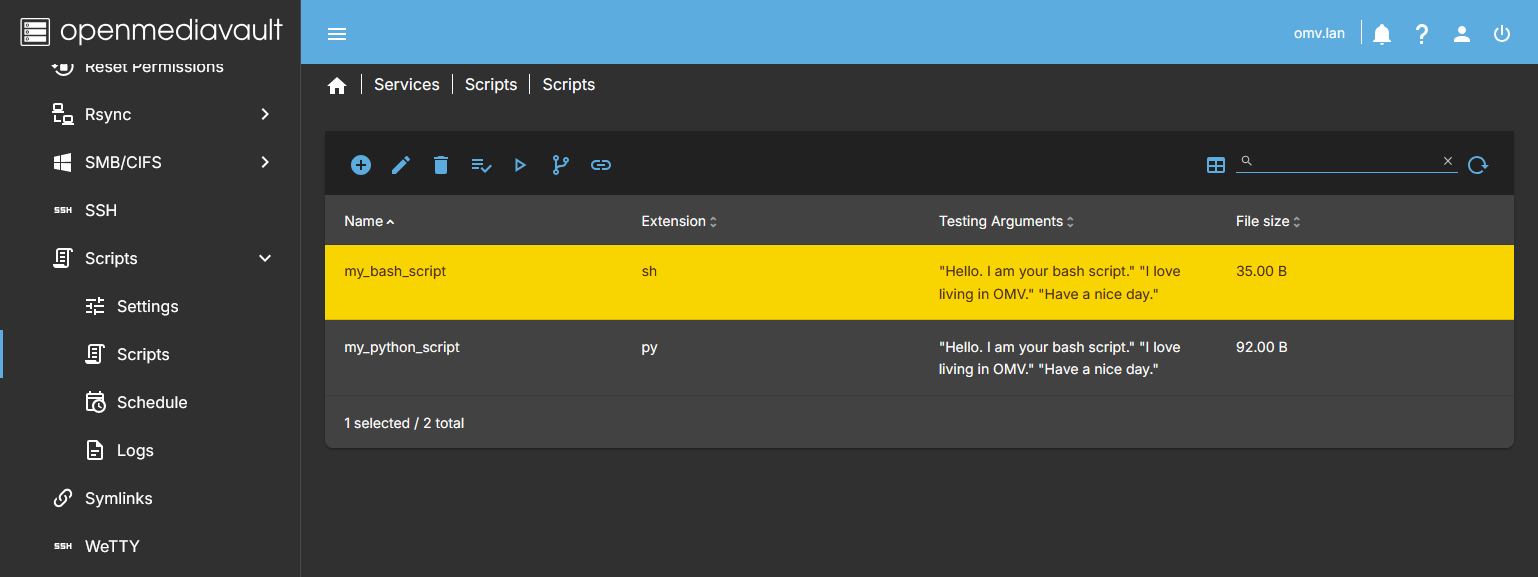
- In this form a list of the created scripts appears. Here you can create, edit, delete, or run scripts manually.
Add
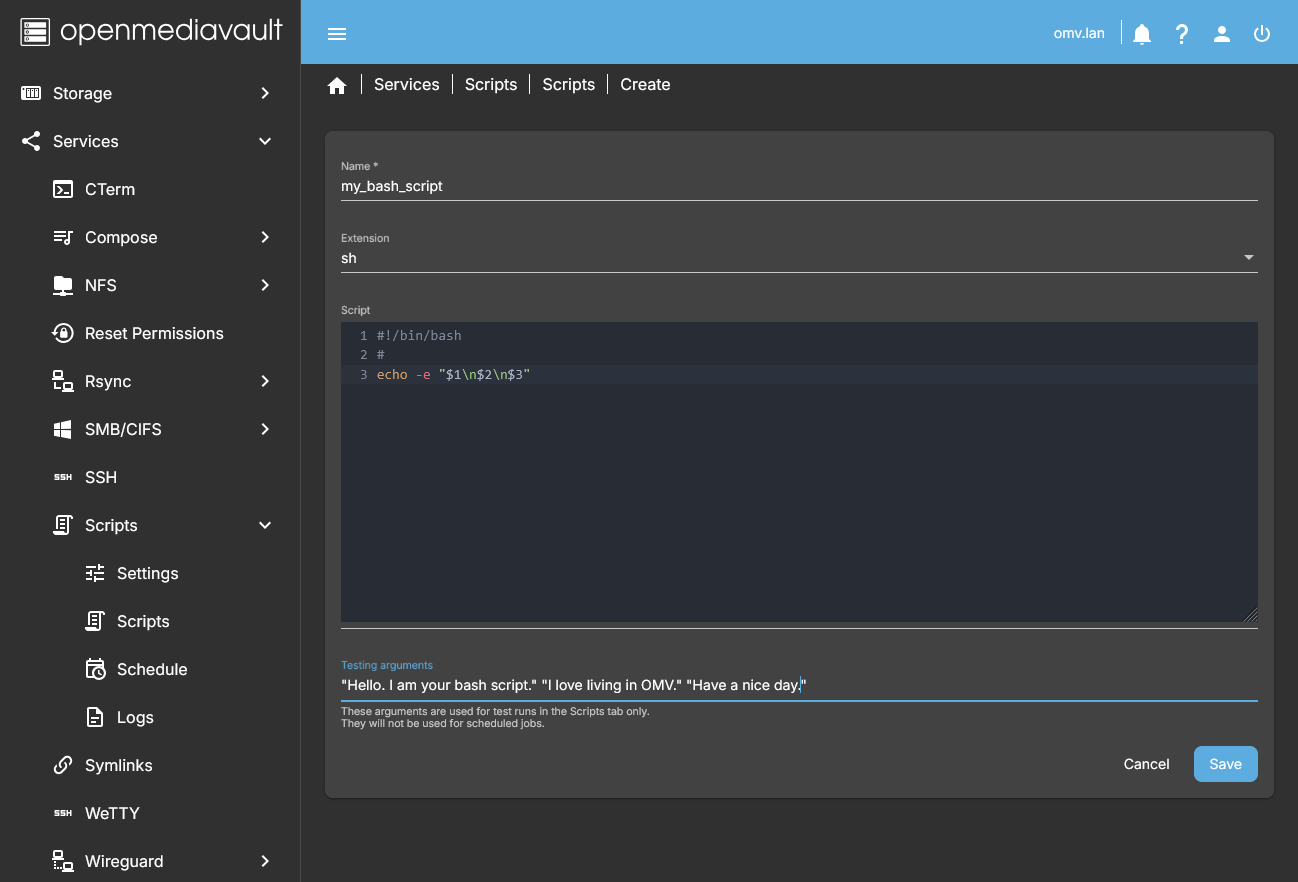
- Press the Add button and in the submenu press the Add button to create a new script. Define:
- Name: Name used to save and execute the script.
- Extension: sh, py, etc.
- Script: Script code; you can paste from clipboard.
- Testing arguments: Optional arguments for execution from the Scripts tab only.
- Press Save.
- The script is stored in the OMV database.
- A copy is saved in the shared folder defined in the Settings tab.
- A line with the script data appears in the Scripts form.
- Press the Add button and use Import to import multiple scripts from the server file system.
- Press the Add button and use Import one to import a single script from the server file system.
Edit
- Select a script and press Edit to modify script body and arguments.
- Press Save to save changes, Cancel to exit without saving.
Delete
- Select a script and press Delete to remove it from the OMV database and the backup folder.
Run

- Select a script and press Run to manually execute it.
- A code box shows execution output.
- Press Start to run, Stop to stop execution, Close to exit.
| Note | |
|
In this dialog box the output of the script will be displayed. Dialogs generated with Bash Dialog or similar cannot be interacted with or displayed. | |
Docs
- Press the Docs button to access this wiki document.
Schedule tab

- Displays a list of created scheduled jobs. You can create, edit, delete, or run them manually.
Create

- Press Create to define a script schedule:
- Enabled: Activate scheduled execution.
- Script: Choose an existing script.
- Script arguments: Optional.
- Schedule: Define when to run.
- Send command output via email: Optional; requires System > Notification configuration.
- Comment: Header for email notifications.
Edit
- Select a schedule and press Edit to modify all fields.
Delete
- Select a schedule and press Delete to remove it. Other schedules or scripts are not affected.
Run
- Select a schedule and press Run to manually execute it.
- A dialog box will show execution output.
- Press Start to run, Stop to stop, Close to exit.
Source Code
A Closing Note
We, who support the openmediavault project, hope you've found this guide to be useful and that you'll find your openmediavault server to be efficient, easy to use, and enjoyable.
If you found this plugin guide to be helpful, please consider a modest donation to support the hosting costs of this server.
OMV-Extras.org
Venmo: ryecoaaron