This is an old revision of the document!
Reset Permissions Plugin For OMV8
Summary

- openmediavault-resetperms provides a tool to modify permissions of shared folders and all their content at the file system level directly from the OMV GUI. The form displays a column with the services associated with each shared folder.
- Modifying permissions can be useful if the file system comes from another system and you want to reset folder permissions, if you want to remove ACL permissions, or if you want to customize permissions for each shared folder. It can also be used to change the permissions of an existing shared folder.
- This plugin does not modify permissions configured at the service level (Samba, NFS, etc.), only at the file system level. File system permissions take precedence if they are more restrictive. Once permissions are applied using this plugin, they can be further restricted through individual service settings. More detailed information is available in NAS permissions in OMV 8.
- All changes applied using this plugin are recursive, meaning they affect the selected folder and all its subfolders and files.
Prerequisites
- OMV-Extras must be pre-installed.
Installation
In OMV8's GUI:
Under System, Plugins, find and highlight openmediavault-resetperms 8.X, and click the Install button.
Using resetperms
Reset Permissions
- Modify permissions of an existing folder
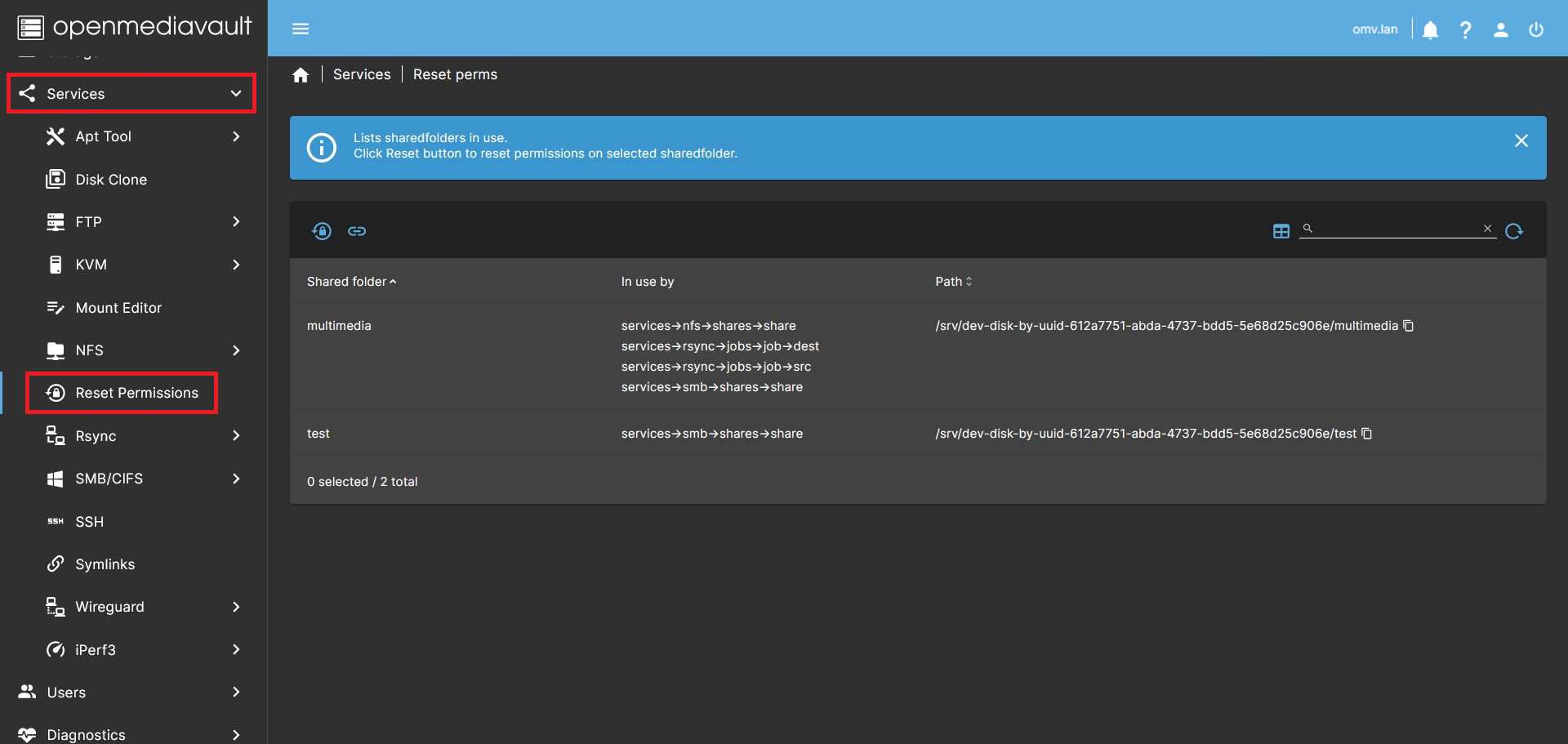
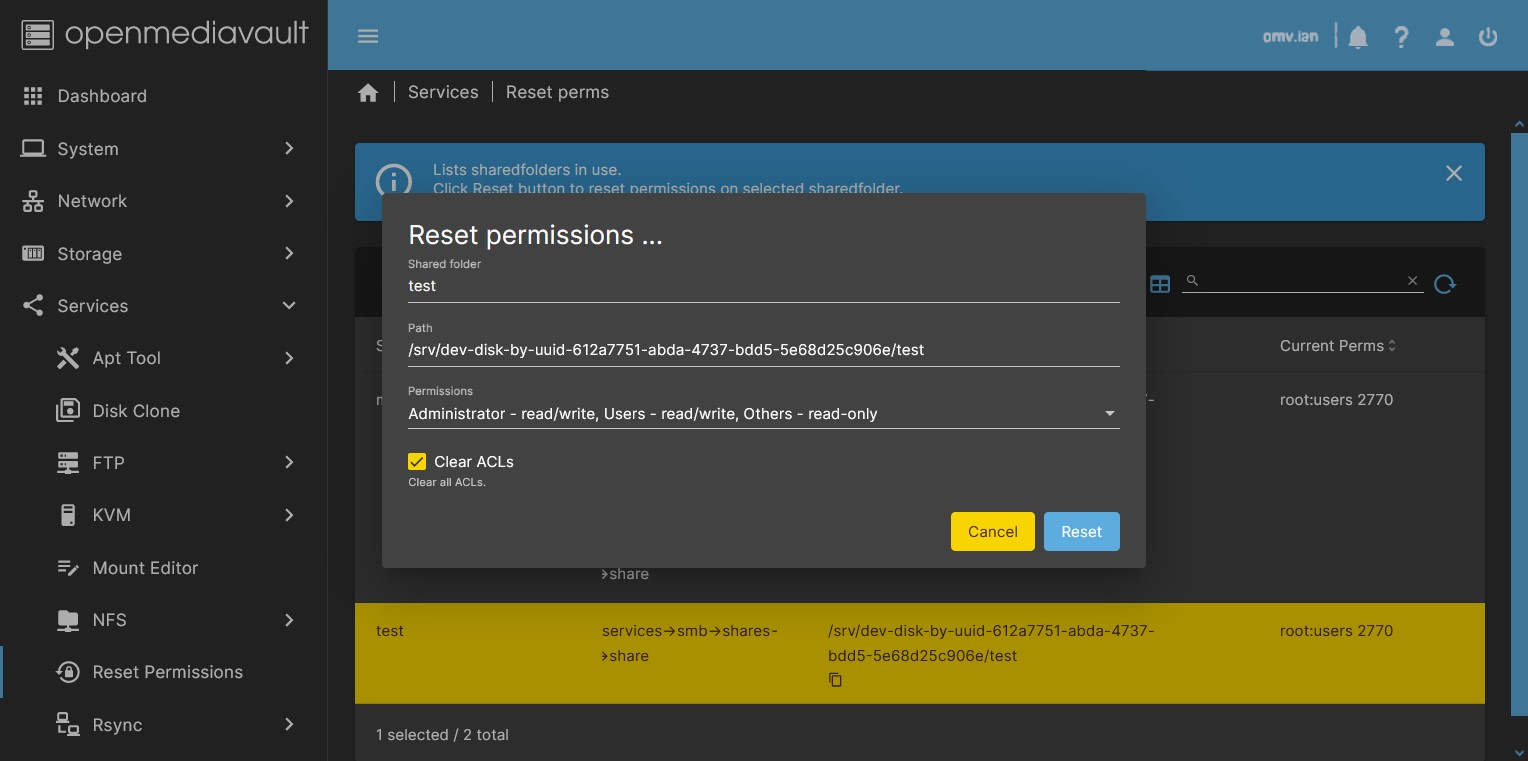
- Go to Services > Reset Perms. In this tab you can see a list of all shared folders on the system. To modify the permissions of a folder, do the following:
- Select a folder from the list (highlighted in yellow).
- Press the Reset permissions button. A dialog will open allowing you to modify the permissions of the selected folder. In this dialog:
- In the Permissions field, select the permissions you want to apply.
- To restore standard OMV permissions, select:
Administrator - read/write, Users - read/write, Others - read-only.
- To remove ACL permissions from the shared folder, click the Clear ACLs button. By default, shared folders in OMV do not use ACLs.
- Press the Reset button. Changes will be applied recursively to all subfolders and files.
| Warning | |
|
This plugin can break your system if not used improperly. DO NOT CHANGE THE PERMISSIONS OF THE DISK WHERE THE OPERATING SYSTEM IS INSTALLED. Doing so may render the system unusable and require a full reinstallation. For the same reason, do not modify permissions of the folder where Docker is installed or the persistent data directories of containers. | |
Shared Folder in Use
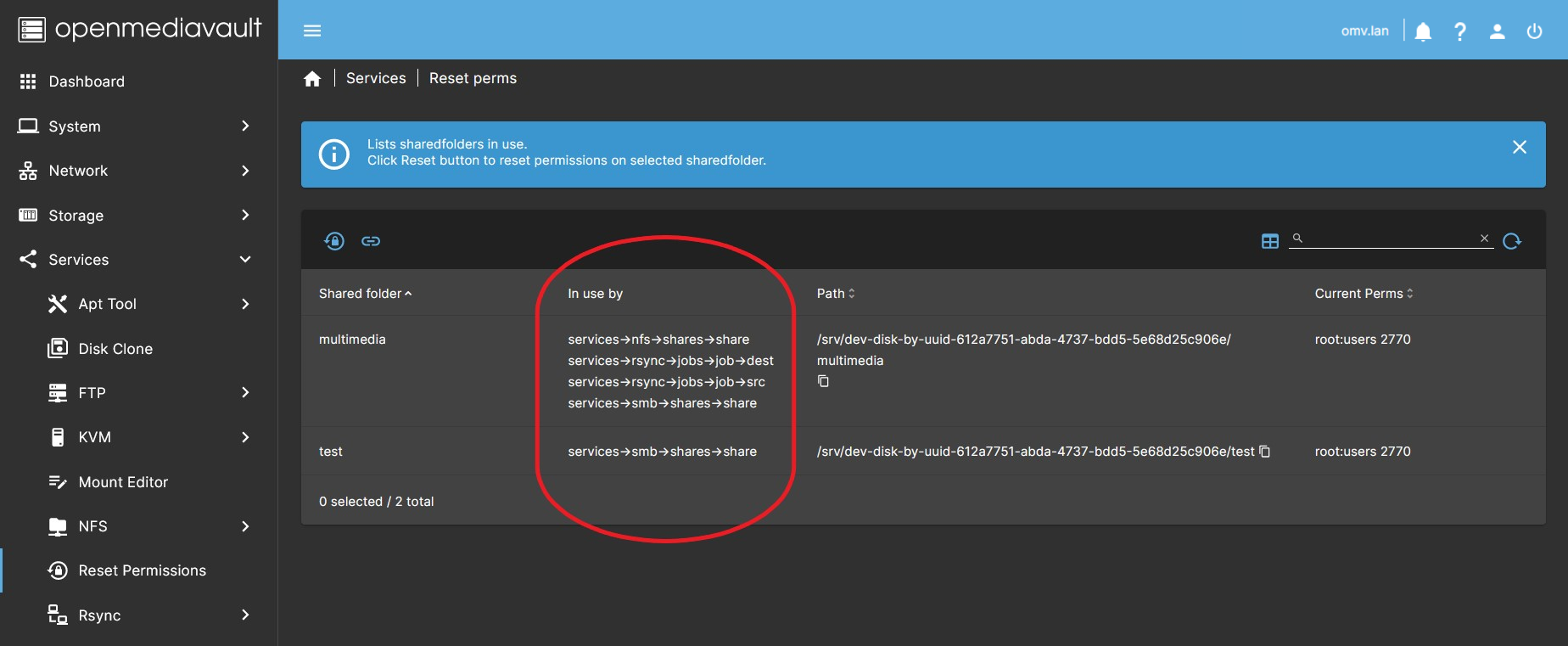 The Services > Reset perms tab displays all shared folders and several columns with useful information. One of these is the In use by column, which is especially helpful if you plan to delete a shared folder.
- Delete a shared folder:
- OMV does not allow deletion of a shared folder if it is in use by any service. In Storage > Shared folders, the delete icon will be disabled.
- To delete a shared folder, you must first remove all services using it. Once the associated services are removed, the Delete button becomes available.
- Unmount a file system:
- The same logic applies to file systems. A file system cannot be deleted while shared folders exist on it.
- To unmount a file system, first remove services using its shared folders, then delete the shared folders. After that, the Unmount button will become available in the OMV GUI.
Source Code
A Closing Note
We, who support the openmediavault project, hope you’ve found this guide to be useful and that you’ll find your openmediavault server to be efficient, easy to use, and enjoyable.
If you found this plugin guide to be helpful, please consider a modest donation to support the hosting costs of this server.
OMV-Extras.org
Venmo: ryecoaaron