Table of Contents

Wireguard Plugin For OMV8
Summary
- The main purpose of WireGuard is to facilitate the secure connection of two devices over the Internet.
- The openmediavault-wireguard plugin integrates WireGuard into the OMV interface through the Tunnels and Clients tabs, allowing you to easily generate one or more encrypted point-to-site WireGuard VPN networks.
- WireGuard point-to-site connections allow access to the entire network where the server is located.
- This is the default configuration in the plugin.
- You will be able to access all your shared folders and all the services configured on your local network as if you were physically there.
- By default, all client traffic is forwarded through the VPN tunnel (this behavior is configurable), providing privacy through the encrypted connection. This allows you to safely browse the Internet even when connected to public Wi-Fi networks.
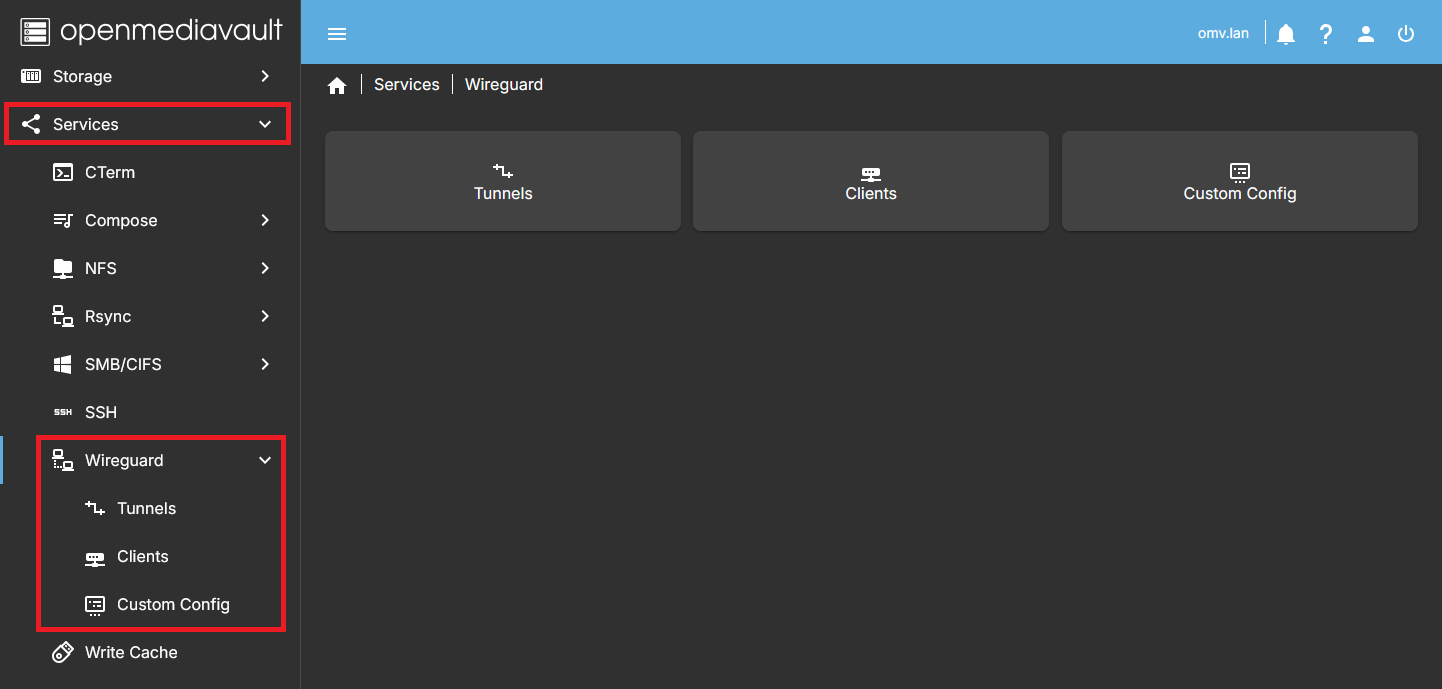
- The Custom Config tab allows you to create configurations tailored to specific needs. You can use this tab to connect the server to an external WireGuard VPN service or to implement any WireGuard network topology.
- A point-to-point connection allows communication between two servers only, for example, to perform remote backups.
- A site-to-site connection provides connectivity between two networks, allowing any IP on one local network to communicate with any IP on another local network.
- You can implement any other topology you need (hub-and-spoke, mesh, etc.).
- The fundamental principle to understand any WireGuard configuration is that all connections are established peer-to-peer. When we refer to a WireGuard server, we are actually referring to a single peer that establishes simultaneous connections within the same network with multiple peers (clients). Despite this, and for the sake of simplicity, this document uses the terms server and client.
Third Party Software Note
 While this OMV plugin makes the WireGuard package easy to integrate into OpenMediaVault, the WireGuard software itself is developed and maintained by a third party.
For more detailed information and official support, please refer to the WireGuard website.
While this OMV plugin makes the WireGuard package easy to integrate into OpenMediaVault, the WireGuard software itself is developed and maintained by a third party.
For more detailed information and official support, please refer to the WireGuard website.
WireGuard® is an extremely simple yet fast and modern VPN that utilizes state-of-the-art cryptography. It aims to be faster, simpler, leaner, and more useful than IPsec, while avoiding the massive headache. It intends to be considerably more performant than OpenVPN. WireGuard is designed as a general purpose VPN for running on embedded interfaces and super computers alike, fit for many different circumstances. Initially released for the Linux kernel, it is now cross-platform (Windows, macOS, BSD, iOS, Android) and widely deployable. It is currently under heavy development, but already it might be regarded as the most secure, easiest to use, and simplest VPN solution in the industry.
Prerequisites
- OMV-Extras must be pre-installed.
Installation
In OMV8's GUI:
Under System > Plugins, locate and select openmediavault-wireguard 8.X, then click the Install button.
| Note | |
|
If your system is based on an Armbian image, installing this plugin may replace or break the existing kernel. To resolve this, reinstall the Armbian kernel once the plugin installation has completed. See this forum thread for more details: https://forum.openmediavault.org/index.php?thread/54000-catastrophic-wireguard-install/ | |
Management of a Tunnel
Configuring a tunnel
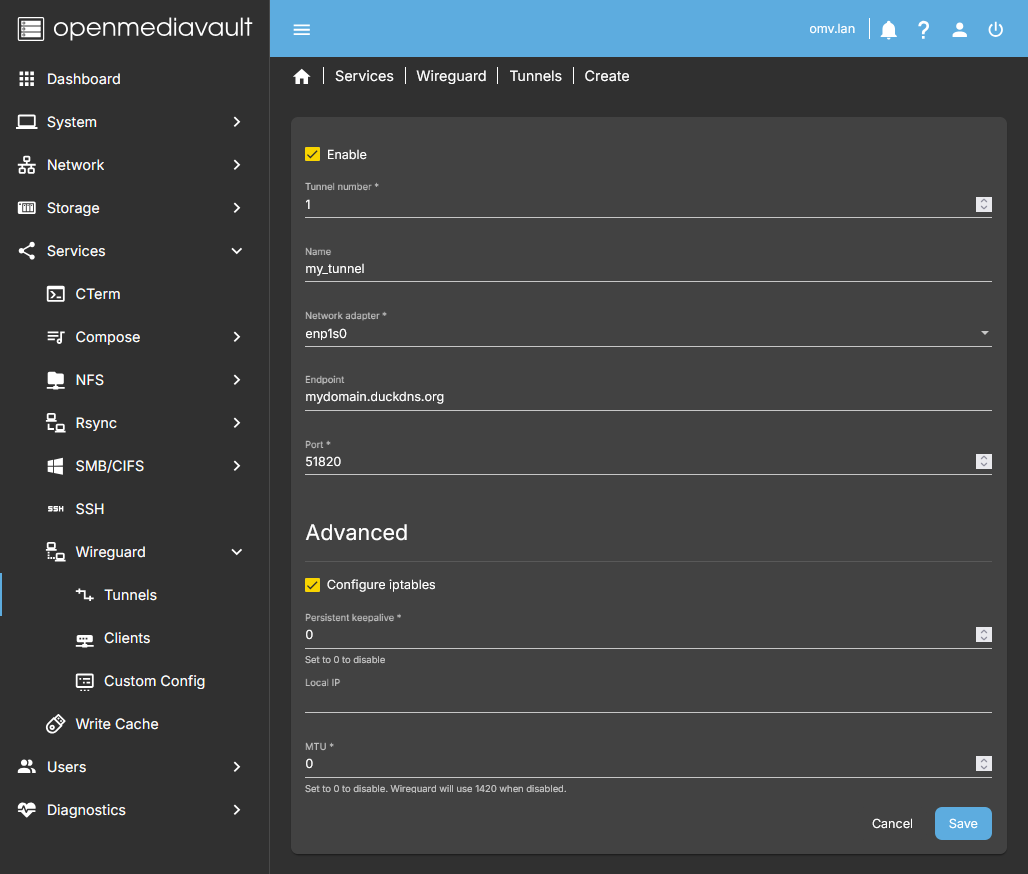
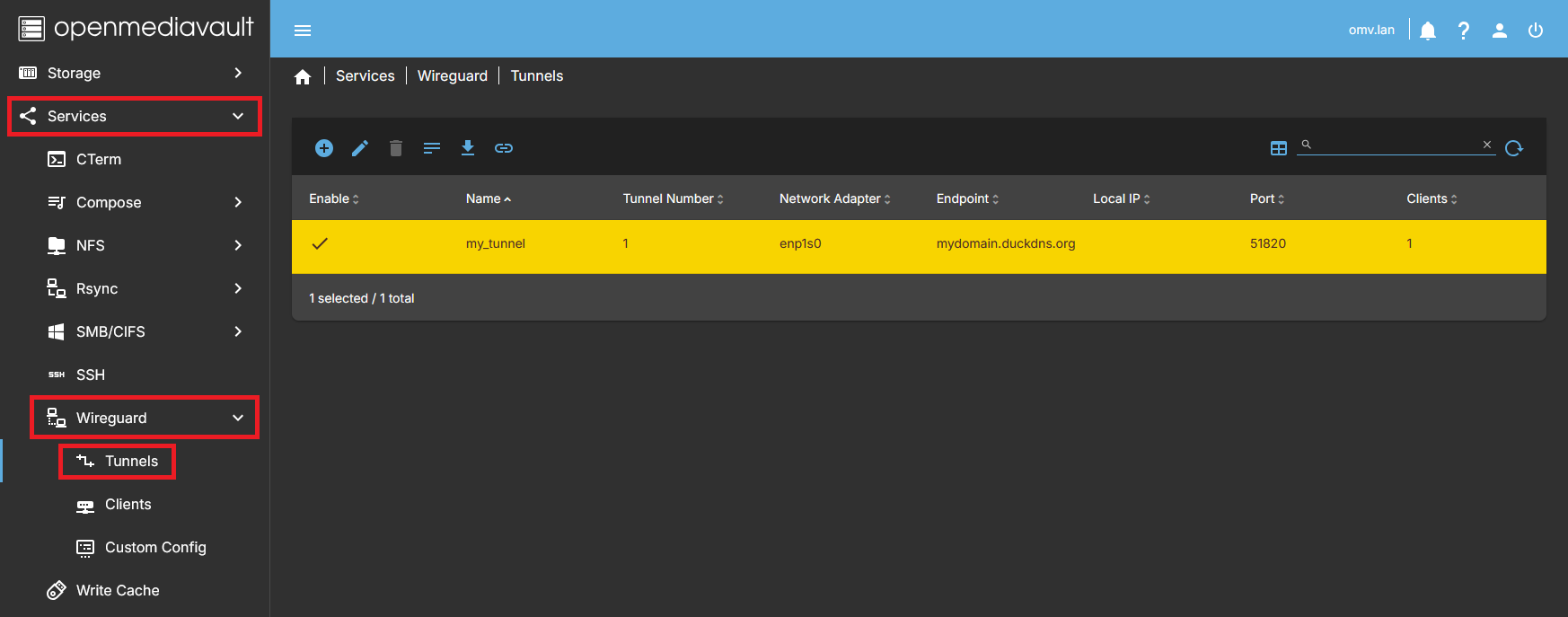
- In the OMV GUI go to Services > Wireguard > Tunnels and press the Create button.
- Press the Enable button to activate the tunnel.
- Basic Configuration In the dialog box, enable the tunnel and complete the following fields:
- Name — Assign a descriptive name to the tunnel for easy identification.
- Network Adapter — Select your network adapter from the dropdown menu.
- If unsure, check Network > Interfaces to identify your adapter.
- Endpoint — Enter your router's public IP address or a domain name that points to it. This is used by clients to initiate the connection.
- If you have a dynamic IP without a domain, you can use a free service like DuckDNS to automatically update your public IP. See procedure using DuckDNS.
- Check your public IP using whatismyip.com. If it differs from your router's public IP, you may be behind CGNAT — only your ISP can fix it.
- Verify that your domain points to your public IP using WhatsMyDNS.
- Port — Choose a port for the tunnel (default 51820).
- The port must not be in use by any other service or WireGuard tunnel.
- Ensure the port is forwarded on your router to your server using UDP. Consult your router manual if needed.
- Advanced Configuration
Optional fields for custom configurations:
- Configure iptables — By default, the plugin will generate iptables rules to allow external traffic to your internal network.
- To skip automatic iptables configuration, uncheck this option.
- Default rules:
PostUp = iptables -A FORWARD -i %i -j ACCEPT; iptables -A FORWARD -o %i -j ACCEPT; iptables -t nat -A POSTROUTING -o [NETWORK INTERFACE] -j MASQUERADEPostDown = iptables -D FORWARD -i %i -j ACCEPT; iptables -D FORWARD -o %i -j ACCEPT; iptables -t nat -D POSTROUTING -o [NETWORK INTERFACE] -j MASQUERADE- …
Note The plugin enables IP forwarding on the host by default. No need to add sysctl -w net.ipv4.ip_forward=1.
- Persistent keepalive — Disabled by default. Set a value (e.g., 25) to send a ping every 25 seconds.
- Use only if necessary. WireGuard prefers silent connections for security.
- Local IP — Defines the virtual subnet used inside the tunnel.
- Example:
192.168.1.0/24 - Each client connected to the tunnel will be assigned an IP from this range.
- Traffic destined to this subnet will go through the VPN tunnel.
- All other traffic (internet or other networks) will NOT use the tunnel unless you enable full tunnel mode.
- This allows you to control which traffic goes through WireGuard and which traffic goes directly to the internet (split tunneling).
- MTU — Disabled by default (generally
MTU=1420). Adjust if needed; wg-quick does not support below 1280.- Without a value, WireGuard derives it from network config. Typically 1500, then automatically sets 1420 (header size subtracted).
- Reduce MTU if using PPPoE or VLAN to avoid fragmentation.
- ISP restrictions may apply; higher MTU possible for faster networks.
- Click Save to apply changes. The tunnel is now configured and active.
| Note | |
|
Ensure your ISP provides a public IP. If behind CG-NAT, external access will fail. Also, make sure your server firewall does not block the port forwarded on your router. | |
Editing a tunnel
- To edit a tunnel, select it and press the Edit button.
- You can do this at any time.
- If clients have already been configured, their configuration will also be updated when you edit the tunnel.
- Therefore, to apply the new tunnel configuration to the clients, you must reconfigure the clients after editing.
Delete a tunnel
- To delete a tunnel, select it and press the Delete button.
See the Tunnel Config
- To view a tunnel's configuration, select it and press the Tunnel Config button.
- Useful when using the tunnel as a template for a custom configuration.
Management of a Client
Configuring a Client
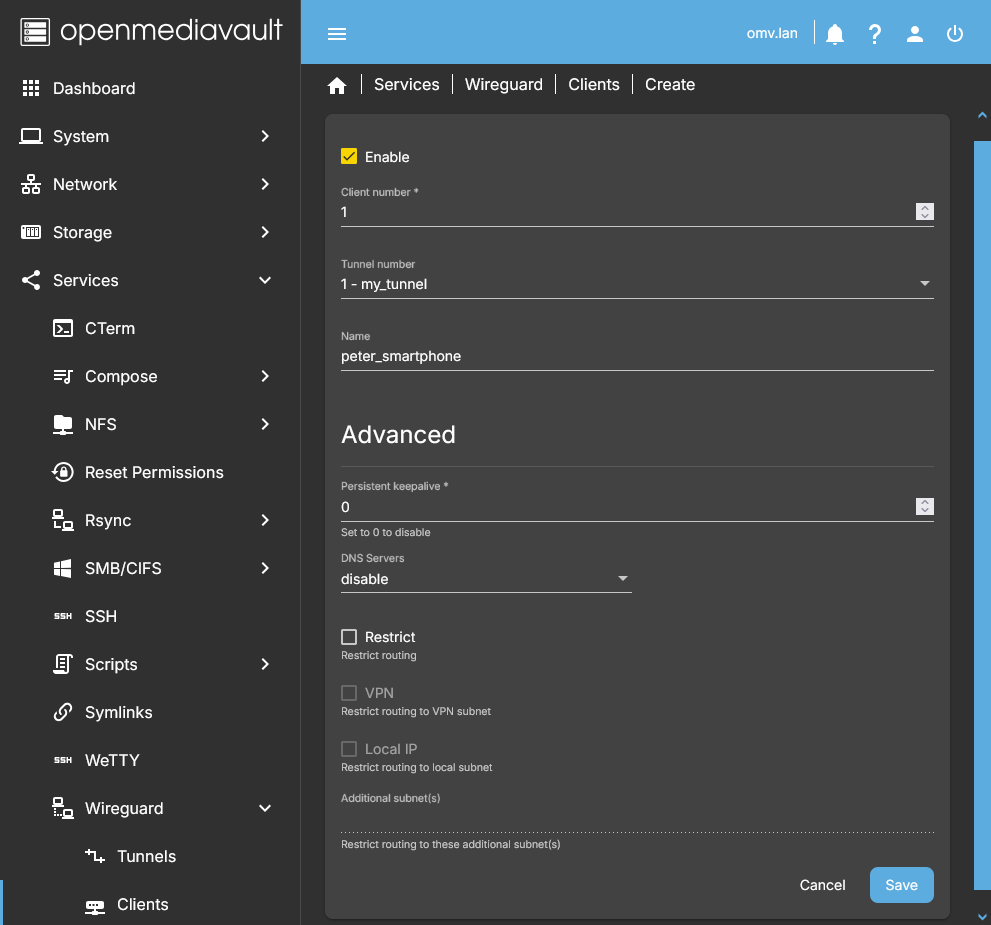
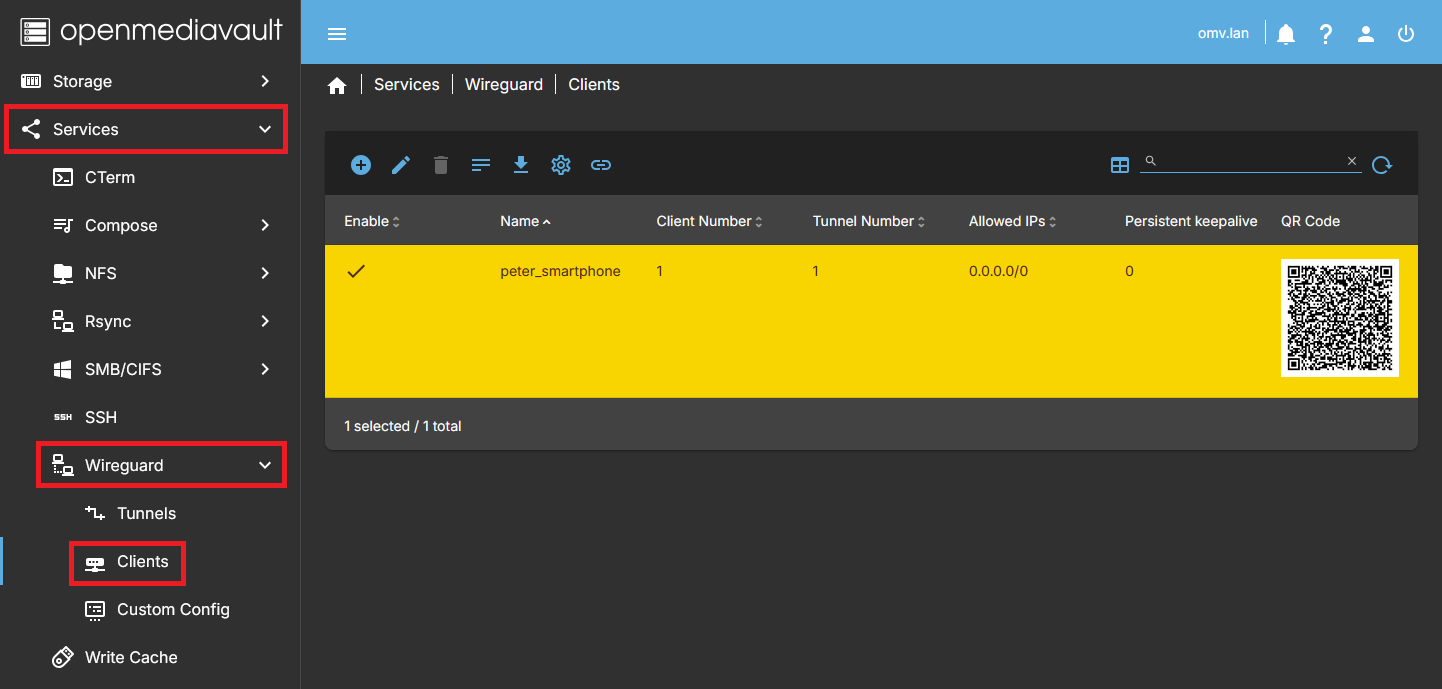
- In the OMV GUI go to Services > Wireguard > Clients and press the Create button.
- Basic Configuration Enable the client in the dialog box and fill in the following fields:
- Client number — Must be unique among clients.
- Tunnel — Assign the client to one of the previously created tunnels.
- Name — Enter a descriptive name to identify the client.
- Advanced Configuration (optional, only if needed)
- Persistent Keepalive — Default is blank. Set a value (e.g., 25) to keep the connection active (a packet every 25 seconds).
- DNS Servers — Default is blank.
- Set if needed for proper local network resolution.
- Usually, use the router IP.
- Existing resolv.conf values are shown for reference.
- Restrict — Default is unchecked. When unchecked, AllowedIPs is
0.0.0.0/0and all client traffic goes through the tunnel.- To use split tunneling (only specific traffic through the tunnel), check this option and configure:
- VPN — Adds the tunnel's VPN subnet to AllowedIPs, removing
0.0.0.0/0. - Local IP — Adds the tunnel's Local IP subnet to AllowedIPs, removing
0.0.0.0/0. - Additional subnet(s) — Manually add extra subnets to AllowedIPs.
- Click Save. If the tunnel and client are already enabled, the connection will be active.
- Client Config — Click this button to view the client configuration file.
- This file is only needed if the client cannot be configured using the QR code.
- Copy the content to a file and add the `.conf` extension.
- Treat this file like a password: it is the access key to your network.
- Delete the file after use for security reasons.
- QR Code — If the client is enabled, a QR code is generated for quick smartphone configuration.
- This image functions as the “password” for network access, so handle it carefully.
- Press Generate QR Codes to create or refresh the QR code.
- Important: Each client must have a unique configuration. Reusing the same config on multiple clients will prevent simultaneous connections.
Editing a Client
- Select a client and press the Edit button to modify its parameters or disable it.
| Note | |
| Any changes made must be applied again on the client using the QR code or configuration file for them to take effect. | |
Delete a Client
- Select a client and press the Delete button to remove it from the tunnel.
- To remove a client from an active tunnel, first deactivate the client.
See the Client Config
- Select a client and press the Client Config button to view its configuration.
- Useful if you want to use the client as a template for a custom config.
- Useful if you prefer to configure a client using a file instead of the QR code.
Management of a Custom Config
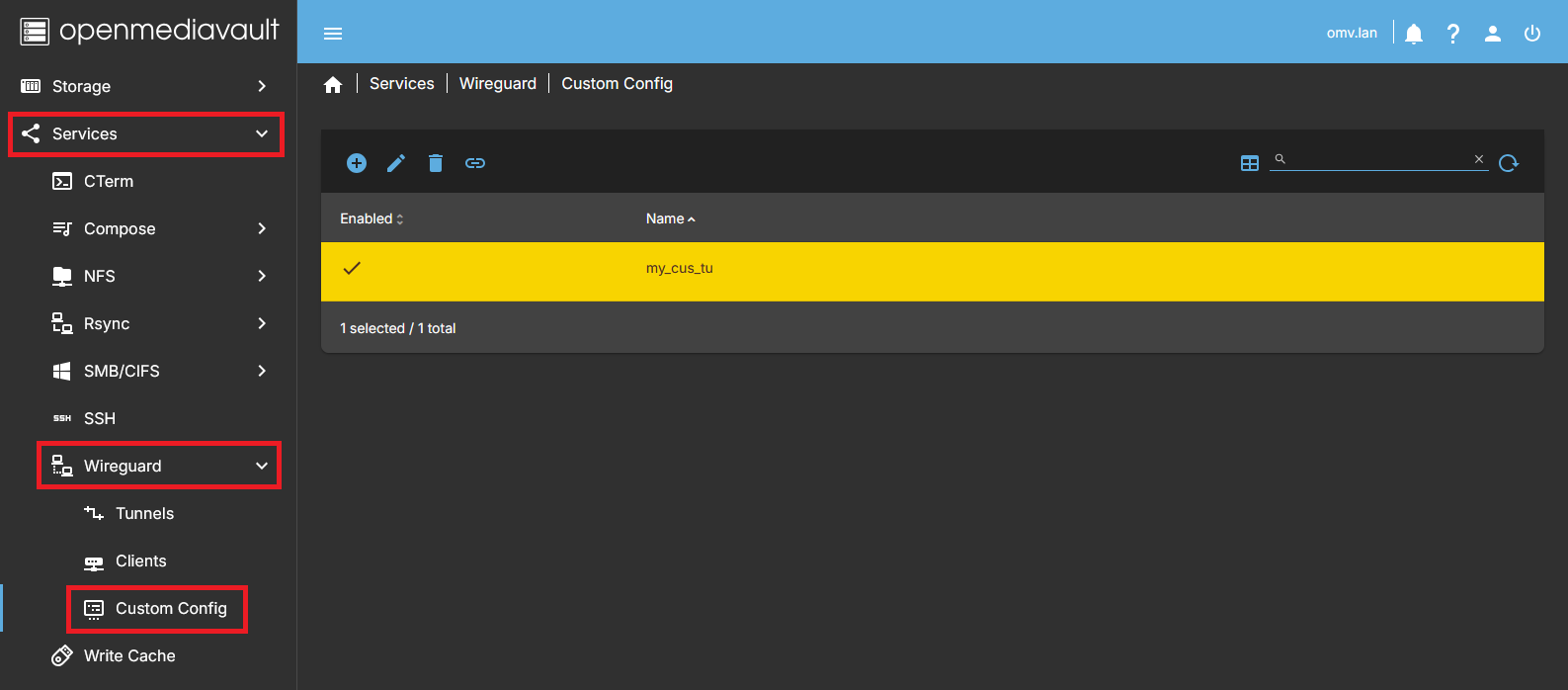
This tab allows you to create a tunnel with custom settings. You can paste configuration from a text file and define the parameters you need. Use this tab if you need to connect the server to an external (commercial) Wireguard VPN service, or for advanced network topologies like point-to-point connections.
Create a Custom Config
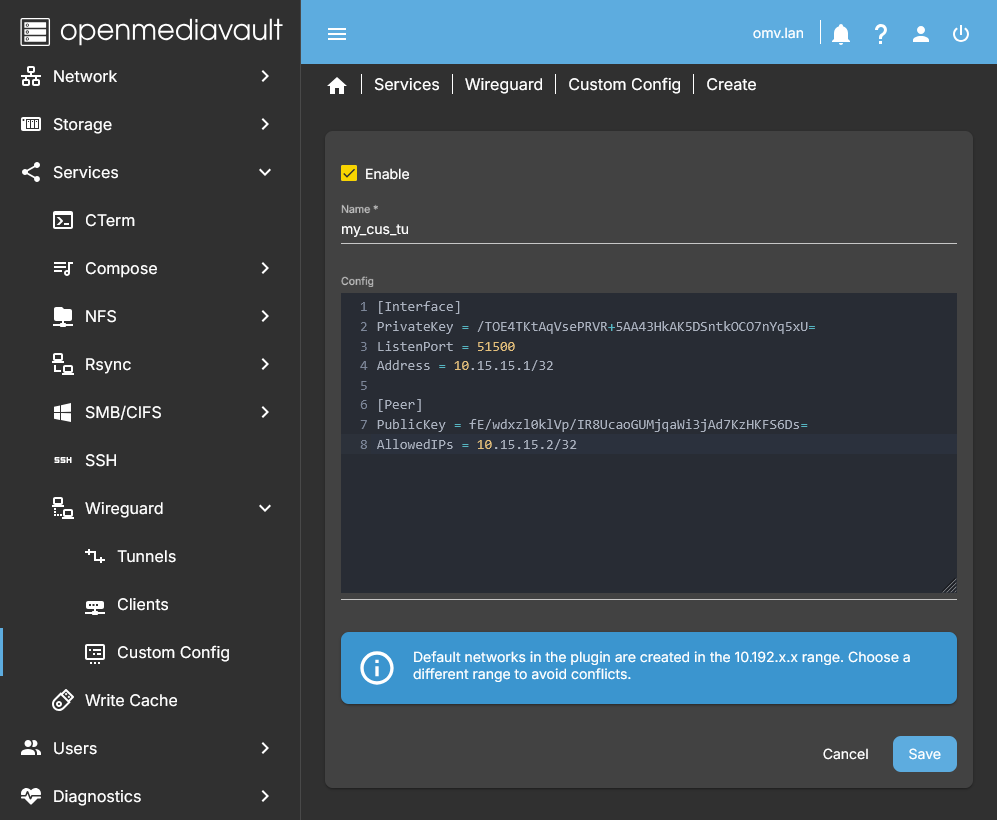
- In the OMV GUI go to Services > Wireguard > Custom Config and press Create.
- Name — Type the name of your custom tunnel.
- The service will be named
wgnet_NAMEwhereNAMEis your chosen name. - Names cannot exceed 9 characters due to GUI and Wireguard restrictions.
- Config — Paste the Wireguard configuration content here.
- See Wireguard for reference or templates.
- For commercial VPN services, copy their provided configuration.
- For special topologies, check procustodibus.com.
- Avoid using the
10.192.x.xnetwork range used by the plugin in Tunnel and Client tabs, to prevent conflicts.
- Click Enable to activate the tunnel.
- Press Save to store the configuration in the OMV database.
- If enabled:
- the tunnel will be created and activated.
- Generated configuration files appear in
/etc/wireguard.- Do not edit these files manually, the plugin overwrites them. Always use the GUI.
- If not enabled, the configuration is saved but the tunnel remains inactive.
| Tip: Use templates to automatically generate keys. | |
|
If creating a custom tunnel from scratch, you can use a pre-existing tunnel and client as templates: 1. Create a tunnel in the Tunnels tab and enable it, then create a client in Clients tab and enable it. 2. In Tunnels, select the tunnel and press **Tunnel Config**. Copy the text. 3. Go to Custom Config, create a new tunnel, paste the text, and save without enabling. 4. In Clients, select the template client, press **Client Config**, and copy the keys to a file. Delete the template tunnel and client. 5. Edit your custom tunnel, adjusting network ranges and other parameters as needed. | |
| Note | |
| See the procedures section of this document for a step-by-step guide to create a point-to-point tunnel. | |
| Note | |
The plugin enables IP forwarding on the host by default. No sysctl -w net.ipv4.ip_forward=1 instructions are required.
| |
Edit a Custom Config
- In OMV GUI go to Services > Wireguard > Custom Config and select the tunnel (yellow highlight).
- Press Edit, modify the parameters as needed, then press Save.
Delete a Custom Tunnel
- In OMV GUI go to Services > Wireguard > Custom Config and select the tunnel (yellow highlight).
- If active, disable it first:
- Press Edit, then Enable to disable.
- Press Save.
- Select the tunnel again (now inactive) and press Delete.
- Confirm by clicking Yes.
How to configure a smartphone or PC
If the client is a smartphone (Android or iOS)
- Install the Wireguard App on your smartphone.
- Open the app and tap the + button to add a connection. Choose the option to scan a QR code.
- Alternatively, you can configure it from a text file as described in the PC section below.
- In the OMV GUI, go to Services > Wireguard > Clients and scan the client's QR code from your smartphone.
- Type a name for the connection on your smartphone and tap OK.
- The client is now configured. Activate the connection to access your server network.
| Note | |
|
Depending on your router settings, the connection may not work if your smartphone is on the same Wi-Fi network as the server. In that case, turn off Wi-Fi on your smartphone and use mobile data to test the connection. | |
If the client is a PC (Linux, macOS, or Windows)
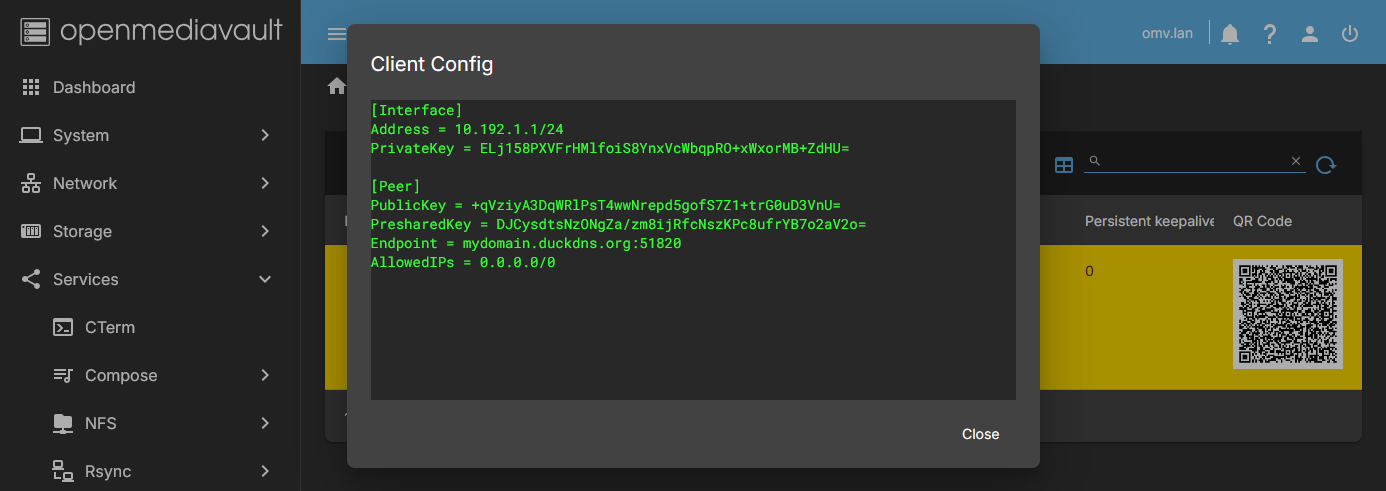
- Install the Wireguard application on the PC. Instructions for all platforms are available on the official Wireguard page.
- In OMV, go to Services > Wireguard > Clients and click Client Config.
- Copy the configuration text into a file and save it with the
.confextension on the PC.
- Open the Wireguard app on the PC and choose Add connection from file. Select the saved
.conffile and click OK.- If this option is not available, create a new connection and paste the configuration manually.
- The client is now configured. Activate the connection to access your server network.
| Note | |
|
Depending on your router settings, the connection may not work if the PC is on the same network as the server. You can test by sharing a mobile data connection via Wi-Fi from your smartphone to the PC. | |
How to split the tunnel traffic
Useful if you want to access a remote network while still using your local network. This requires different network ranges for each network.
- To split tunnel traffic, edit the AllowedIPs field on the client.
- The AllowedIPs field defines which addresses will be routed through the Wireguard tunnel. Addresses outside the range will use the normal network path.
- Modifying this field only affects the client; the server configuration remains unchanged.
0.0.0.0/0routes all traffic through the tunnel.
- To restrict traffic, replace
0.0.0.0/0with a specific subnet. For example,192.168.1.0/24forwards only traffic to the 192.168.1.x network through the tunnel.- Traffic to other networks will follow the standard route via another network interface.
How to configure a Point-to-Point tunnel
Point-to-Point: Standard tunnel
Wireguard's point-to-point configuration creates a private connection between two peers, so they can communicate only with each other, without exposing any other devices on their local networks.
- Each peer sees only the other peer's IP.
- All ports of the other peer are accessible, so all services on that IP can be used.
- One peer initiates the connection and keeps it open so the other peer can connect.
This setup is useful for scenarios such as remote backups between two servers. For example, a peer can access an rsync module on the other peer if provided with credentials.
Configuration of the first server (peer 1)
- Use a tunnel and a client as templates to generate the keys (see the Create a custom config section).
- Edit the settings in the Custom Config tab as follows:
[Interface]
PrivateKey = Uses the previously generated TUNNEL PRIVATE KEY
ListenPort = 51500
Address = 10.15.15.1/32

[Peer]
PublicKey = Uses the previously generated CLIENT PUBLIC KEY
AllowedIPs = 10.15.15.2/32
- Adjust the ListenPort if needed, using a free port on your server.
- Adjust the Address field as needed. Always use `/32` to ensure the peer can access only this IP.
- Press Enable to activate the tunnel.
- Press Save to store the configuration.
Configuration of the second server (peer 2)
- On the second server, go to Services > Custom Config and click Create.
- Paste the client file generated on the first server into the window. Keep only the keys and remove unnecessary parameters:
[Interface]
PrivateKey = Uses the previously generated CLIENT PRIVATE KEY
ListenPort = 51500
Address = 10.15.15.2/32

[Peer]
PublicKey = Use the previously generated TUNNEL PUBLIC KEY
AllowedIPs = 10.15.15.1/32
Endpoint = mydomain.com:51500
PersistentKeepalive = 25
- Match the port and subnet values from peer 1.
- This peer initiates the connection and keeps it open.
- Set a domain pointing to peer 1 (free domains can be set up using DuckDNS).
- Set PersistentKeepalive to 25 (or another value) to maintain the connection.
- Press Enable and then Save.
Make sure the port is open on both routers and the domain points to peer 1's public IP.
Test the connection:
ping 10.15.15.2  # from peer 1
ping 10.15.15.1  # from peer 2
The response should be something similar to this:
ping 10.15.15.1 (10.15.15.1) 56 (84) bytes of data.
64 bytes from 10.15.15.1: icmp_seq = 1 ttl = 64 time = 30.6 ms
64 bytes from 10.15.15.1: icmp_seq = 2 ttl = 64 time = 30.7 ms
64 bytes from 10.15.15.1: icmp_seq = 3 ttl = 64 time = 29.6 ms
64 bytes from 10.15.15.1: icmp_seq = 4 ttl = 64 time = 28.9 ms
^ C
--- 10.15.15.1 ping statistics ---
4 packets transmitted, 4 received, 0% packet loss, time 8ms
rtt min / avg / max / mdev = 28.877 / 29.934 / 30.677 / 0.775 ms
If it doesn't work, check the domain and router port forwarding.
Point-to-Point: Two Endpoints variant (silent connection)
- Wireguard is silent by default. In the standard setup, only one peer can initiate the connection.
- To allow both peers to initiate connections, define an Endpoint on each peer.
- Example with domains: `peer1.mydomain.com` and `peer2.mydomain.com`.
Peer 1:
[Interface]
PrivateKey = xxxxxxxxxxxxxxxxxxxxxxxxxxxxxxxxxxxxxxxxxx
ListenPort = 51500
Address = 10.15.15.1/32

[Peer]
PublicKey = xxxxxxxxxxxxxxxxxxxxxxxxxxxxxxxxxxxxxxxxxx
AllowedIPs = 10.15.15.2/32
Endpoint = peer2.mydomain.com:51500
Peer 2:
[Interface]
PrivateKey = xxxxxxxxxxxxxxxxxxxxxxxxxxxxxxxxxxxxxxxxxx
ListenPort = 51500
Address = 10.15.15.2/32

[Peer]
PublicKey = xxxxxxxxxxxxxxxxxxxxxxxxxxxxxxxxxxxxxxxxxx
AllowedIPs = 10.15.15.1/32
Endpoint = peer1.mydomain.com:51500
Point-to-Point: Firewall configuration with iptables
The default setup allows all ports. You can restrict communication using iptables.
- Example: Only allow rsync on port 873.
- Interface names in the plugin: `wgnet_pp_peer1` and `wgnet_pp_peer2`.
Peer 1:
[Interface]
PrivateKey = xxxxxxxxxxxxxxxxxxxxxxxxxxxxxxxxxxxxxxxxxx
ListenPort = 51500
Address = 10.15.15.1/32

# Firewall
PreUp = iptables -A INPUT -i wgnet_pp_peer1 -m state --state ESTABLISHED,RELATED -j ACCEPT
PreUp = iptables -A INPUT -i wgnet_pp_peer1 -m state --state NEW -p tcp --dport 873 -j ACCEPT
PreUp = iptables -A INPUT -i wgnet_pp_peer1 -j REJECT
PostDown = iptables -D INPUT -i wgnet_pp_peer1 -m state --state ESTABLISHED,RELATED -j ACCEPT
PostDown = iptables -D INPUT -i wgnet_pp_peer1 -m state --state NEW -p tcp --dport 873 -j ACCEPT
PostDown = iptables -D INPUT -i wgnet_pp_peer1 -j REJECT

[Peer]
PublicKey = xxxxxxxxxxxxxxxxxxxxxxxxxxxxxxxxxxxxxxxxxx
AllowedIPs = 10.15.15.2/32
Endpoint = peer2.mydomain.com:51500
Peer 2:
[Interface]
PrivateKey = xxxxxxxxxxxxxxxxxxxxxxxxxxxxxxxxxxxxxxxxxx
ListenPort = 51500
Address = 10.15.15.2/32

# Firewall
PreUp = iptables -A INPUT -i wgnet_pp_peer2 -m state --state ESTABLISHED,RELATED -j ACCEPT
PreUp = iptables -A INPUT -i wgnet_pp_peer2 -m state --state NEW -p tcp --dport 873 -j ACCEPT
PreUp = iptables -A INPUT -i wgnet_pp_peer2 -j REJECT
PostDown = iptables -D INPUT -i wgnet_pp_peer2 -m state --state ESTABLISHED,RELATED -j ACCEPT
PostDown = iptables -D INPUT -i wgnet_pp_peer2 -m state --state NEW -p tcp --dport 873 -j ACCEPT
PostDown = iptables -D INPUT -i wgnet_pp_peer2 -j REJECT

[Peer]
PublicKey = xxxxxxxxxxxxxxxxxxxxxxxxxxxxxxxxxxxxxxxxxx
AllowedIPs = 10.15.15.1/32
Endpoint = peer1.mydomain.com:51500
- Bring the interface down before making iptables changes and then bring it back up to avoid orphan rules being left active.
- To allow multiple ports (e.g., 80 and 443), replace the second and fifth lines with:
PreUp = iptables -A INPUT -i wgnet_pp_peer1 -m state --state NEW -p tcp -m multiport --dports 80,443 -j ACCEPT
PostDown = iptables -D INPUT -i wgnet_pp_peer1 -m state --state NEW -p tcp -m multiport --dports 80,443 -j ACCEPT
How to Set up a free domain with DuckDNS and fix dynamic IP
 If you need a domain, there are many ways to get one. One of them is provided for free by DuckDNS.
If your IP is dynamic, which is the most common case, it can change at any time. If this happens, you will lose the connection because the domain will point to an IP that is no longer your server’s. DuckDNS provides a simple dynamic IP update system to solve this.
Get a domain on DuckDNS
- Go to the DuckDNS website and log in.
- At the top of the page, you will see the token assigned to your account. This is your account identifier.
- You can create up to 5 different domains with one account. Choose a domain that is available and add it to your account.
- Domains will have the format MY_DOMAIN.duckdns.org, where MY_DOMAIN is your chosen name (if available).
Dynamic IP update with DuckDNS on OMV
The original instructions can be seen here. www.duckdns.org/install.jsp.
- The procedure installs a small file that must be executed from time to time.
- In each execution it sends the current IP and compares it with the one configured in the domain, if it is different it updates it.
Instead we will use the scheduled task execution in the OMV GUI to execute the instruction directly:
- In the OMV GUI, go to System > Scheduled Tasks and press Create.
- You need
curlinstalled on your system. If not, install it first:- In the Command field, type:
apt install curl - Press Save, select the task, and press Run. This will install
curl. - Edit the task again and remove the installation command.
- In the Command field, type:
echo url="https://www.duckdns.org/update?domains=[MY_DOMAIN]&token=[MY_TOKEN]&ip=" | curl -k -o /var/log/duck.log -K -- Replace
[MY_DOMAIN]with your chosen DuckDNS subdomain. - Replace
[MY_TOKEN]with the token assigned to your account. - In Time of execution, select Hourly. You can adjust to a shorter interval if your IP changes frequently.
- Make sure Enabled is checked.
- Optionally, write a tag like
DuckDNS_DDNS. - Press Save.
- Run the task once to verify it works.
- You can check on the DuckDNS website that your domain points to your public IP.
- Check your public IP at What Is My IP.
- If it doesn’t match, you might be behind CGNAT. Contact your ISP for a solution.
| Note | |
| This task will create a log file at /var/log/duck.log. | |
Update DuckDNS IP, receive notifications only when it changes, and restart the tunnel if needed
This script can be added to an OMV scheduled task. It will:
- Update your DuckDNS IP if it has changed.
- Reactivate the tunnel interface if it is down.
- Send an email only when changes occur.
Useful for securing persistent connections between servers, e.g., for backups.
WireGuard tunnel naming in OMV-extras plugin
- Standard tunnels:
- Tunnel number 1 →
wgnet1 - Tunnel number 2 →
wgnet2…
- Custom tunnels:
- The plugin automatically prefixes the name with
wgnet_.- Example: if you name your custom tunnel
pp, its internal name will bewgnet_pp. - Example: if you name it
backup, its internal name will bewgnet_backup.
Summary:
- Standard:
wgnet1,wgnet2… - Custom:
wgnet_<your_custom_name>
Important: The TUNNELS variable in the scheduled task script must use these internal names to correctly check and reactivate the interfaces.
Script example:
DOMAIN="[MY_DOMAIN]"
TOKEN="[MY_TOKEN]"
TUNNELS="wgnet1 wgnet2 wgnet_backup"
UPDATED=0

# Update IP address in DuckDNS
curl -s -k "https://www.duckdns.org/update?domains=${DOMAIN}&token=${TOKEN}&ip=&verbose=true" | grep -q UPDATED && {
    echo "IP updated in DuckDNS"
    UPDATED=1
}

# Check tunnel status and reactivate if needed
for TUNNEL in $TUNNELS; do
    ip link show "$TUNNEL" >/dev/null 2>&1 || {
        echo "WireGuard $TUNNEL down, reactivating..."
        systemctl start wg-quick@"$TUNNEL" || exit 1
        UPDATED=1
    }
done

[ "$UPDATED" -eq 1 ] && echo "CHANGES APPLIED" || true
How to use:
- Replace placeholders with your real values:
- [MY_DOMAIN] = Your DuckDNS domain (without .duckdns.org)
- [MY_TOKEN] = Your DuckDNS token
- [MY_TUNNEL_NUMBER_1], [MY_TUNNEL_NUMBER_2], etc. = Internal tunnel names as described above
- Single-line version for OMV Scheduled Tasks:
DOMAIN="[MY_DOMAIN]"; TOKEN="[MY_TOKEN]"; TUNNELS="wgnet1 wgnet_backup"; UPDATED=0; curl -s -k "https://www.duckdns.org/update?domains=${DOMAIN}&token=${TOKEN}&ip=&verbose=true" | grep -q UPDATED && { echo "IP updated in DuckDNS"; UPDATED=1; }; for TUNNEL in $TUNNELS; do ip link show "$TUNNEL" >/dev/null 2>&1 || { echo "WireGuard $TUNNEL down, reactivating..."; systemctl start wg-quick@"$TUNNEL" || exit 1; UPDATED=1; }; done; [ "$UPDATED" -eq 1 ] && echo "CHANGES APPLIED" || true
- Enable OMV notifications to receive alerts when the public IP changes or a tunnel is reactivated.
- Add a descriptive label to your scheduled task.
- Make sure curl is installed before running the task.
Common Problems
I can't connect to the network from outside
- If you are testing the connection from a device connected to the same network by Wi-Fi or cable it will not work, disconnect from this network. For example, with a smartphone, disable Wi-Fi and connect to the internet with a mobile data connection.
- Make sure your public IP is reachable on the internet. Look on your router for the public IP you are using. Compare that IP with the one that appears on any site of the whatismyip type, for example www.whatismyip.net. If they are different your network is not reachable. Check with your ISP if you are inside CGNAT, if so ask your ISP to remove you from CGNAT if possible.
- Check that your domain points to your public IP. Type your domain on this site www.whatsmydns.net and check if it is pointing to your IP.
- Make sure that you have established a tunnel with the default values and check the operation. Once verified, proceed to make the customizations.
The connection works, I receive data, but I cannot access the network
Set the value AllowedIPs = 0.0.0.0/0 and check if you have access. If so, you can now proceed to customize the network range. If after customizing the network range you lose access, you haven't done it right.
I have set the same settings on the smartphone and the laptop and it only works on one
If you need two accesses from two or more clients, you must configure a different connection for each client. If you establish the same configuration on different clients, only one of them will work, they will never work simultaneously.
I can't access my shared folders
Sometimes domain name resolution may not work. If this is the case, try accessing through your server's IP instead of the domain name.
I can't access the internet from my client
If you can access your local network from the client but cannot access the internet, try splitting the tunnel traffic. Connections directed to your local network would go through the Wireguard tunnel, the rest of the connections would go through your smartphone's standard network interface accessed by the laptop. To do that you must do it like this:
- In the client configuration replace the line
AllowedIPs = 0.0.0.0/0with thisAllowedIPs = 192.168.1.0/24(assuming that the scope of your local network is that, adapt it to your case)
I can't access some of my containers. MacVLAN.
If you have containers configured using a MacVLAN network interface, you won't be able to access them using Wireguard. Containers with this configuration can't communicate with the host, so Wireguard can't access them either. This is a limitation of the Linux kernel.
There are workarounds, but they're beyond the scope of this document; please refer to the Docker documentation.
I can access my LAN, but I don't have internet access.
We've received reports of some Mac clients where the network remains split even with AllowedIPs = 0.0.0.0/0 set. This results in the client being unable to access the internet.
Try adding a generic DNS to your Wireguard tunnel on the client. Something like DNS = 1.0.0.1 or DNS = 8.8.8.8 might work.
Source Code
A Closing Note
We, who support the openmediavault project, hope you’ve found this guide to be useful and that you’ll find your openmediavault server to be efficient, easy to use, and enjoyable.
If you found this plugin guide to be helpful, please consider a modest donation to support the hosting costs of this server.
OMV-Extras.org
Venmo: ryecoaaron