Table of Contents

(Docker) Compose Plugin For OMV8
Summary
 Docker is a technology that enables the creation and use of Linux containers. A container is an isolated environment where one or more applications and their dependencies run using the same operating system kernel.
Docker allows applications to be installed, removed, modified, and updated without directly affecting the base system.
The openmediavault-compose plugin provides an interface in the OpenMediaVault GUI to create and manage containers using docker compose.
With this plugin:
- Containers are managed through compose files.
- Custom images can be created using Dockerfiles, and containers can then be created from those images.
- All generated files (compose files, Dockerfiles, environment files, etc.) are stored in a user-defined folder.
- The plugin only manages containers created through the OMV GUI. Containers created manually via the CLI will not be fully visible to the plugin, although some generic actions may still be available.
Docker in OMV - Initial Setup
This document assumes that Docker and the required dependencies are already installed and properly configured.
The document Docker in OMV 8 describes the recommended method to install and configure Docker on OpenMediaVault.
It is strongly recommended to read and follow that document before installing or using the openmediavault-compose plugin.
Go to → Docker in OMV 8
Prerequisites
- OMV-Extras must be pre-installed.
Installation
The installation and initial configuration of Docker and the openmediavault-compose plugin are covered in the document Docker in OMV 8 and will not be repeated here.
| Warning | |
|
The openmediavault-sharerootfs plugin is a dependency of openmediavault-compose. Do not uninstall the openmediavault-sharerootfs plugin while openmediavault-compose is installed. Removing it will cause the openmediavault-compose plugin to be automatically uninstalled. | |
Settings Tab
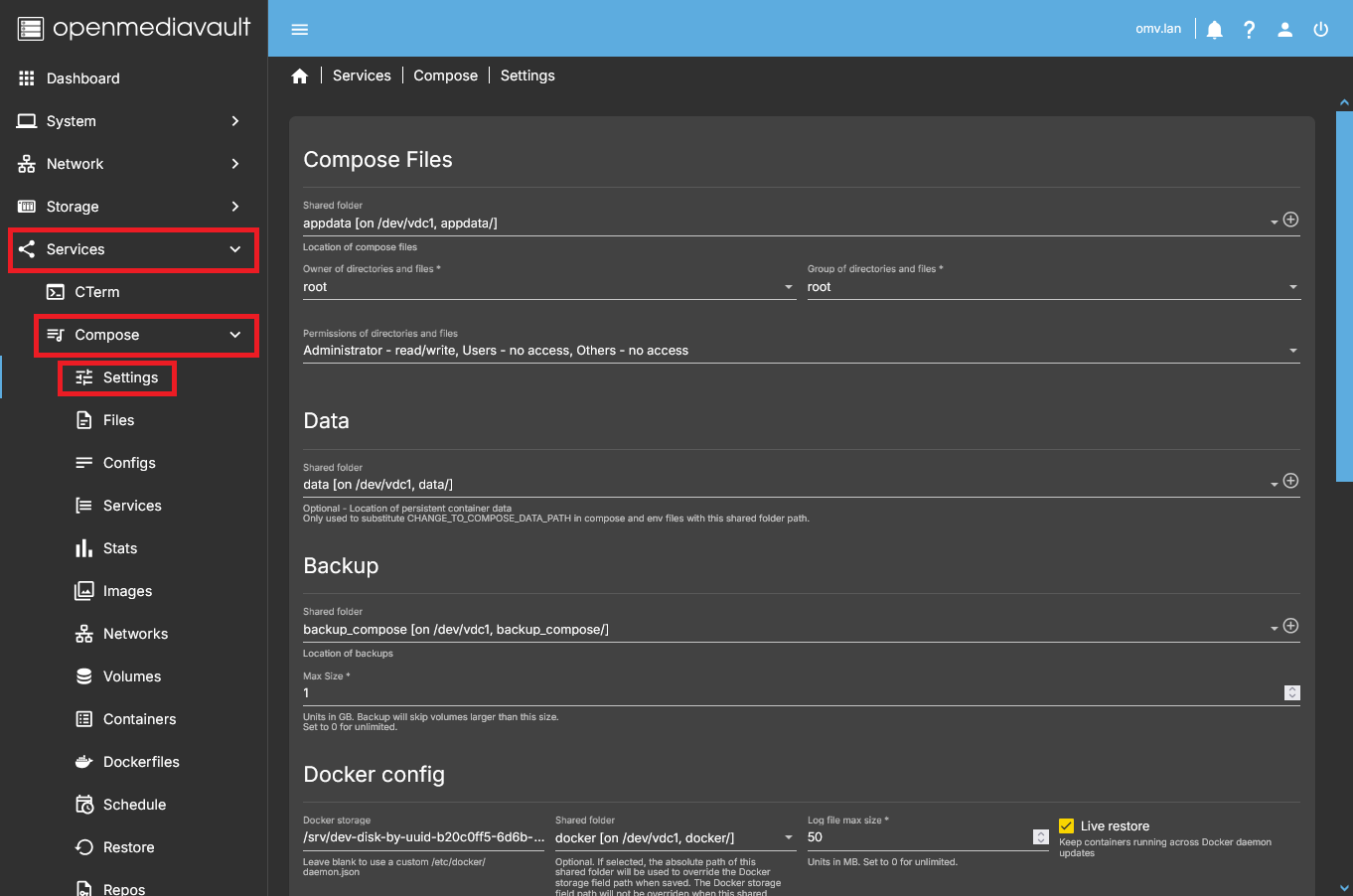
This tab contains the general configuration options of the openmediavault-compose plugin.
From here, you can define the folders used by the plugin, configure backup behavior, and manage Docker-related settings.
Go to → Services > Compose > Settings
Changes made in this tab are applied using the Save button.
Compose Files
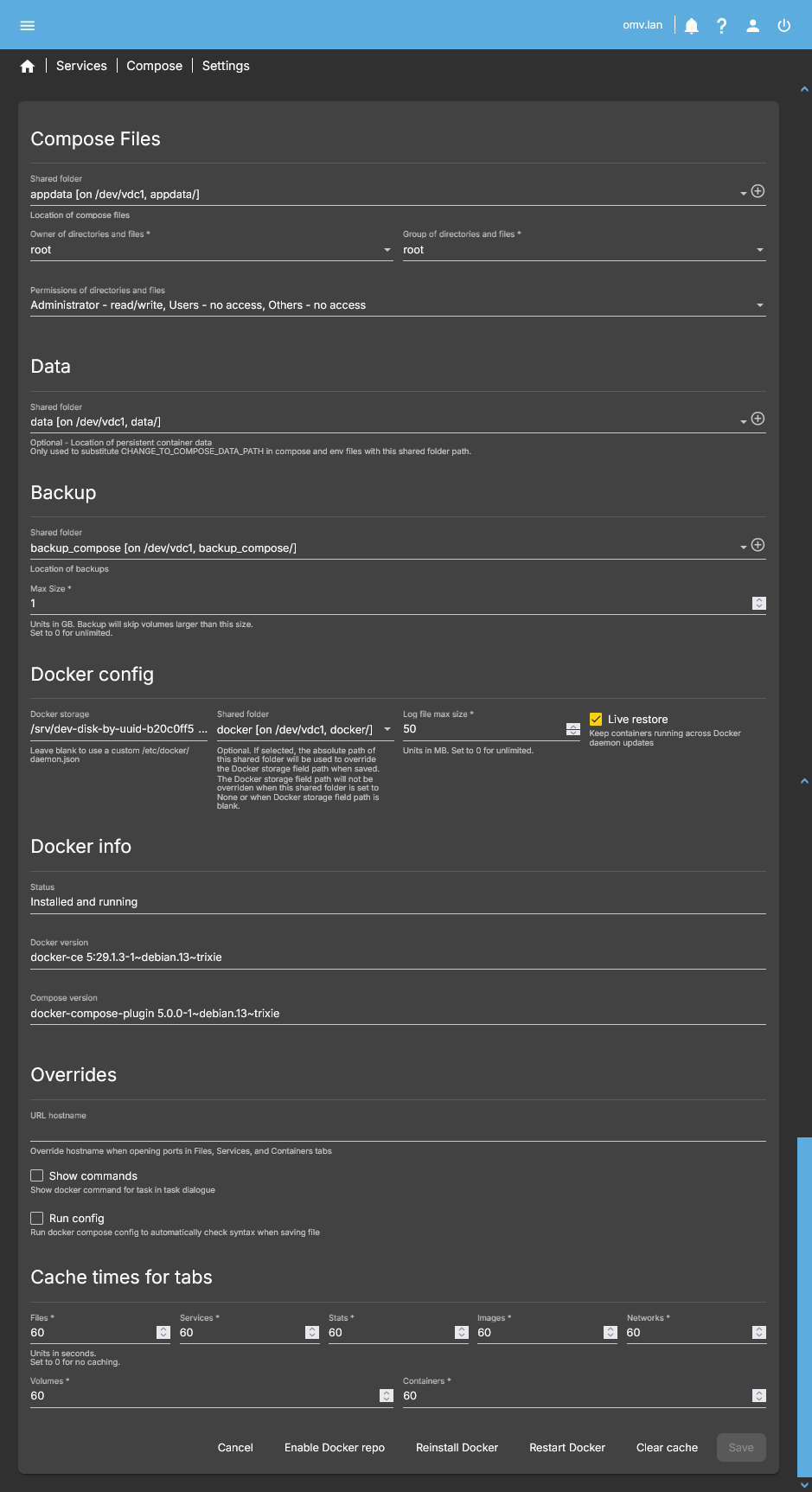 Define the folder where the plugin will store container configuration files, including Docker Compose files (
.yaml) and environment files (.env).
- Shared Folder
- Select the shared folder where compose files will be stored.
- Choose an existing folder or create a new one by pressing the “+” button.
- This folder will serve as the root for all container subfolders.
- Owner of Directories and Files
- Set the system user that will own all files and folders created by the plugin.
- Default: root.
- Keep root ownership unless specific user requirements exist.
- Group of Directories and Files
- Set the system group that will own all files and folders created by the plugin.
- Default: root.
- Permissions of Directories and Files
- Define default permissions for all files and folders created by the plugin.
- Default: read and write for the administrator (owner), no access for group and others.
- These permissions do not affect subfolders corresponding to volumes with relative paths.
- Notes
- The plugin creates a subfolder for each container inside the selected shared folder.
- Compose files and environment files for each container are stored inside their respective subfolders.
- Ensure that the selected shared folder has enough space for all container configurations and environment files.
Data
Define a shared folder used as a global data path.
- Shared Folder
- Select a shared folder to serve as the global data path.
- Notes
- The value configured here is used when the special string CHANGE_TO_COMPOSE_DATA_PATH is referenced in any compose file.
- This mechanism behaves like a global environment variable and allows compose files to reference a common data location without hardcoding paths.
- The plugin's sample compose files use this variable, so configure this field if you want the sample files to work immediately.
Backup
Configure the plugin's schedulable backup system.
- Included by Default
- All subfolders inside the Compose Files folder
- Compose files (
.yamland.env) - Volumes defined using relative paths
- Volumes not marked as read-only (
:ro) in the compose files - Volumes larger than 1 GB are excluded by default
- Shared Folder
- Set the destination folder for backups.
- Max Size
- Define the maximum size of volumes to include in backups.
- Default: 1 GB
- Set to 0 for unlimited size
- Volume Customization
- Add
# BACKUPat the end of a volume line in a compose file to force inclusion in the backup. - Add
# SKIP_BACKUPat the end of a volume line to exclude it from the backup.
Docker
Configure Docker-specific settings used by the plugin.
Docker Storage
- Docker Storage
- Define the absolute path used by Docker to store its internal data (images, containers, layers, etc.).
- Default: `/var/lib/docker`
- Changing this location allows storing Docker data outside the OMV system disk.
- Avoid using symbolic links.
- Shared Folder
- Selecting a shared folder here automatically populates the Docker Storage field with the corresponding absolute path.
| Note | |
|
NVIDIA Containers If using NVIDIA drivers inside containers (e.g., Plex or Jellyfin hardware transcoding), leave this field empty. Changing the storage path in this case can corrupt the NVIDIA configuration during OMV reconfiguration. | |
Log File Max Size
- Log File Max Size
- Define the maximum size of Docker container log files.
- Default: 50 MB
- Set to 0 for unlimited size
- This setting affects Docker’s internal logs only; it does not control application-level logs inside containers.
Live Restore
- Live Restore
- Enable or disable Docker’s live restore feature.
- When enabled, containers continue running when the Docker daemon is restarted.
- Disabling this restores Docker’s default behavior (containers stop and restart with the daemon).
Overrides
Adjust plugin behavior for advanced use or debugging.
- URL Hostname
- Override the hostname used when opening URLs for services, files, or containers in the OMV GUI.
- Example: override `omv.local` with `my-server.dyndns.org`.
- Does not change container or Docker configuration; only affects plugin-generated URLs.
- Show Commands (disabled by default)
- Display the exact Docker command executed by the plugin for any action.
- Useful for advanced users or debugging.
- Run Config (disabled by default)
- Automatically check the syntax of Docker Compose files when saving.
- Executes the standard `docker compose config` command internally.
- Notes
- Both Show Commands and Run Config are optional and primarily for advanced users.
- Leaving them disabled does not affect normal container creation or management.
Cache Times for Tabs
Configure caching behavior of the plugin’s GUI to improve performance.
- Available Tabs
- Files – caches file and folder information from containers
- Services – caches status and configuration of running services
- Stats – caches container resource usage (CPU, memory, network)
- Images – caches Docker image information
- Networks – caches Docker networks
- Volumes – caches Docker volumes
- Containers – caches container list and status
- Configuration
- Enter cache duration in seconds for each tab.
- Default: 60 seconds
- Set to 0 to disable caching (always fetch fresh data)
- Notes
- Increasing cache times improves GUI responsiveness on systems with many containers, images, or volumes.
- Reducing cache times (or setting 0) ensures up-to-date information but may slow down the interface.
Action Buttons (Bottom Bar)
From left to right:
- Cancel
- Discard changes and revert to previous configuration.
- Enable Docker Repo
- Activate the Docker repository from this tab.
- Useful to avoid navigating to the OMV-Extras tab.
- Reinstall Docker
- Reinstall Docker to apply configuration changes or resolve issues.
- Restart Docker
- Restart the Docker service without affecting the system or other OMV services.
- Save (green highlight when changes detected)
- Save all modified parameters in the tab.
- Must be pressed to apply changes.
- Highlighted in green when unsaved changes exist.
Files Tab
The Files tab is the compose file management interface of the openmediavault-compose plugin.
From this tab you can create, edit, delete and manage Docker Compose configuration files (.yaml) and environment files (.env) used to deploy and control containers.
All files created or imported here are stored in subfolders inside the shared folder defined in Settings → Compose Files.
Actions performed in this tab apply to all containers defined in the selected compose file.
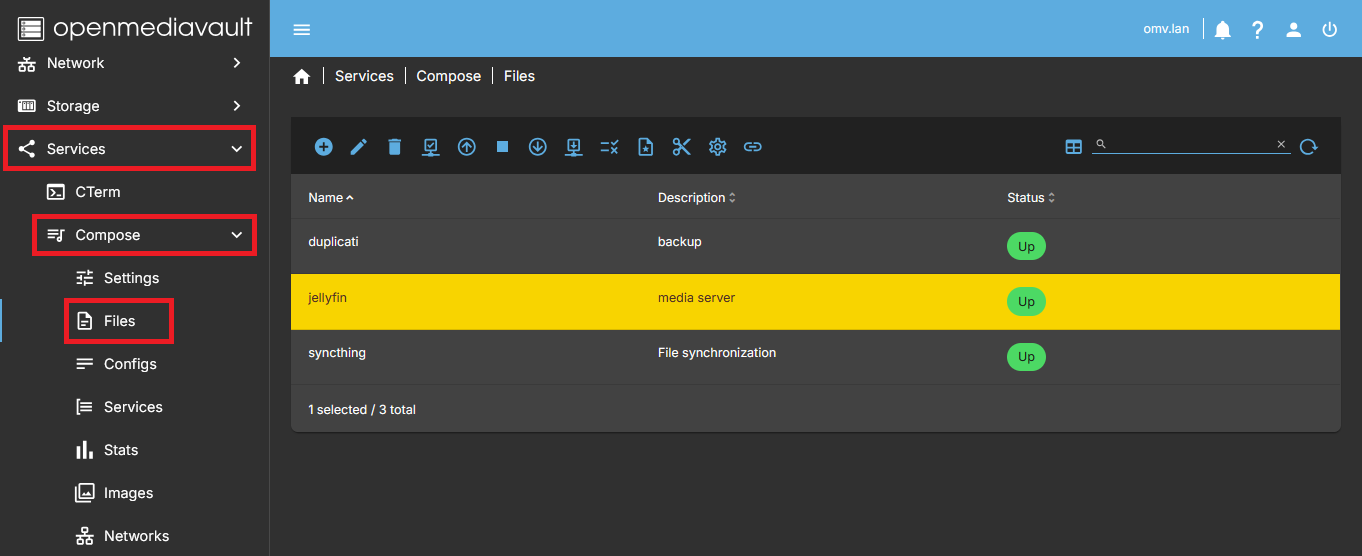
Overview
- The file list displays all existing compose configurations.
- Selecting a file enables the action buttons in the top toolbar.
- Each compose file represents one or more containers managed together as a single project.
- Actions such as Up, Down, Stop, Pull, etc. affect all containers defined in that file.
Creation and import (+)
The + button groups all actions related to creating or importing compose files.
Add
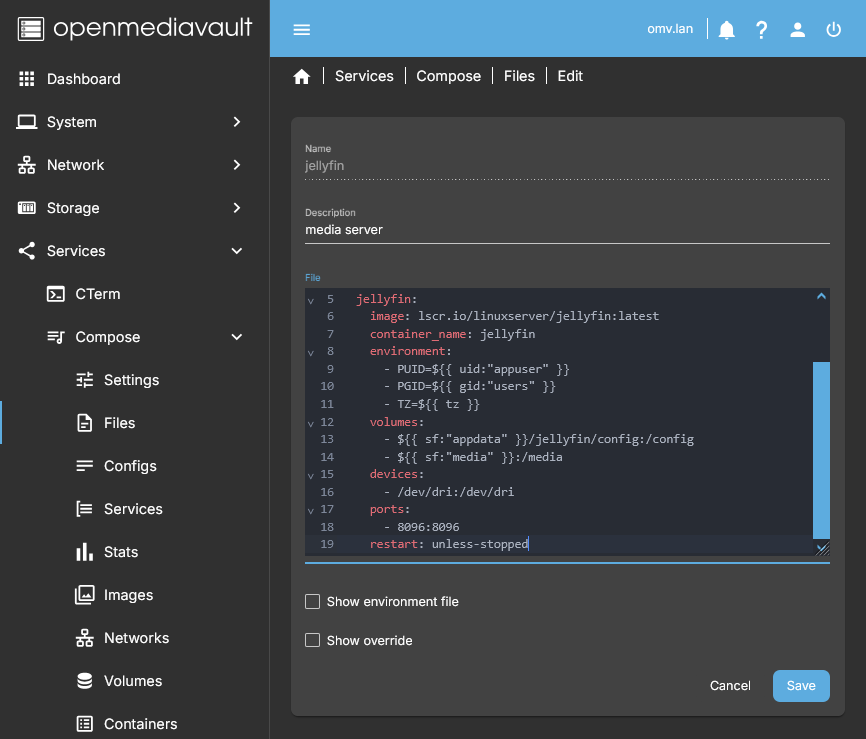 Creates a new Docker Compose file from scratch.
- Name
- Name used to identify the compose configuration.
- A subfolder with this name will be created automatically.
- Description
- Optional description to help identify the configuration.
- File
- Paste or write the Docker Compose YAML configuration.
- Environment
- Paste or write the environment variables file (
.env). - Save
- Creates the subfolder and stores the
.yamland.envfiles. - The new entry appears in the file list.
- Cancel
- Exit without saving changes.
Add from example
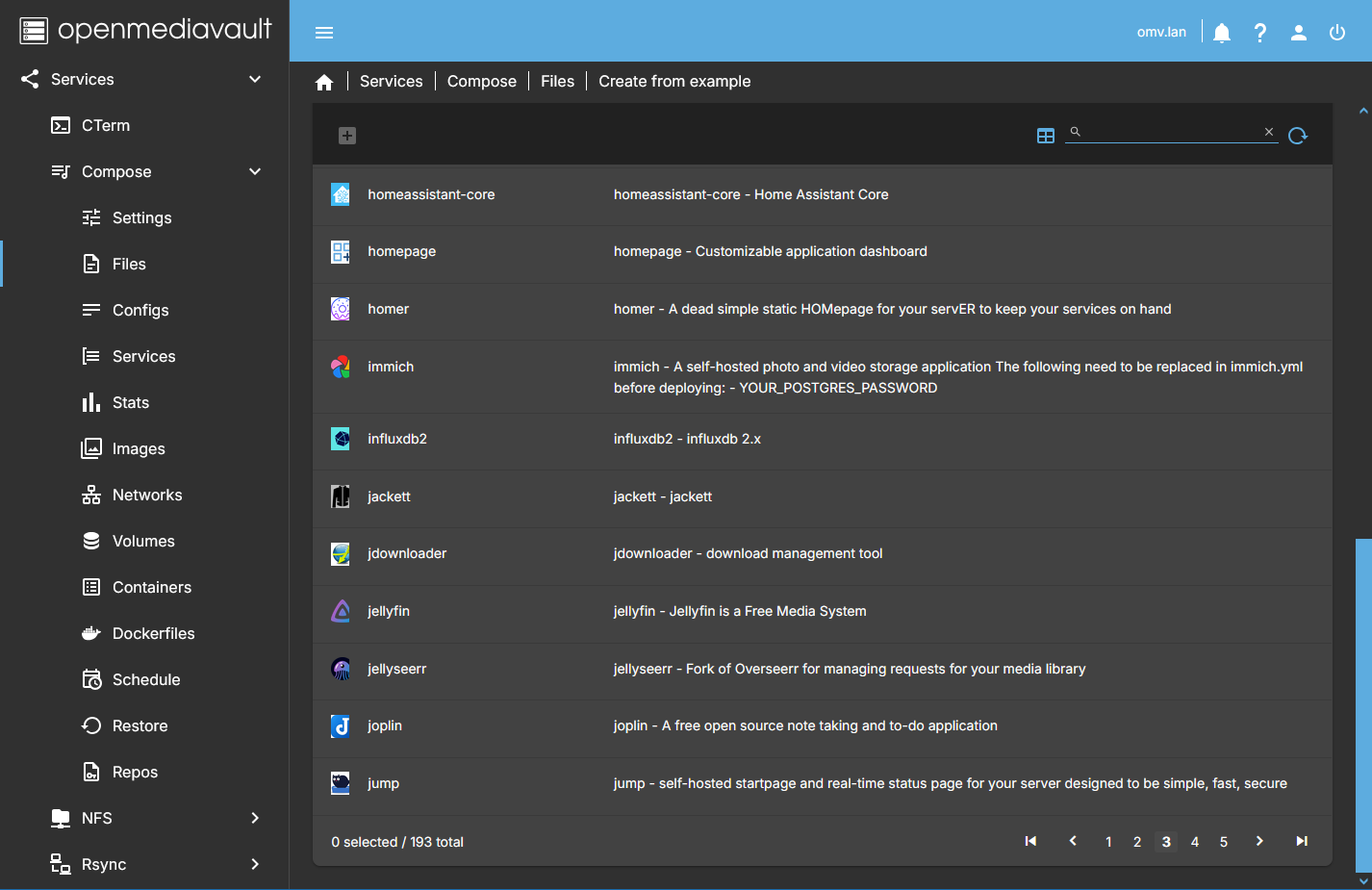 Create compose files from predefined examples included with the plugin.
- Example
- Select a predefined compose template.
- Name
- Name of the new compose configuration.
- Description
- Optional description.
- Save
- Copies the example files so they can be edited and adapted.
- Cancel
- Exit without saving.
| Note | |
| One of the available examples creates a Composerize container, which can generate compose files from Docker CLI container commands. | |
Add from URL
Create a compose configuration by downloading a file from a remote URL.
Only trusted sources should be used.
- URL
- URL of the compose file to download.
- Name
- Name of the new configuration.
- Description
- Optional description.
- Save
- Downloads and creates the compose configuration.
- Cancel
- Exit without saving.
Autocompose
Generate compose files from existing containers that were created outside the plugin.
Use this feature only when necessary. The generated files are usually larger and less clean than manually written compose files.
Useful when the original compose configuration has been lost.
- Container
- Select a running container to import.
- Name
- Name of the new compose configuration.
- Description
- Optional description.
- Version
- Docker Compose file version to use.
- Create
- Generates the
.yamland.envfiles.
- Cancel
- Exit without saving.
Import
Import existing compose configurations into the plugin.
- Enter the path to a folder containing compose subfolders.
- Each compose configuration must follow this structure:
- compose_files
- example1
- example1.yml
- example1.env
- example2
- example2.yml
- example2.env
- Click Create to import.
Import one
Imports a single Docker Compose file. Useful when testing or migrating an individual compose file without importing a full directory.
Sync changes from file
Reloads the compose file from disk and synchronizes external changes with the plugin state. This is useful when the file has been modified outside the GUI (for example via CLI, git pull or an external editor).
File management
Edit
Edit the .yaml and .env files of the selected configuration.
The editor window is identical to the Create dialog.
Delete
Delete the selected compose configuration.
- Removes the configuration entry.
- Deletes the corresponding subfolder and its files.
Validation and status
Check
Validate the syntax of the selected compose file.
- Reports configuration errors if detected.
- Errors shown in red can be copied from the OMV notifications panel.
Recommended before starting containers.
Ps
Displays the current status of containers associated with the selected compose file.
Container lifecycle
Up
Start all containers defined in the selected compose file.
- Downloads required images if they are not present.
- Creates and starts the containers.
Stop
Stop all containers defined in the selected compose file.
Useful for troubleshooting or inspecting container output.
Down
Stop and remove all containers defined in the selected compose file.
Pull
Download the latest available images for the selected compose file.
- Existing images are not removed automatically.
- Old images can be removed using Prune.
Global environment variables
Edit global environment file
Define global environment variables available to all compose files.
Example variable definition:
MYPUID=1000
Usage inside a compose file:
- PUID=${MYPUID}
Docker will substitute the value when the container starts:
- PUID=1000
These variables are available to all compose files managed by the plugin.
Cleanup (Prune)
The Prune button groups several cleanup actions into a submenu.
System
Performs all prune actions at once.
Container
Removes stopped containers.
Image
Removes unused container images.
Network
Removes unused Docker networks.
Volume
Removes unused Docker volumes.
Tools
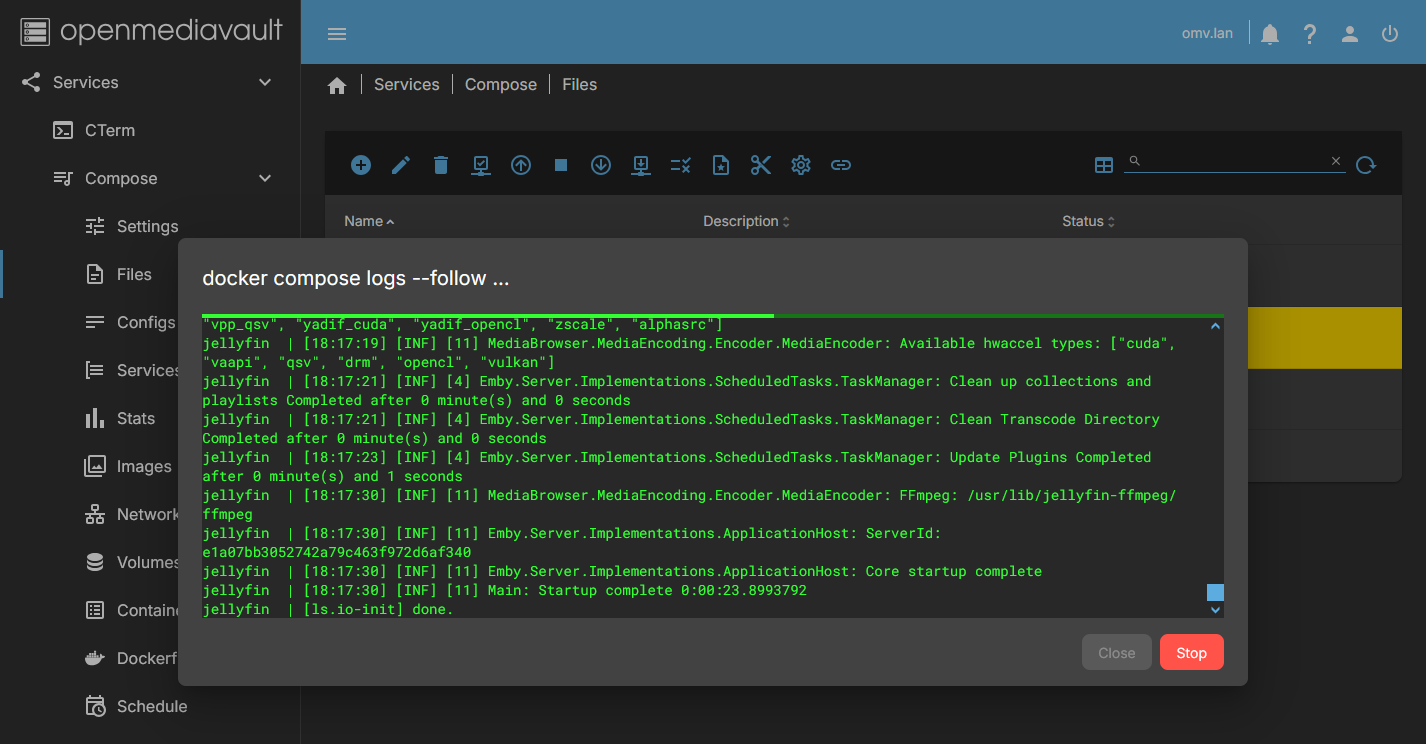 The Tools menu provides advanced utilities for logs, deployment and configuration management.
Logs
Displays container logs.
Follow logs
Shows container logs in real time.
Download logs
Downloads container logs to a file.
Build
Builds images defined in the compose file.
Pull and build
Pulls images and then builds them.
Up and remove orphans
Starts containers and removes orphan containers not defined in the compose file.
Down and remove orphans
Stops containers and removes orphan containers.
Down all
Stops and removes all containers managed by the plugin, regardless of compose file. This is an advanced operation and should be used with caution.
Init git repo
Initializes a git repository in the compose files directory.
Show file changes
Shows changes made to compose files compared to the git repository state.
Show global.env changes
Shows changes made to the global environment file.
Docs
The Docs menu provides quick access to documentation.
Docker compose
Opens this documentation.
Docker in OMV
Open the Docker in OMV document on this wiki.
Configs Tab
 The Configs tab allows you to manage Docker configs used by compose files.
Docker configs are external configuration files managed by Docker and mounted into containers at runtime.
They are typically used to provide application configuration files (for example: nginx.conf, app.conf, config.json) without embedding them directly inside the compose file.
This tab is intended for advanced users and is optional for most container deployments.
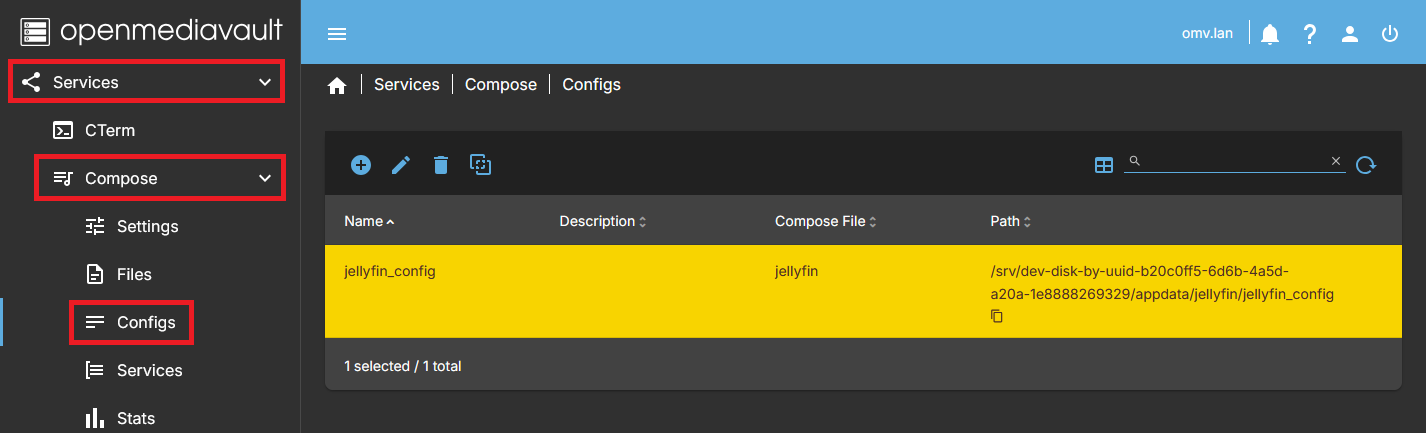
Overview
- Configs are not Docker Compose files.
- They do not define or start containers by themselves.
- A config is always associated with a specific compose file.
- Configs can be referenced inside compose files using the standard Docker Compose
configs:directive. - This feature is similar to Docker secrets, but configs are not encrypted.
Creation and import (+)
The “+” button groups all actions related to creating or importing Docker configs.
Add
Creates a new Docker config file.
The dialog contains the following fields:
- Filename
- Name of the configuration file.
- This must be a filename only, not a path.
- Example:
nginx.conf
- Description
- Optional description to help identify the config.
- Compose File
- Select the compose file this config belongs to.
- The config file will be created inside the directory of the selected compose file.
- Body
- Contents of the configuration file.
- Plain text editor where the configuration data is entered.
- Save
- Creates the config file and associates it with the selected compose file.
- Cancel
- Exit without saving changes.
Import
Imports an existing configuration file as a Docker config.
Useful when migrating from an existing setup or when the configuration file already exists on disk.
Management
Edit
Edit the contents of the selected config file.
Delete
Delete the selected config file.
- The config will no longer be available to the associated compose file.
Show config changes
Displays changes made to config files.
This is particularly useful when working with git integration or when tracking manual edits to configuration files.
Usage in Compose Files
Docker configs managed in this tab can be referenced inside compose files using the standard Docker Compose syntax.
This allows configuration files to be mounted into containers at runtime without hardcoding their contents directly in the compose file.
Workflow:
- A config file is always associated with a specific Compose file.
- When you create or import a config in the GUI, it is stored in the same folder as the Compose file.
- In your Compose file, you can reference the config using its filename only, no absolute path needed.
- This allows you to keep all container configuration files in one place, simplifying management and avoiding repetitive CLI bind-mounting.
Example:
- You create mosquitto.conf in the Configs tab and associate it with docker-compose.yml.
- The plugin stores mosquitto.conf in the same folder as the compose file.
- In docker-compose.yml, mount it like this:
services:
  mosquitto:
    image: eclipse-mosquitto
    volumes:
      - .mosquitto.conf:/mosquitto/config/mosquitto.conf:ro
Key points:
- Configs cannot be created outside the compose folder.
- This workflow saves CLI steps and keeps configuration files organized and easy to find.
- Recommended for users who want to manage container configs without hardcoding paths or moving files manually.
Services Tab
The Services tab displays services generated by Docker containers managed by the openmediavault-compose plugin.
Each entry represents a service exposed by a container, typically corresponding to an application or web interface.
The Ports column shows clickable links that allow direct access to the web interface provided by each service.
Selecting a service enables the action buttons in the top toolbar.
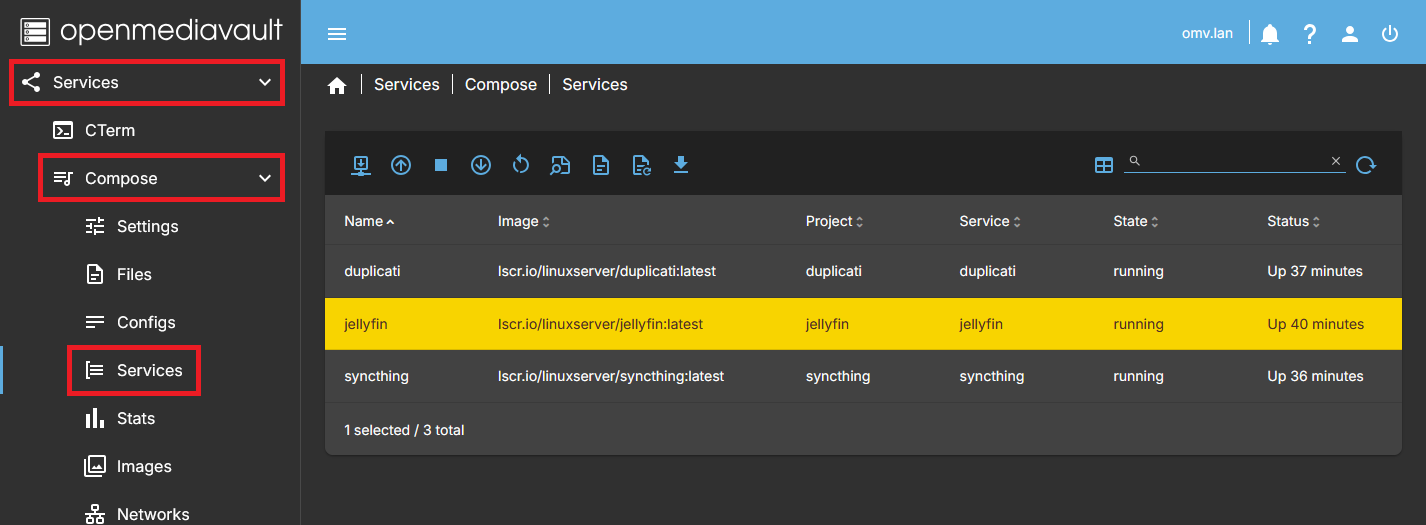
Overview
- Each row represents a service exposed by a container.
- Services are derived from running containers.
- Actions performed here affect the container providing the selected service.
- This tab focuses on service-level management rather than compose file management.
Pull
Downloads the latest available image for the container associated with the selected service.
This does not restart or recreate the container automatically.
Up
Recreates and starts the service using the currently available image.
Typically used after pulling a newer image.
Stop
Stops the container providing the selected service.
Down
Stops and removes the container providing the selected service.
The container can later be recreated using the Up action.
Restart
Restarts the container providing the selected service without removing it.
Useful for applying configuration changes that do not require container recreation.
Inspect
Displays detailed Docker inspection information for the container providing the selected service.
Includes configuration, mounts, network settings and runtime status.
Logs
Displays the log output of the selected service up to the moment the action is executed.
Follow Logs
Displays the log output of the selected service in real time.
New log entries will continue to appear as they are generated.
Download Log
Downloads the log output of the selected service to a file.
Useful for offline analysis or for sharing logs when requesting support.
Notes
- Actions in this tab operate on individual services, not on entire compose files.
- For bulk container management or stack-level operations, use the Files tab.
- Service actions here map directly to Docker container operations.
Stats Tab
The Stats tab displays a list of running containers along with real-time information about resource usage.
This includes CPU, memory, network and disk I/O statistics provided by Docker.
Selecting a container enables the action buttons in the top toolbar.
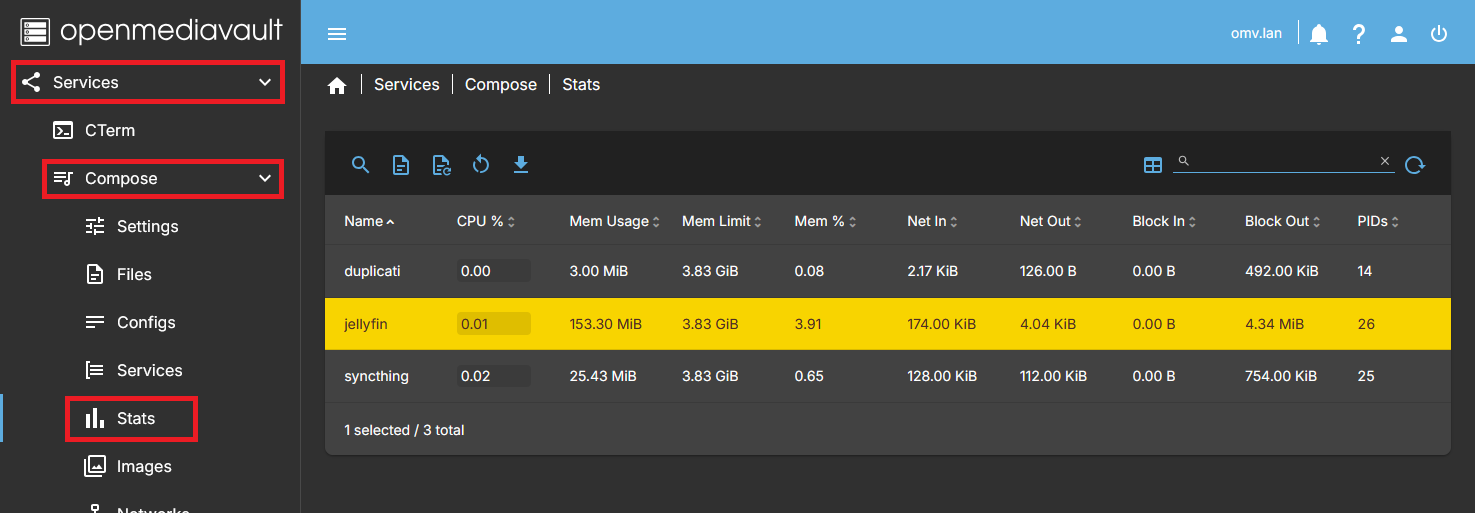
Overview
- Each row represents a running container.
- Resource usage data is refreshed periodically.
- This tab is intended for monitoring and quick troubleshooting.
- Actions performed here apply to the selected container only.
Inspect
Displays detailed information about the selected container using Docker inspect.
Includes configuration, mounts, network settings, environment variables and runtime state.
Activated when selecting a container.
Logs
Displays the log output of the selected container up to the moment the action is executed.
Activated when selecting a container.
Follow Logs
Displays the log output of the selected container in real time.
New log entries will continue to appear as they are generated.
Activated when selecting a container.
Restart
Restarts the selected container.
Useful to quickly apply changes or recover from temporary issues without recreating the container.
Activated when selecting a container.
Download Logs
Downloads the log output of the selected container to a file.
Useful for offline analysis or when attaching logs to a support request.
Activated when selecting a container.
Notes
- The Stats tab focuses on monitoring and container-level actions.
- For service-oriented actions, use the Services tab.
- For stack or compose-file-level operations, use the Files tab.
Images Tab
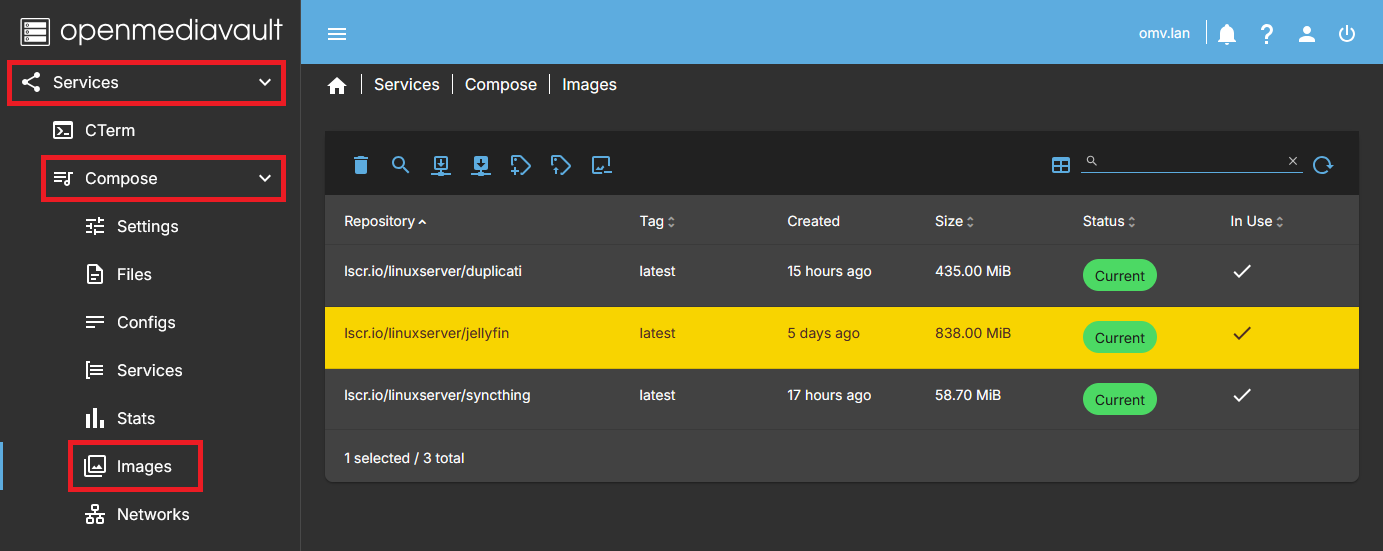
Shows existing images on the system and allows you to manage them.
Selecting an image activates the action buttons on the top bar.
Delete
Deletes the selected image if it is not currently in use. If the image is in use, an error is returned and the image is not removed.
Inspect
Displays detailed information about the selected image.
Pull image
Downloads the latest version of the selected image from the configured repository.
Pull image + tag
Downloads a specific tagged version of the selected image from the repository.
Tag
Assigns a new tag to the selected image. Useful for versioning or preparing to push the image to a repository.
Push
Uploads the selected image to a remote Docker repository using its assigned tag.
Prune images
Cleans up unused images from the system. Removes images that are not currently used by any container to free disk space.
Networks Tab
Shows existing networks on the system and allows you to manage them.
Selecting a network activates the action buttons on the top bar.
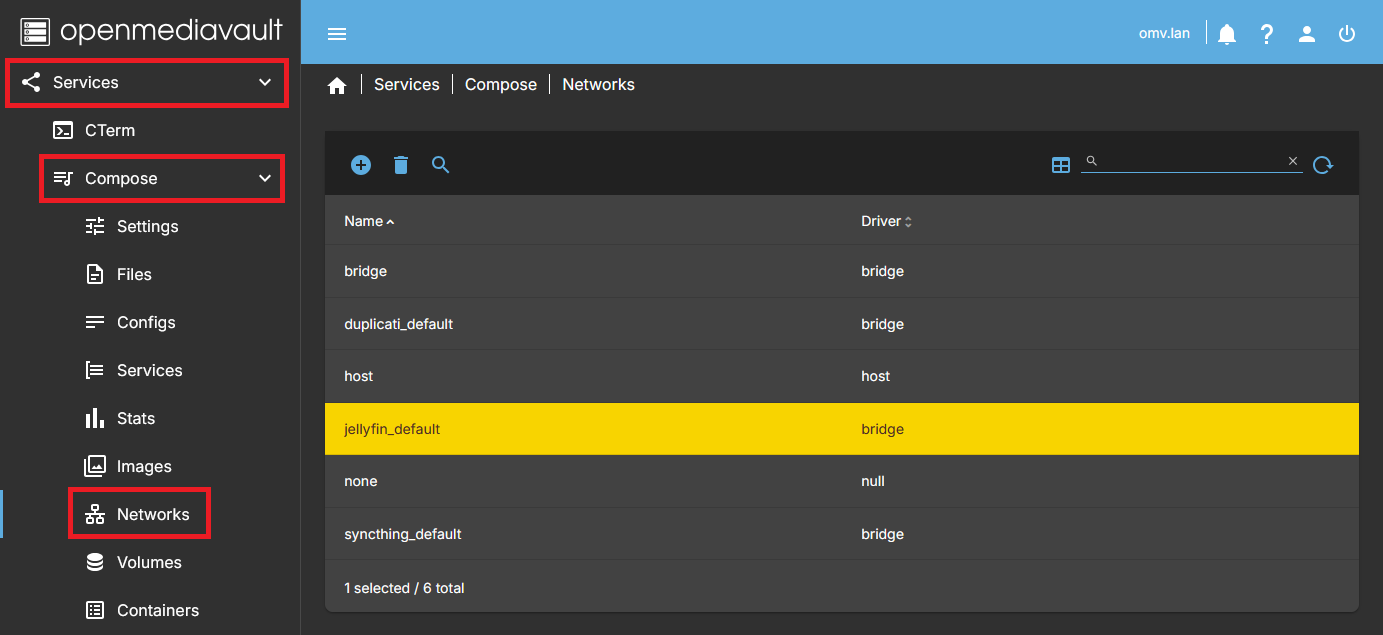
Create
Opens a dialog to create a custom network interface.
- Name
- Type the name of the network interface.
- Driver
- Choose the network driver type (bridge, overlay, macvlan, etc.).
- bridge – standard network bridge.
- ipvlan – network interface with minimal overhead, useful for assigning multiple IPs.
- macvlan – assign a MAC address to each container; allows containers to appear as separate devices on the LAN.
- overlay – network for multi-host container communication.
- Parent Network (only for macvlan)
- Select the physical network interface on the host that will act as the parent for the macvlan network.
- Subnet
- Define the subnet in CIDR notation (e.g., 172.20.0.0/16).
- Gateway
- Specify the gateway IP address (e.g., 172.20.0.1).
- IP Range
- Optional range for container IP allocation (e.g., 172.20.10.128/25).
- Aux Address
- Optional static IP assignments in the format `name=ip`.
- Comma separate multiple entries (e.g., `my-router=192.168.10.5,my-nas=192.168.20.6`).
- Save
- Creates the network with the defined parameters.
- Cancel
- Exit without creating a network.
Delete
Deletes the selected network interface.
Inspect
Displays detailed information about the selected network interface.
Volumes Tab
Shows existing volumes on the system and allows you to manage them.
Selecting a volume activates the action buttons on the top bar.
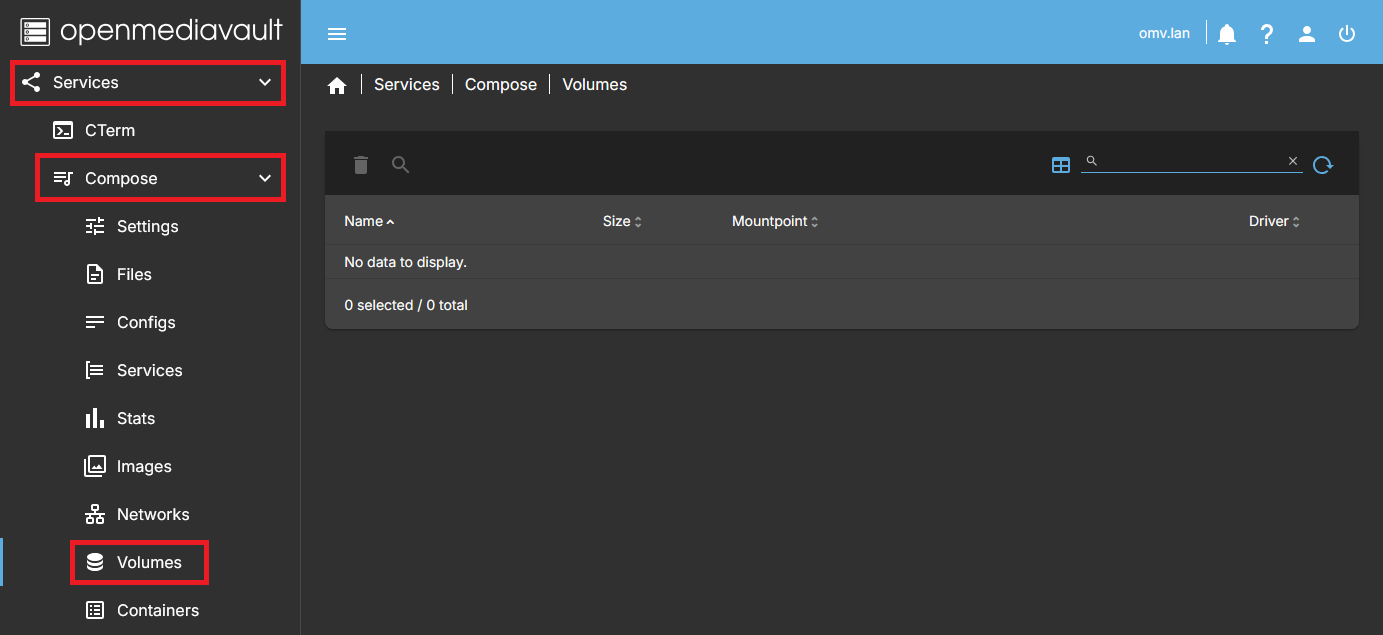
Delete
Deletes the selected volume.
Inspect
Displays detailed information about the selected volume.
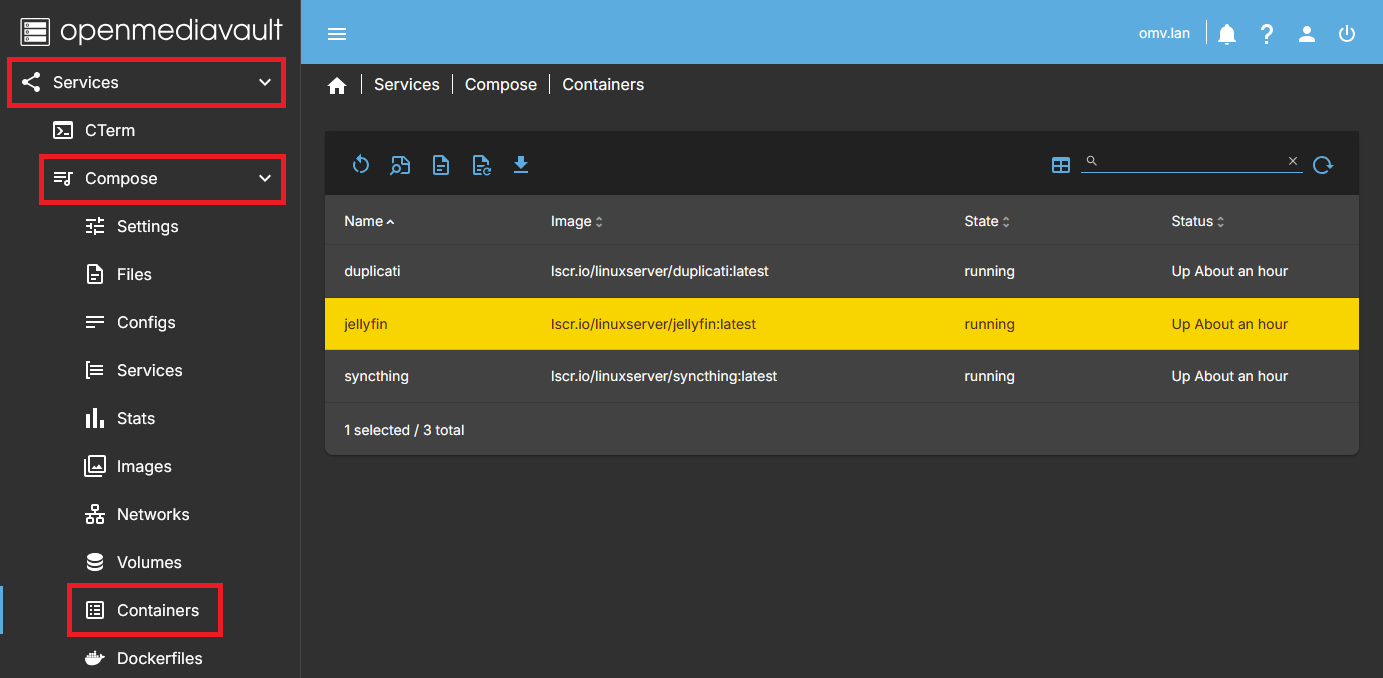
Containers Tab
Shows a list of running containers displaying basic execution data.
Selecting a container activates the action buttons on the top bar.
Actions in this tab apply only to the selected container, even if the yaml file defines multiple containers.
The Ports column provides links to access the GUI of each container via its port and the server’s domain. Ensure your router/DNS system allows proper resolution of these domain names.
Restart
Restarts the selected container.
Activated when selecting a container.
Inspect
Displays detailed information about the selected container.
Activated when selecting a container.
Logs
Displays the logs of the selected container up to this point.
Activated when selecting a container.
Follow logs
Shows continuous logs of the selected container in real time.
Activated when selecting a container.
Download log
Downloads the log file of the selected container to the local system.
Activated when selecting a container.
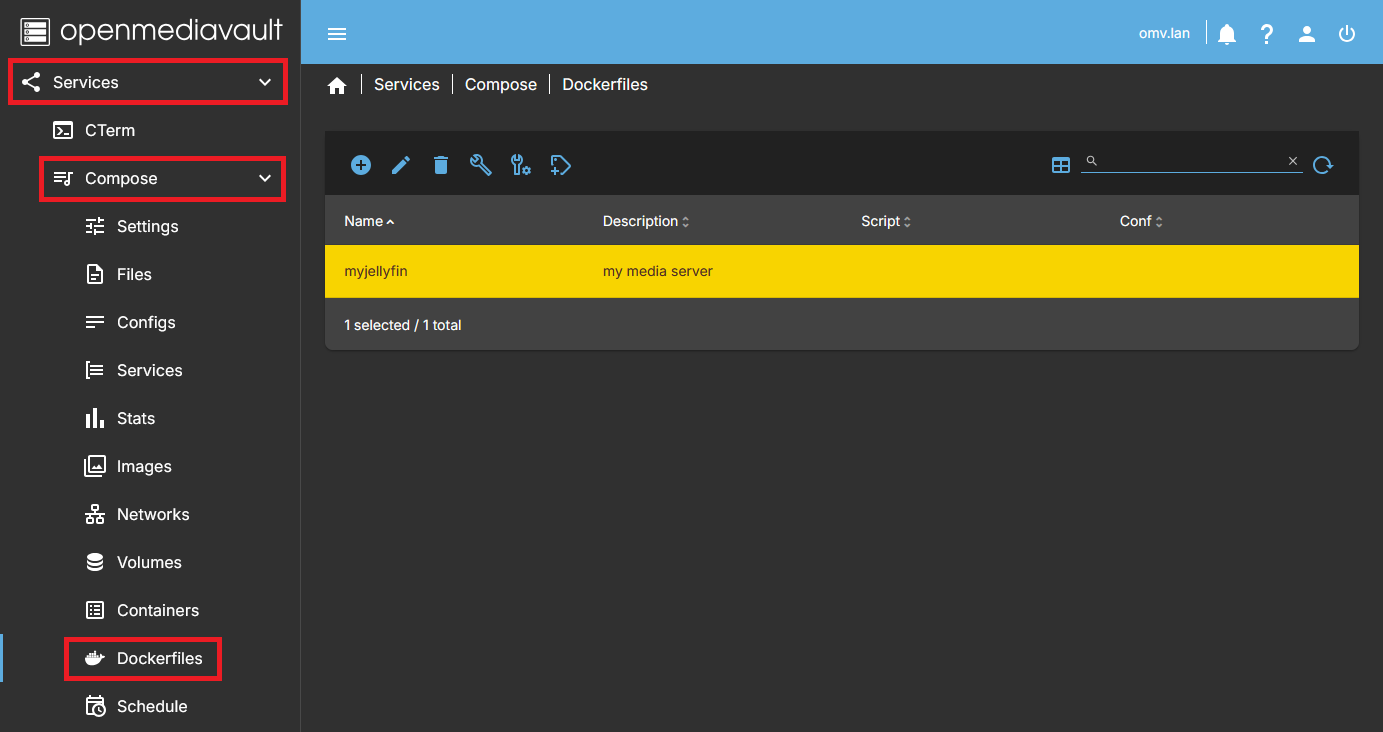
Dockerfiles Tab
This is the Dockerfiles management tab for creating container images.
From this tab you can create, edit, delete, build, and manage Dockerfiles.
All files generated here are stored in subfolders inside the shared folder defined in Settings → Compose Files.
Selecting a Dockerfile activates the action buttons on the top bar.
Create
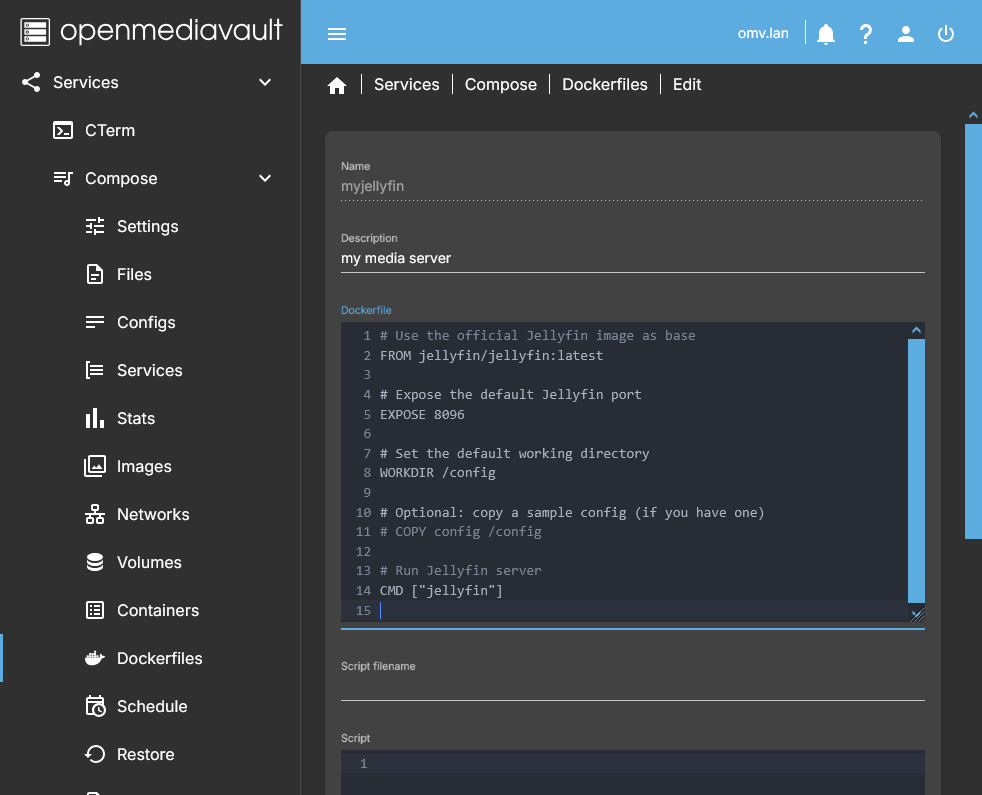 Creates a new Dockerfile to generate a container image.
- Name
- Name to identify the Dockerfile.
- Description
- Optional description to help identify the Dockerfile.
- Dockerfile
- Paste or write the Dockerfile content.
- Script filename
- Name of an optional script to call the Dockerfile.
- Script
- Paste or write a script to run the Dockerfile if required.
- Conf filename
- Name of an optional configuration file.
- Conf file
- Paste or write environment parameters to include in the image.
- Save
- Creates the subfolder and stores the files.
- Cancel
- Exit without saving.
Edit
Allows editing the selected Dockerfile, script, and conf files.
Activated when selecting a Dockerfile.
Delete
Deletes the selected Dockerfile.
Also removes the corresponding subfolder and all related files.
Activated when selecting a Dockerfile.
Build
Builds the image using the selected Dockerfile.
- If the base image is not present, it will be pulled from the internet.
- Modified images will be created according to the Dockerfile instructions.
Activated when selecting a Dockerfile.
Pull and build
Builds the image like Build, but always pulls the base image from the internet even if it exists locally.
Activated when selecting a Dockerfile.
Tag
Allows tagging the selected image with a custom name.
Activated when selecting a Dockerfile.
Schedule Tab (Updates and Backups)
This tab manages the utility that allows you to perform plugin backups and/or container image updates. It displays a list of scheduled jobs.
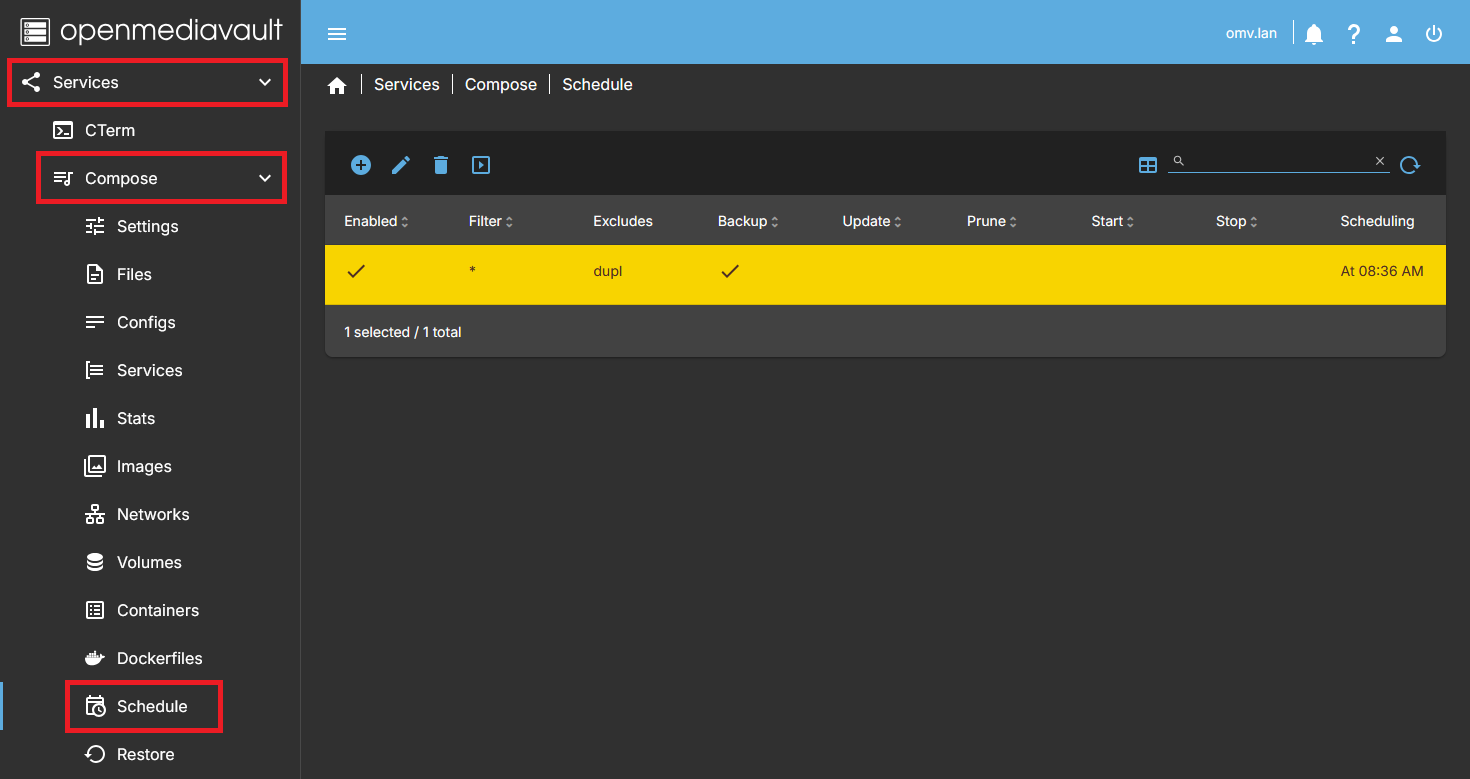
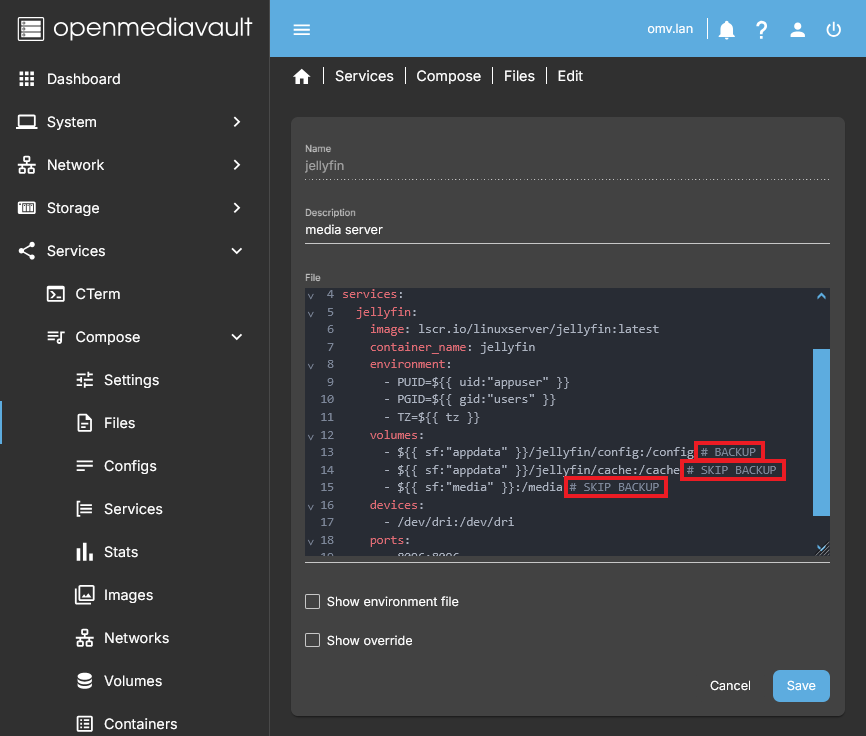 By default, backups include all subfolders containing generated compose files. These subfolders are created automatically every time a compose file is generated via the GUI.
Additionally, volumes defined in each container that are smaller than 1GB will be included in the backup. This threshold can be customized in the Settings Tab.
You can manually include or exclude volumes:
- To force a volume to be included in the backup, append
# BACKUPat the end of the volume definition. Volumes under 1GB (or the custom threshold) are included automatically.- Volumes with
:rowill never be included.
- To force a volume to be excluded, append
# SKIP_BACKUPat the end of the volume definition. Volumes above the threshold are excluded automatically if not marked.
Backup process:
- Stops running containers.
- Copies files via rsync to the backup folder defined in Settings.
- Existing backup is overwritten.
- For versioned backups, use an external backup application after this copy.
- Restarts containers that were running before the backup; stopped containers remain stopped.
- Copies the global environment variables file ('global.env') to the backup folder.
Update process:
- Downloads container images included in the compose file.
- Recreates containers with the updated images if they were running.
| Note | |
| The advantage of the plugin's backup utility is that it stops containers before performing the backup, ensuring consistency. Afterward, you can use any specialized backup solution for versioning, deduplication, etc. Running backups while containers are active may produce inconsistent results. | |
Create
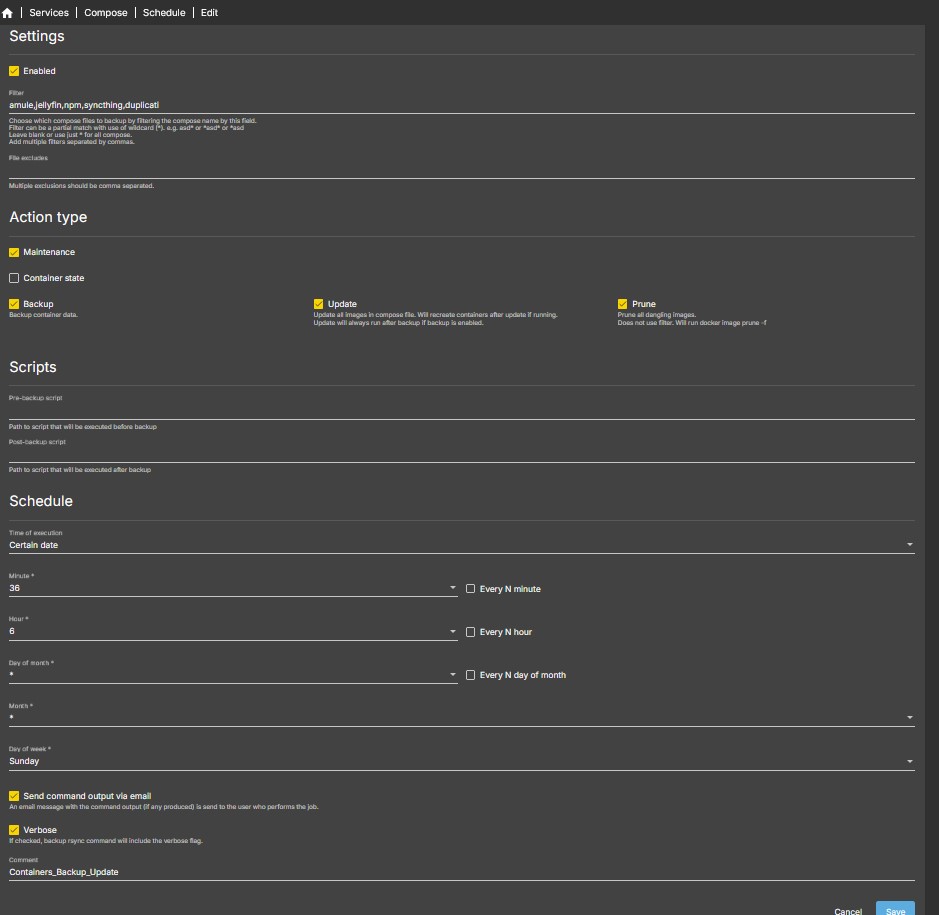 Opens a dialog to schedule container backup and/or update jobs.
Settings
- Enabled
- Enables or disables the scheduled job.
- If disabled, the job will not run automatically but can still be executed manually.
- Filter
- Choose which compose files are affected by this job by filtering their names.
- Supports partial matches and wildcards (*).
- Examples:
asd*,*asd*,*asd
- Leave blank or use
*to include all compose files. - Multiple filters can be specified, separated by commas.
- File excludes
- Defines files or paths to exclude from the scheduled action.
- Multiple exclusions must be comma separated.
Action Type
Defines the type of action performed by the scheduled job.
- Maintenance (enabled by default)
- Enables maintenance-related tasks such as backup, update, and prune.
- Container state (disabled by default)
- Enables scheduled start or stop operations for containers (described in a separate section below).
Maintenance options
(Available when Maintenance is selected)
- Backup (enabled by default)
- Performs a backup of container data as described in this tab.
- Stops running containers before backup and restarts them afterward.
- Update
- Updates all images defined in the selected compose files.
- Containers will be recreated after the update if they were running.
- If Backup is also enabled, backup will always run first.
- Prune
- Removes all dangling Docker images.
- Does not use filters.
- Executes the command:
docker image prune -f
Scripts
Allows execution of custom scripts before and/or after the maintenance task.
- Pre-backup script
- Path to a script executed before the scheduled task starts.
- Post-backup script
- Path to a script executed after the scheduled task finishes.
Schedule
Defines when and how the task is executed.
- Configure date and time using the standard OMV scheduling options.
- For example, the attached screenshot will backup all containers on Sundays at 8:36 AM. and will send an email with the result of the backup.
- Jobs can be scheduled to run periodically (daily, weekly, monthly, etc.).
- Send command output via email
- Sends an email containing the command output (if any) to the user who created the job.
- Verbose
- Enables verbose output for the backup rsync command.
- Useful for detailed logging and troubleshooting.
- Comment
- Optional descriptive note.
- Displayed in the GUI to help identify the scheduled job.
At the bottom of the dialog:
- Save
- Stores the scheduled job with the defined configuration.
- Cancel
- Exits the dialog without saving changes.
Container state options
(Available when Container state is selected as the Action Type)
This mode allows you to schedule automatic start or stop actions for containers defined in compose files.
Unlike maintenance tasks, this mode does not perform backups, updates, or image operations. It only controls the execution state of containers.
Available actions
- Start
- Starts all containers defined in the compose files selected by the filter.
- Containers that are already running will be ignored.
- Stop
- Stops all containers defined in the compose files selected by the filter.
- Containers that are already stopped will be ignored.
Filter behavior
The Filter field in the Settings section applies exactly the same way as in maintenance mode.
- Filters select which compose files are affected.
- All containers defined in those compose files will be started or stopped.
- Wildcards (*) and multiple comma-separated filters are supported.
Typical use cases
- Automatically stop containers at night to save power.
- Start containers before business hours.
- Coordinate container execution with external systems or scheduled maintenance.
- Temporarily stop heavy workloads during backup windows.
Notes
- No backup or update tasks are executed in this mode.
- Script execution fields are not used.
- This action only affects container runtime state.
- The job can still be executed manually using the Run button.
Edit
Opens the edit dialog for the selected scheduled task.
Delete
Deletes the selected scheduled task.
Run
Executes the selected task immediately. Email notifications are not sent in this mode.
Restore Tab
This tab allows you to restore backups previously created by the plugin backup utility.
Backups listed here are those generated from the Schedule tab and stored in the configured backup folder.
Selecting a backup activates the action buttons.
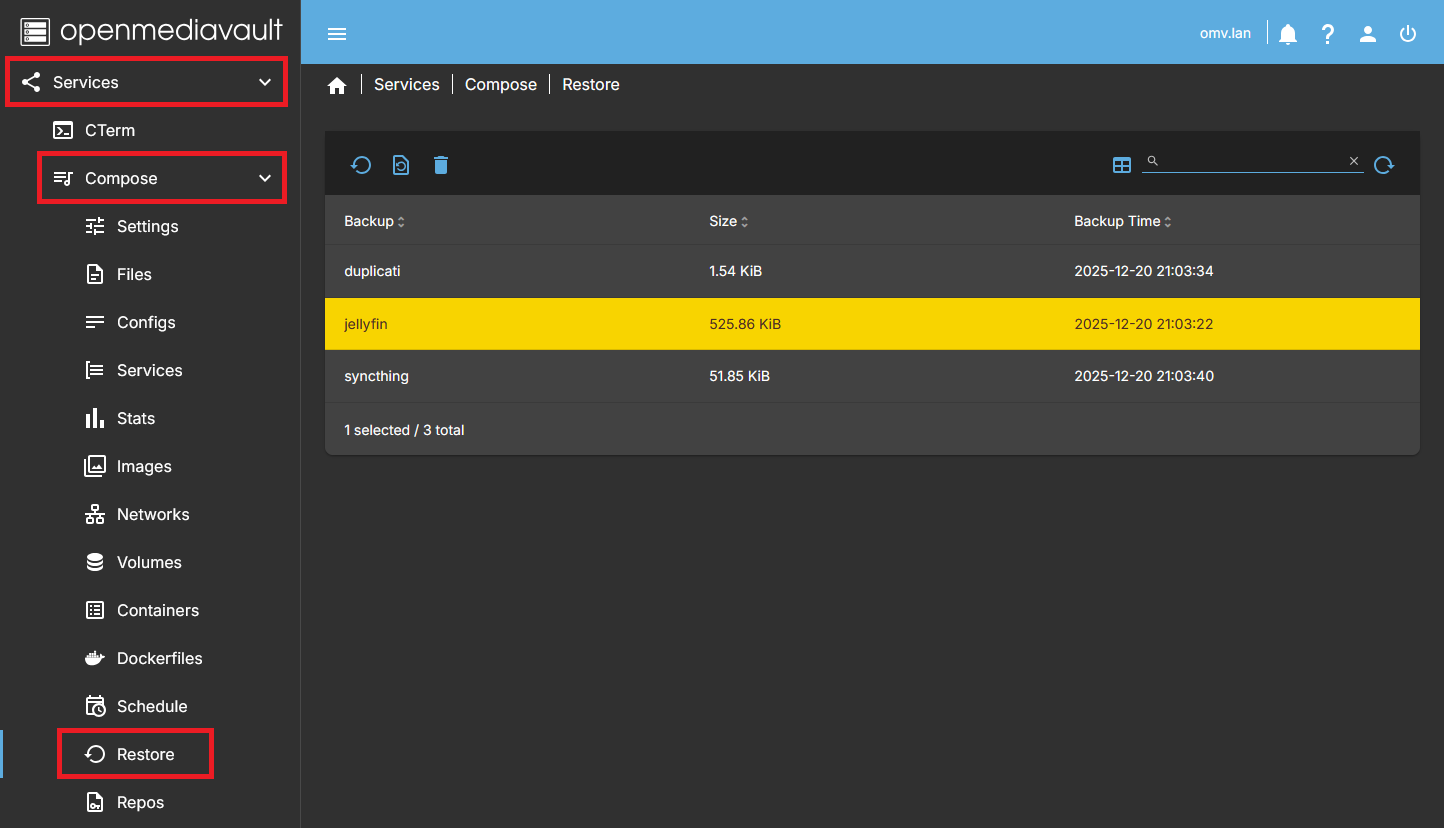
Restore
Restores the selected backup.
The restore process performs the following actions:
- Stops the containers affected by the restore.
- Restores compose files and container data from the selected backup.
- Restores the
global.envfile if it exists in the backup. - Containers that were running before the restore will be started again.
Restore global.env
Restores only the global environment variables file (global.env) from the selected backup.
This option is useful when:
- You want to recover global environment variables without restoring compose files.
- Compose configurations are already correct and only environment values were lost or modified.
No containers are stopped or restarted when using this option.
Delete
Deletes the selected backup from disk.
This action is permanent and cannot be undone.
| Warning | |
|
Restoring a backup will overwrite existing compose files and data. Make sure current configurations are no longer needed or have been backed up separately before proceeding. | |
Repos Tab
This tab allows you to manage access to container image repositories.
The buttons available are:
- Login – Opens a dialog to authenticate with a container image repository.
- Logout – Logs out from the currently authenticated repository.
| Note | |
| The authentication status affects the ability to pull or push images from/to private repositories. | |
Dashboard
The dashboard provides several widgets that display the current status of Docker and running containers.
These widgets are informational only and do not allow direct interaction.
Services Grid
Shows the global Docker service status.
- A green indicator means Docker is enabled and running.
- If Docker is stopped or disabled, the indicator will reflect that state accordingly.
This widget provides a quick visual confirmation of Docker availability.
Services Table
Displays Docker service status in table format.
- Shows whether Docker is enabled.
- Shows whether the Docker service is currently running.
This widget offers the same information as the grid view but in a more compact, list-based format.
Container Table
Shows a list of currently running containers.
For each running container, the following information is displayed:
- Container name
- Image used by the container
- Uptime (how long the container has been running)
Stopped containers are not displayed in this table.
This widget allows quick monitoring of active containers without entering the Compose interface.
Usual procedures
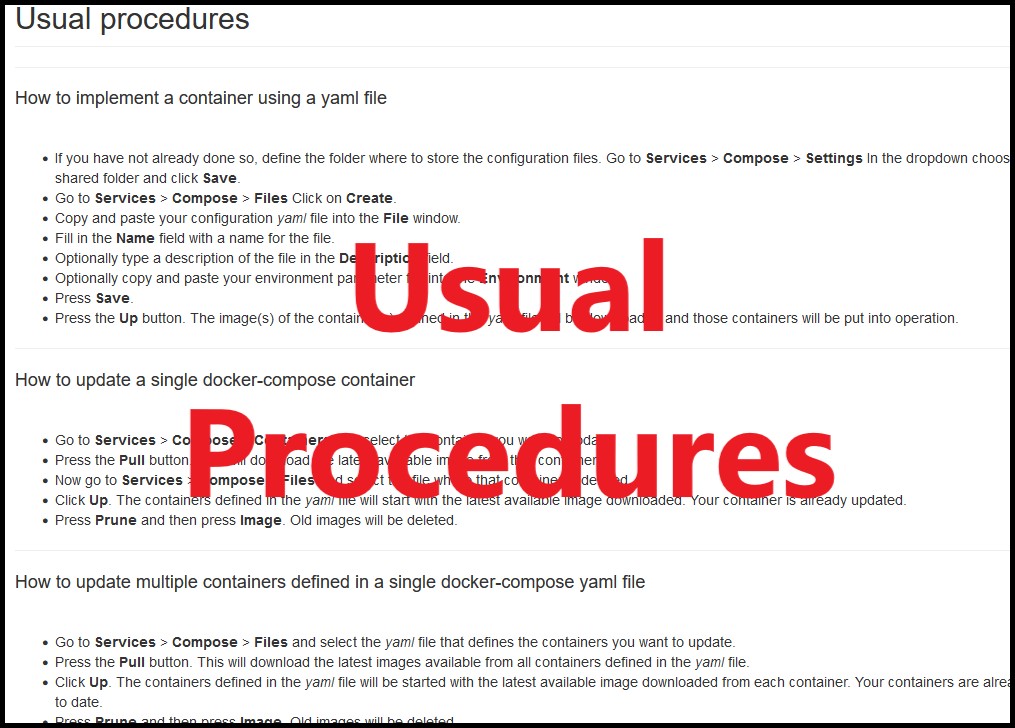
You can find several common procedures for creating and maintaining containers in the Docker documentation on OMV, in the Usual Procedures section.
See → Usual procedures
Source Code
A Closing Note
We, who support the openmediavault project, hope you’ve found this guide to be useful and that you’ll find your openmediavault server to be efficient, easy to use, and enjoyable.
If you found this plugin guide to be helpful, please consider a modest donation to support the hosting costs of this server.
OMV-Extras.org
Venmo: ryecoaaron