Table of Contents
Docker in OMV 8
Summary
 This document establishes a method to successfully install any application on OMV using Docker.
The OMV forum is a bi-directional tool. Provides users with solutions to their problems. It provides developers with information about user problems and allows them to implement appropriate solutions in software and methods.
In the case of Docker, the forum has received numerous queries about very diverse problems. Based on that forum experience, this document offers a simple method for configuring Docker that fixes the vast majority of these problems before they arise.
Index:
What is Docker
 “ A container is a standard unit of software that packages up code and all its dependencies so the application runs quickly and reliably from one computing environment to another. A Docker container image is a lightweight, standalone, executable package of software that includes everything needed to run an application: code, runtime, system tools, system libraries and settings.
Container images become containers at runtime and in the case of Docker containers – images become containers when they run on Docker Engine. Available for both Linux and Windows-based applications, containerized software will always run the same, regardless of the infrastructure. Containers isolate software from its environment and ensure that it works uniformly despite differences for instance between development and staging. ”
That's all very well, but…  What the hell is docker?
 That definition is very good and very professional, but it is of little use to people on the street, so we will try to explain in an easier way what docker is and how it works. If you are an experienced docker user you will probably want to skip this part. If this is your first time using docker, keep reading.
Docker is a system that allows you to run an application within your server as if it were an independent and isolated system. It has its own processes, its own file system, and its own networking, all independent of the main (host) server. The container cannot access the host's file systems or network, and vice versa. This is why we say that it is isolated, and way it cannot damage your system. It is safe.
Docker is quite similar to a virtual machine, but with one key difference: a virtual machine includes a complete operating system, with its own kernel, drivers, and services. Docker, on the other hand, does not run a complete operating system. Instead, it uses the host's kernel and only isolates the container's processes, network, and file system.
Because of this, containers consume far fewer resources and start up in a matter of seconds, although their isolation is not as deep as that of a traditional virtual machine.
This makes containers designed for different architectures. A container designed for Raspberry PI (ARM architecture) will not work on an Intel/AMD system (amd64 architecture) and vice versa. You should keep this in mind when choosing a container to install on your system.
Many modern containers include multiple architectures, and Docker will automatically select the correct one. However, not all images support this, so it is important to verify that the image is compatible with your architecture.
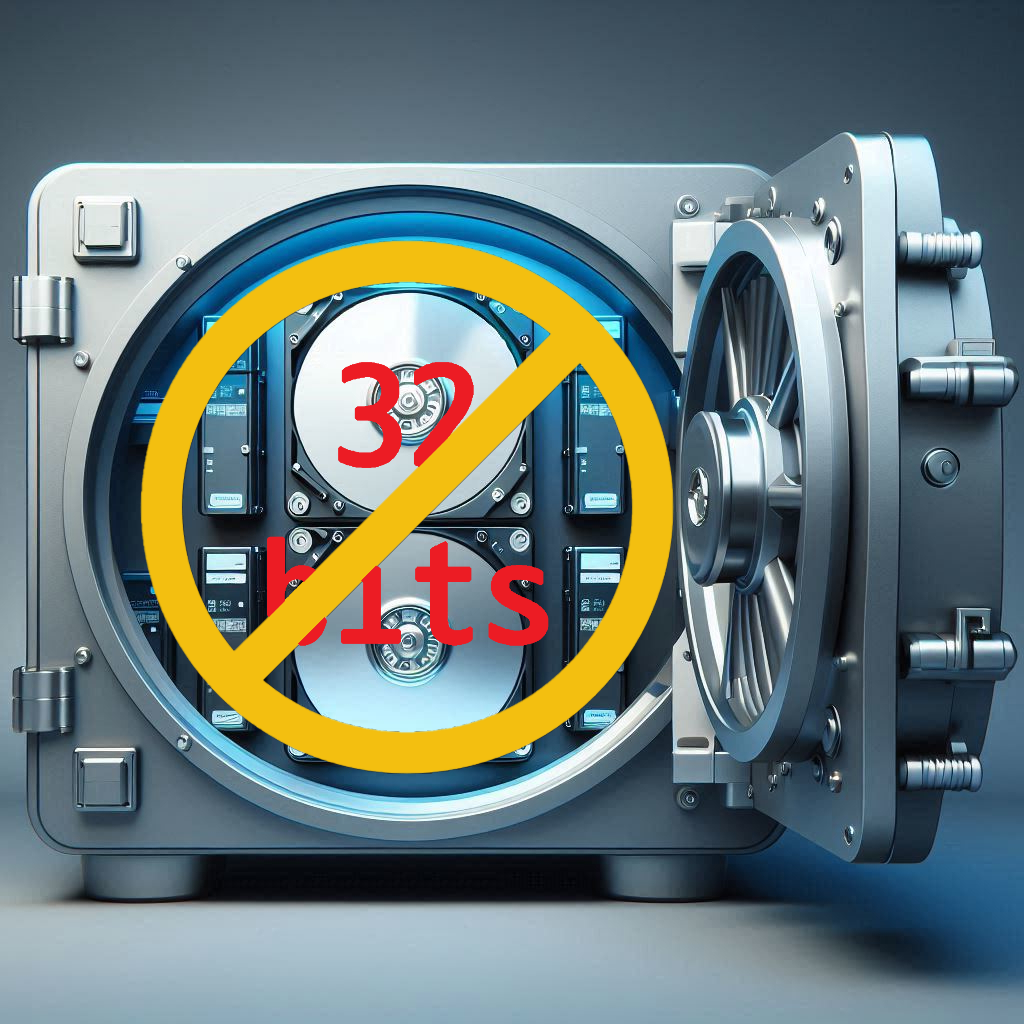 At this point it is good to remember that the 32-bit architecture is obsolete, little by little 32-bit containers are disappearing. OMV 8 no longer works on 32-bit systems, so if you were able to install OMV 8, your system is 64-bit. When installing a container, always choose the 64-bit version. Docker will usually select the correct image automatically, but if multiple variants exist, choose the one labeled amd64 or x86_64.
The operation of docker is very simple. Someone on the Internet packages a system into a file we call an image. This image contains the necessary packages for the application we want to use to work. Docker downloads that image, installs it on our server and runs it. We already have a container working.
Now the creator of that image does the corresponding maintenance and publishes a new updated image. Docker can download and apply the new image if you trigger an update. Tools like docker-compose make this easy by pulling the updated image and restarting the container. This way, your container can be kept up to date.
So far so good. But now we want to configure certain information in our application, for example a password to access that application. We could “enter” the container and make that configuration by writing to the /folderpass/password file inside the container. That would work, but on the next image update that /folderpass/password file will be overwritten and the settings will be lost. To solve this Docker allows folder mapping.
Mapping a folder means that Docker will make a configuration such that when the container writes to the /folderpass/password file it will actually be writing to an external folder, a folder located on our server file system. This way, when we update the container image, all its files will be overwritten except /folder/password, since this folder is not in the container but in the file system of the host server, and when the container is running it will be able to continue reading the password that we have stored in our server file system. As an added bonus, mapping a folder makes it easier to manipulate the files in that folder from the server without needing to enter the container.
In the same way that Docker maps folders it can also map network ports, we can map port 3800 that the container uses internally to any port on our server, for example 4100, the container will send data packets to port 3800 internally but Docker will that these packets be sent through port 4100 of our server.
 We can also map users. And this is important to understand. The container will work internally as root, but we can make that user be another user on the server, for example the user superman. From that moment on, everything the container does to the mapped files or ports will not be done by root, it will be done by superman. That allows us to restrict the permissions of that container, we only have to restrict the permissions of the superman user of our system. We will give the user superman write permissions to the
 /folderpass/password file on our system so that he can write or modify that file but we will not give him permissions to write to any other folders. In this way we ensure that the container remains isolated.
To define all these container configurations the openmediavault-compose plugin uses docker-compose for its simplicity. Using a configuration file of a few lines we define the mappings and other configurations of a container and then we execute it.
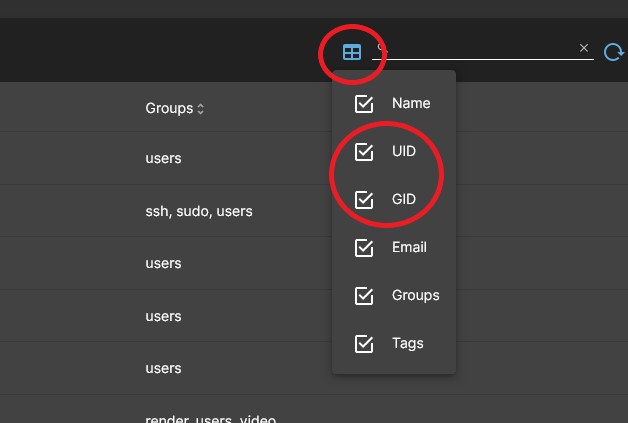
To map a user we define the PUID value, the user's identifier, and to map the group it will be the PGID value, the group's identifier. In the OMV GUI we can see the PUID value for each user in the USERS > USERS tab by opening the UID and GID columns using the icon at the top right. So if the user superman has the values 1004 and 100, in the compose file we would do something like this:
- PUID=1004
- PGID=100
The way to map a folder (volume) in docker-compose is something like this:
- /srv/dev-disk-by-uuid-9d43cda9-20e5-474f-b38b-6b2b6c03211a/appdata/folderpass:/folderpass
That could be one of the lines in the compose file that defines a container. This line is divided into two parts. To the left of the : we have /srv/dev-disk-by-uuid-9d43cda9-20e5-474f-b38b-6b2b6c03211a/appdata/folderpass which is the path of a real folder on our server, in our file system. On the right of the : we have /folderpass which is the path of a folder within the container, in its own file system.
| Beginners Info | |
|
All that long string of numbers is the path of one of our disks on the server and inside that disk we have an appdata folder and inside we create the folderpass folder Filesystem mount paths are usually in the /srv folder and the following folder contains a uuid to uniquely identify that drive. That folder is the mount folder for that hard drive. You should never modify the permissions of that folder or use it to create a shared folder. Create a folder inside to use as a shared folder. | |
From now on, every time the root user of the container writes to its /folderpass folder, what will really be happening is that the superman user will be writing to our /srv/dev-disk-by-uuid-9d43cda9-20e5-474f-b38b-6b2b6c03211a/appdata/folderpass folder from our server. The content of that folder is what we call persistent data. Naturally we must give permission to the superman user on our server to write to that folder or the container will throw an error.
The advantage of all this is that the container is limited to writing to that folder. We could be unlucky enough to download an image that has harmful code inside. Or if that container was exposed to the internet and had a security hole, perhaps it could be hacked. In this case the hacker could take control of the root user of the container. The advantage is that that root user on our system is actually the superman user, and in this case, no matter how superman he is, he can only write to the /folderpass folder, so he cannot access our server in any way. The user superman does not have permissions to write or read any other files on our server. Contained threat.
Conclusion. Never map the container user to the root user of the server, unless it is absolutely necessary and the container developer is fully trusted. If there were a security hole in that container, your server would be at the mercy of the hacker, since they would have permissions for everything. Related to this, never include the user running a container in the docker group, this is another story but any user in the docker group can gain root access to the system by escalating permissions.
If you're reading this, it's probably your first time using Docker. Docker may seem complicated at first glance, but once you get over the initial learning curve, setting up and installing a container literally takes less than 30 seconds. Keep going.
User and permission management in Docker and OMV. Improved security.
| Note | |
| You should read this even if you are an experienced Docker user but have no experience with OMV. | |

Docker’s security model is based on a simple principle: a container has exactly the same permissions as the user (UID/GID) it is executed with.
The easiest way to manage this in OMV is to create a dedicated user —for example, appuser— and use it to run all your containers. Simply grant it read/write access only to the folders required by your containers. This prevents containers from accessing other parts of the system and provides a solid level of security.
How OMV manages users and shared folders
In OMV, all users created through the GUI belong by default to the primary group users (GID=100). Shared folders are also created with ownership set to root:users (user=root, group=users), with read/write permissions for both. This is the standard Linux filesystem permission layer.
This means that any user created from the GUI automatically has read/write access to any shared folder, since they belong to the users group —unless you explicitly restrict it using OMV’s permission management, which is a higher-level Samba layer.
OMV applies a Samba permission layer on top of the filesystem permissions. These are the permissions you manage from the OMV GUI.
- Samba permissions can restrict —but never expand— filesystem permissions.
- ACLs are unnecessary in 99% of cases; avoid them unless you know exactly what you're doing.
Implications for Docker
If you use a single user like appuser, it will have access to all the folders you allowed through the GUI. This works well for most containers, but not for every scenario. For example, if the Jellyfin container should only access /Media, but Nextcloud requires /Documents as well, both containers would need to run under a user with access to /Documents.
This may not be desirable if one of the containers is exposed to the Internet.
User isolation (optional, for those who need it)
If you need maximum separation, you can create one user per container —but this only works properly if you avoid the users group (GID=100). To do so, you must create the users from the CLI:
sudo useradd -U jellyfin
This creates:
- a user jellyfin
- a primary group jellyfin
When you return to the GUI, you will see the user and can manually add it to its own group. This way, all files created by the container will belong to the jellyfin user/group, and no other container will be able to access them unless you explicitly add that container’s user to the group. You also retain full control to grant permissions to your shared folders individually.
Practical conclusion
In this document, we will use a single appuser created from the GUI. This is sufficient for 99% of users.
If your use case requires stronger isolation between containers, apply the techniques described to create users outside of GID=100 and assign them individually.
Install and configure Docker
1. Installation
 In OMV8's GUI:
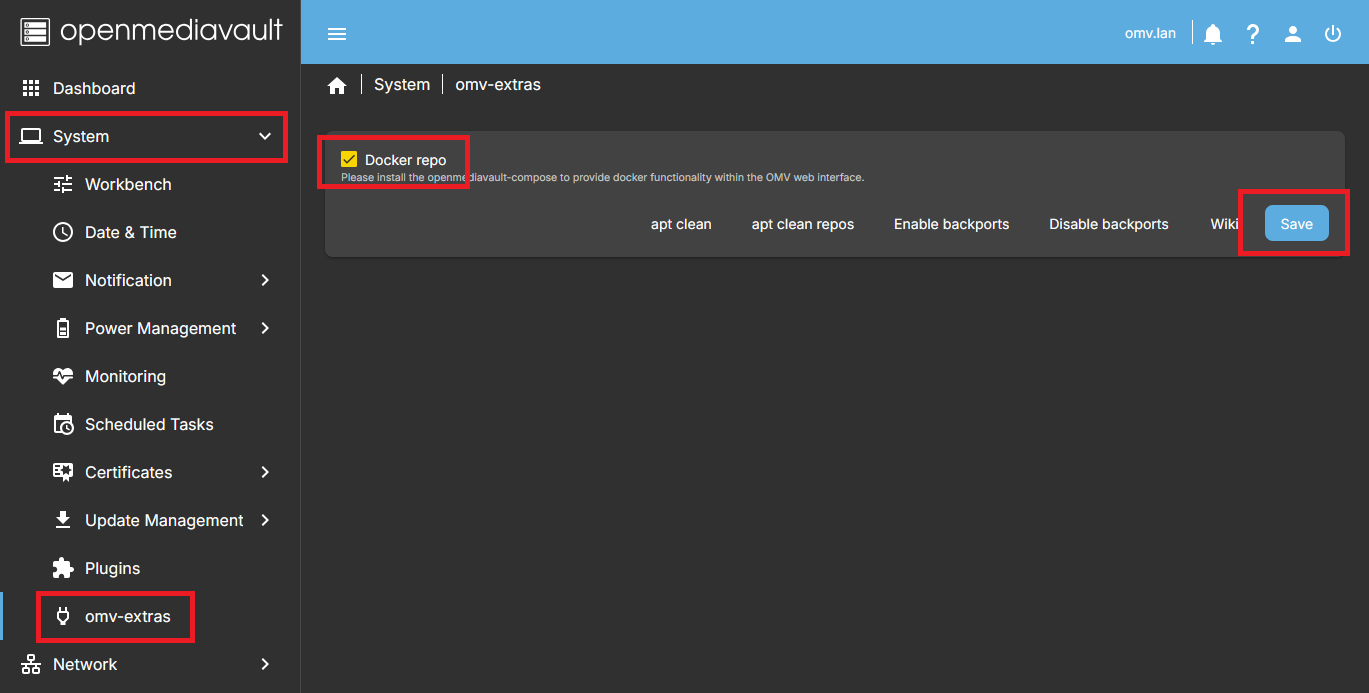
Under SYSTEM > OMV-EXTRAS, click the DOCKER REPO button and then click SAVE. This activates the Docker repository so you can install Docker and the Compose plugin.
Next, go to SYSTEM > PLUGINS, find and select openmediavault-compose 8.X, and click INSTALL.
- Installing the openmediavault-compose plugin will also install the openmediavault-sharerootfs plugin as a dependency.
| Warning | |
|
Do not uninstall the openmediavault-sharerootfs plugin It is a dependency of the openmediavault-compose. Uninstalling openmediavault-sharerootfs while openmediavault-compose is installed will also remove the openmediavault-compose plugin. | |
2. Plugin Settings
The first step is to define the folders where the different data is stored. To do this, we go to SERVICES > COMPOSE > SETTINGS.
There are many possible NAS layouts. First we will look a simple setup, and then a more advanced configuration.
| Beginners Info | |
|
Installing OMV on a USB flash drive (or SD card) may seem unusual to newcomers, but you may be surprised to learn that many professional-grade servers boot directly from USB devices. This approach provides several advantages and no drawbacks:
| |
2.1 SIMPLE OMV NAS SYSTEM
In this simple setup, the OMV operating system runs from a USB stick, and there is a single data drive that stores all NAS data. On this drive we will configure Docker and all related folders.
The following diagram shows a schematic example of this layout:
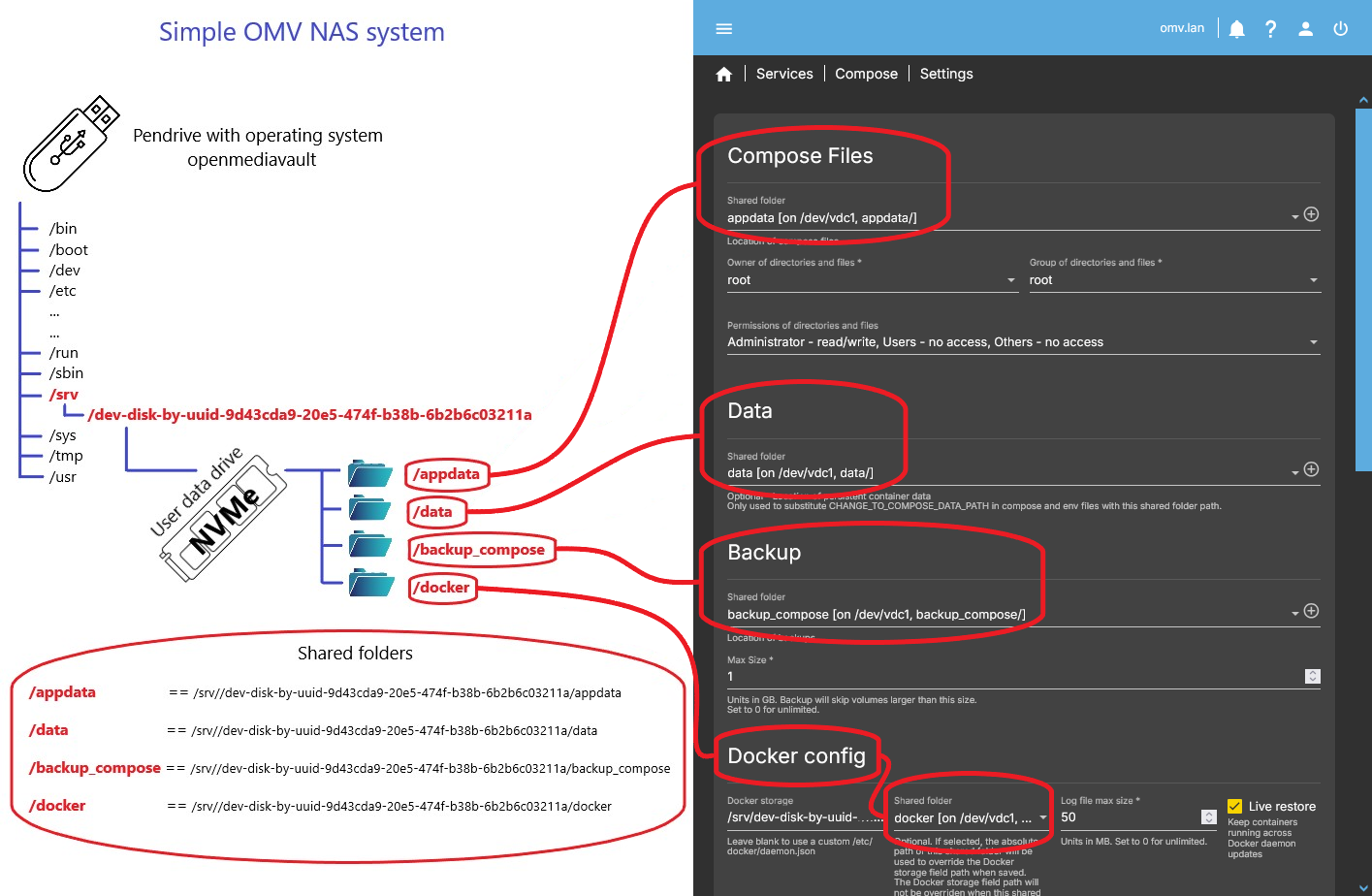
In this case, all required folders are located on the same drive, which makes the configuration very straightforward.
All folders will live under the mount point of that drive, for example: /srv/dev-disk-by-uuid…/appdata
Create these shared folders from the OMV GUI, then follow the explanations in section 2.3. Just keep in mind that, in this simple scenario, all paths will be inside the same mount folder—for example:
/srv/dev-disk-by-uuid-…/docker/srv/dev-disk-by-uuid-…/backup_compose- …
Since there is only one data drive, everything lives under the same location.
2.2 ADVANCED OMV NAS SYSTEM
In more advanced setups, your system may look similar to the following example.
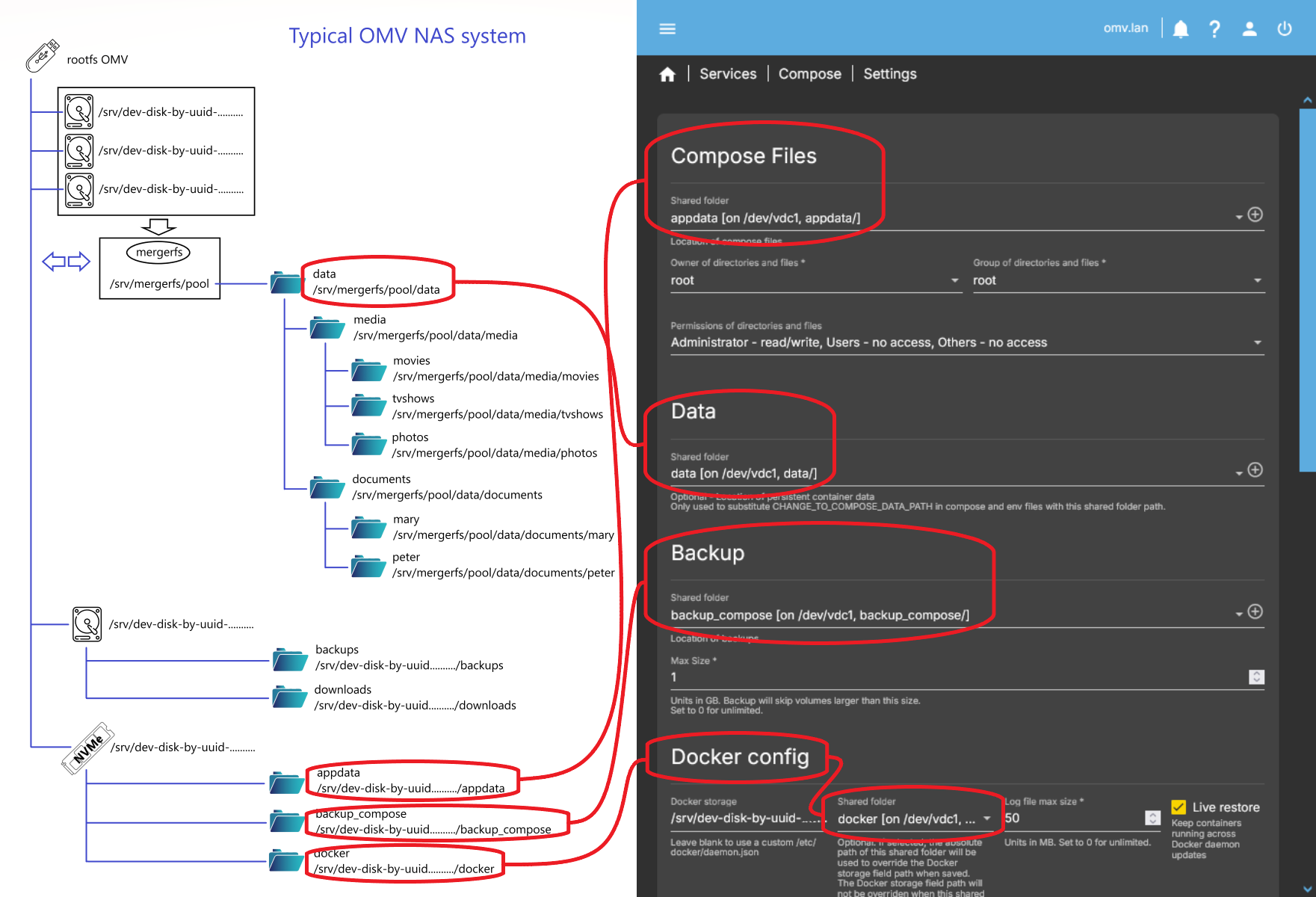
The diagram below represents a typical OMV NAS layout. From this point onward, all explanations in the document will be based on this example system. Your own system will probably differ — simply adapt the configuration logic to match your real setup.
- The OMV operating system is installed on a USB flash drive.
- A mergerfs pool composed of three hard drives stores users’ large NAS data.
- A separate hard drive stores NAS backup data.
- A high-speed NVMe drive is used for Docker data.
On the right side, you can see how the plugin’s SETTINGS tab may look after applying this configuration. If your system is simpler or more complex, adjust the folder paths accordingly.
2.3 CONFIGURATION
In any case, the main recommendation here is to keep Docker data separate from the OMV operating system.
You can name these folders however you prefer. In this document we use the names shown in the diagrams for clarity. The example folders are:
appdatadatabackup_composedocker
(These names match the diagrams in this document. You can create the shared folder with any name you prefer; the plugin will work the same.)
We will review them one by one below.
| Beginners Info | |
Why you should keep Docker off the OS drive (this may surprise Windows users — Linux handles storage differently):
| |
| Beginners Info | |
|
Recommended capacity for the Docker drive Required size depends on the number and type of containers. A sensible minimum is **60–100 GB**. If you run media servers (Jellyfin, Plex) with very large libraries, consider **250–500 GB** or more. Nextcloud can also require significant storage depending on your usage. | |
| Note | |
| If your NAS already contains data, you probably already have a data folder (it may use a different name). Select that folder in the plugin settings if appropriate. | |
2.3.1 appdata folder
appdata
(This name matches the diagrams in this document. You can create the shared folder with any name you prefer; the plugin will work the same.)
- WHAT IS APPDATA FOLDER:
- The plugin creates the appdata folder to store copies of the compose files it generates (both the .yml file and the .env file). These copies act as backups — do not edit them manually (always use the plugin GUI).
- The plugin also generates a global.env file in the appdata root. Do not edit this file manually — it is automatically overwritten.
- The procedure expected by the plugin would be to create a second folder in which to store persistent container data.
- However, many users — including myself — also use this folder to store persistent container data. It works perfectly as long as you create a dedicated subfolder inside each container folder.
- This is important because the plugin sets special permissions on every container directory it creates. If you mount a Docker volume directly into one of those folders, Docker may change the permissions and break the container or the plugin. Creating a subfolder prevents this and keeps everything safe.
- If you prefer to separate the persistent data into another folder, you can do so without any problem. In this document we will place persistent data in subfolders within appdata.
- …
Beginners Info Each container is defined by two files: the yml (service definitions: image, volumes, ports, etc.) and the env (environment variables for that container). You do not need to edit the env file manually for common tasks.
- HOW TO CONFIGURE THE APPDATA FOLDER:
- In the plugin’s SETTINGS → COMPOSE FILES section, click the + button next to the SHARED FOLDER field to create a new shared folder, or select an existing one if you already have it.
- If creating a new folder:
- NAME: <i>appdata</i>
- FILE SYSTEM: choose the SSD/NVMe or drive you want to use
- Click <b>SAVE</b>
- Once selected, click SAVE in the plugin settings to apply the choice.
- …
Beginners Info This folder will store the persistent data of each container. Example for Jellyfin config:
/srv/dev-disk-by-uuid-.../appdata/jellyfin/config:/config
When the container starts, Docker will create missing subfolders (for example, jellyfin and config) automatically.
Don't worry for now, we'll see it with examples later. - …
Warning Always create a subfolder inside each container directory in appdata to store persistent data.
❌ Do NOT do this:
/srv/.../appdata/jellyfin:/config
→ Docker writes directly inside appdata/jellyfin and modifies its permissions.
✔️ Do this instead:
/srv/.../appdata/jellyfin/config:/config
→ Keeps data isolated and preserves the plugin’s permissions. - …
Advanced configuration. The compose plugin supports relative paths in volume definitions. Using relative paths ensures the data is stored in the correct subfolder.
Example for Jellyfin:
- ./config:/config
This creates:
/appdata/jellyfin/config
The plugin also supports symlinks to define volume paths. You can create them with the openmediavault-symlinks plugin or manually. Both systems (relative paths and symlinks) can be combined.
2.3.2 data folder
data
(This name matches the diagrams in this document. You can create the shared folder with any name you prefer; the plugin will work the same.)
- WHAT IS DATA FOLDER:
- The data folder is basically a shortcut to a shared folder that can be used in compose files to define the location of a container volume.
- When a container is started, the
CHANGE_TO_COMPOSE_DATA_PATHvariable defined in the compose file is automatically replaced with the shared folder you configure here. - You must configure this folder if you plan to use the plugin’s example compose files, as they rely on this variable.
- You can choose any shared folder for this purpose; it does not need to be named “data”.
- HOW TO CONFIGURE THE DATA FOLDER:
- In the plugin configuration, under the DATA section, select the shared folder you want to assign to CHANGE_TO_COMPOSE_DATA_PATH.
- Click SAVE.
2.3.3 backup_compose folder
backup_compose
(This name matches the diagrams in this document. You can create the shared folder with any name you prefer; the plugin will work the same.)
- WHAT IS BACKUP_COMPOSE FOLDER:
- The compose plugin allows you to schedule automatic backups of each container’s persistent data.
- All scheduled backups created by the plugin are stored in this folder.
- HOW TO CONFIGURE THE BACKUP_COMPOSE FOLDER:
- Create the backup_compose shared folder in the OMV GUI and select it in the compose plugin settings in the BACKUP section.
- …
Note In the system diagram of this document, the backup_compose folder is located on the NVMe drive rather than on the dedicated backup drive.
- The plugin’s scheduled backup function is designed to produce a consistent and up-to-date copy of your persistent data by temporarily stopping the containers during the backup and starting them again afterward. Since each backup overwrites the previous one, this folder is ideal for use together with a separate backup application, which can then create versioned and/or compressed backups without needing to stop the containers.
- If you prefer, you can place this folder directly on your backup drive instead — both approaches are valid.
2.3.4 docker folder
docker
(This name matches the diagrams in this document. You can create the shared folder with any name you prefer; the plugin will work the same.)
- WHAT IS DOCKER FOLDER:
- This folder contains Docker’s internal data: downloaded images, layer data, and various runtime metadata required for Docker to operate.
- Under normal circumstances, there is no need to preserve the contents of this folder across a reinstallation of OMV. Everything stored here can be automatically recreated or re-downloaded when containers start.
- However, it is strongly recommended to keep this folder off the root filesystem (/) to avoid filling up the OS drive and to prevent performance issues.
- The compose plugin allows you to relocate this folder easily. In the plugin settings, under the DOCKER section, set the DOCKER STORAGE field to the new path. By default, Docker uses /var/lib/docker on the OMV root filesystem, which you should normally change.
- When defining this path, always use the full absolute path. Avoid symlinks — they can cause unexpected issues with Docker.
- HOW TO CONFIGURE THE DOCKER FOLDER:
- Create a shared folder named docker in the OMV GUI.
- In the Compose plugin settings, under the DOCKER section, select the shared folder you created and press SAVE.
- The field on the left will automatically be filled with the absolute path to this shared folder.
- …
Warning The filesystem hosting the docker folder should preferably be EXT4.
- If you need to place it on ZFS or BTRFS file system, consult the official Docker documentation for the required configuration.
- Never use an NTFS file system for Docker data — it does not work and will lead to failures. (or generally for anything on linux other than a staging mount for copying data).
- Do not place the Docker folder in a mergerfs pool, as Docker will spread its internal files across multiple drives, eventually causing corruption or operational problems. If the only storage available is inside a mergerfs pool, you may:
- Create the Docker folder directly on a specific drive that belongs to the pool instead of inside the pool, and configure the plugin using the absolute path of that drive.
- Avoid using mergerfs rebalance on that pool, as it may move Docker’s files to another drive and break Docker.
- Alternatively, configure the pool by merging folders instead of file systems and place the Docker folder outside of those paths. See the mergerfs documentation on this wiki.
- …
Advanced configuration. You can manually edit /etc/docker/daemon.json to customize Docker’s behaviour.
- This is required, for example, to configure an NVIDIA GPU driver or to set a custom storage driver for certain filesystems.
- If you need to customize this file, simply leave the Docker storage field empty in the plugin settings — the plugin will not modify the file.
3. Create appuser
If you read the introduction, you already know whether the appuser user is sufficient for your needs or if you should create a custom user.
If you are happy with this user for some or all containers, proceed; otherwise, customize it as explained earlier.
- In the OMV GUI create a user called appuser.
- Add appuser to the groups you need.
- For example, if you plan to use hardware transcoding with an Intel GPU, add this user to the
renderandvideogroups. - …
Warning Do not add appuser to the docker group
This creates a security hole.
- Edit appuser's permissions and grant appropriate access to each shared folder that containers will need:
- Give write access to appdata (for persistent container configuration).
- Give access only to the folders required as container volumes (e.g.,
/mediafor Jellyfin movies).
- …
Beginners Info To create the appuser user in the OMV GUI:
- Go to the USERS > USERS tab and press the +CREATE button.
- In the NAME field type appuser
- In the PASSWORD field define a strong password and confirm it.
- If needed, add appuser to the required groups by clicking the GROUPS field.
- Click SAVE.
- For each folder, choose the appropriate permissions and ensure the box is highlighted in yellow.
- Click SAVE.
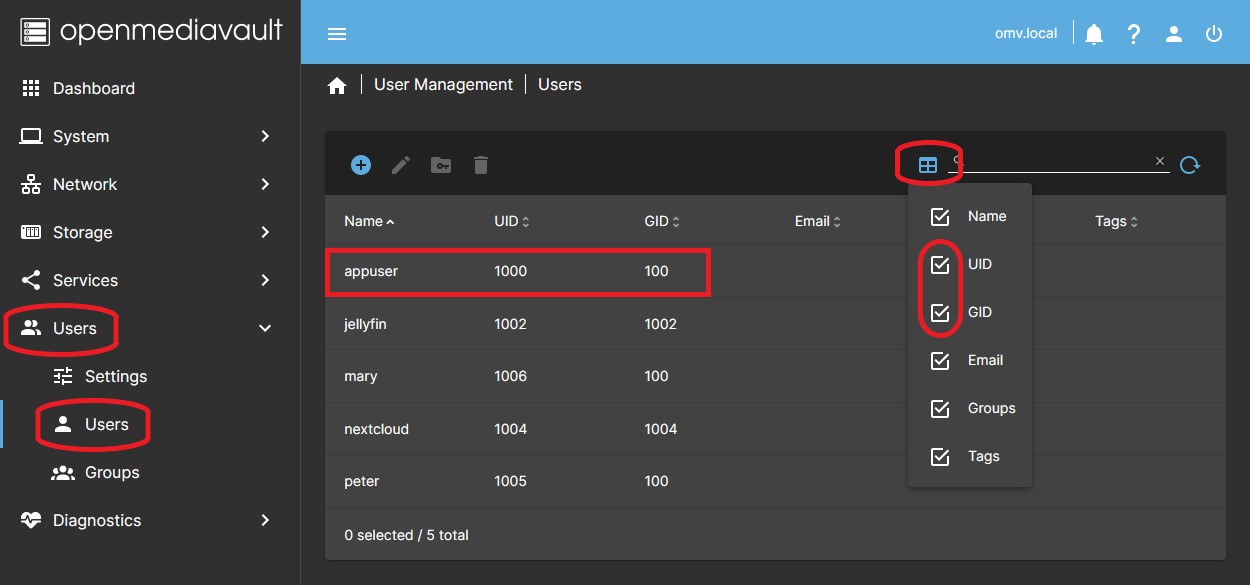
- Open the UID and GID columns and note the values for appuser:
- Example: UID=1002 GID=100
- If you already have one user, appuser UID will be 1001; with two users, UID=1002, etc. This may vary depending on your system.
| Warning | |
|
Except in very controlled special cases, never assign the admin user (UID=998) or root (UID=0) to manage a container. This is a serious security flaw. Doing so gives the container unrestricted access to your system. Consider carefully what the container is capable of doing before assigning elevated privileges. | |
Configuring a container step by step (Jellyfin)
1. Choose a container

- On dockerhub there are thousands of containers ready to use.
- Try to choose containers from reputable publishers (linuxserver is very popular) or containers with many downloads and regular updates.
- Check that the container is compatible with your server's architecture: amd64, arm64, etc.
- When choosing one, read the publisher's recommendations before installing it.

- The plugin includes examples that you can install directly.
- As an example we are going to install Jellyfin.
- …
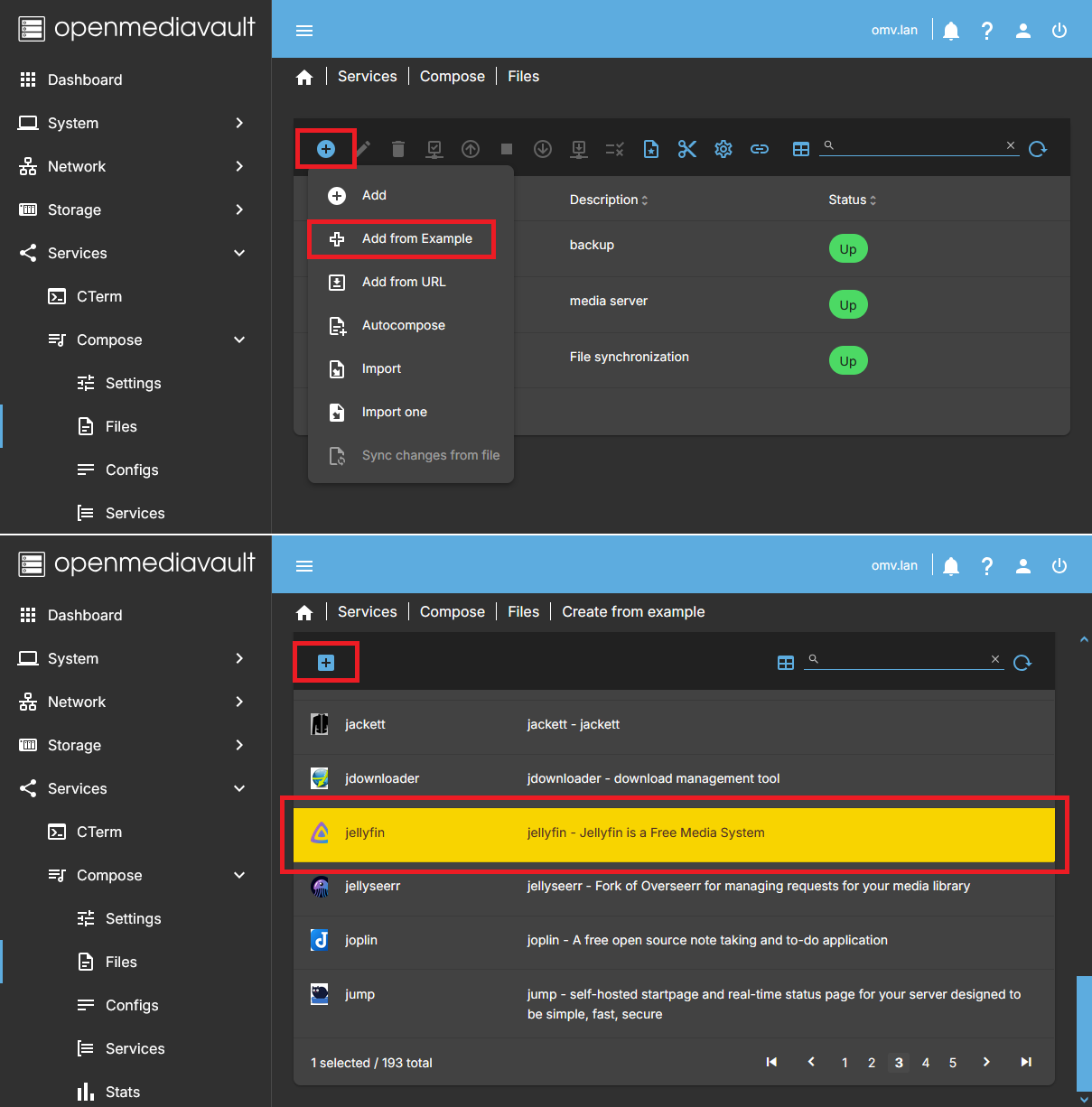
Note If you have configured folders in the plugin's SETTINGS tab, the example files will usually work as-is, but you may still want to modify them to optimize your setup. After finishing this document and looking at any example file, you will understand why. - Go to SERVICES > COMPOSE > FILES and click ADD button, then click ADD FROM EXAMPLE button.
- Click on the EXAMPLE field and and select the jellyfin file from the list.
- In the NAMEame field you can simply write jellyfin
- In the DESCRIPTION field you can write something to identify it as Media server.
- Press SAVE.
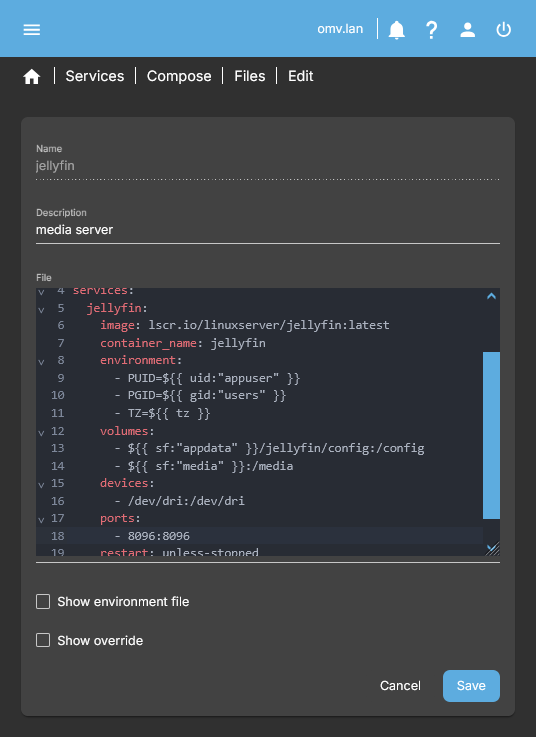
- You will now see a line with the compose file you just added, called jellyfin. Select that file and click EDIT. At the time of writing this document, the example compose file looks like this:
| Beginners Info | |
| Some containers do not provide a compose file. They can be run from the CLI using a docker command. The plugin uses docker-compose for easy setup, but you still need the compose file. If you can't find it, you can generate one using Composerize starting from the container's docker command. There is a prepared Composerize container in the plugin's examples list. | |

# Date: 2025-06-01
# https://hub.docker.com/r/linuxserver/jellyfin
# https://jellyfin.org/docs/
services:
  jellyfin:
    image: lscr.io/linuxserver/jellyfin:latest
    container_name: jellyfin
    environment:
      - PUID=1000
      - PGID=100
      - TZ=Etc/UTC
      - JELLYFIN_PublishedServerUrl=192.168.0.5 #optional
    volumes:
      - CHANGE_TO_COMPOSE_DATA_PATH/jellyfin/library:/config
      - CHANGE_TO_COMPOSE_DATA_PATH/jellyfin/tvseries:/data/tvshows
      - CHANGE_TO_COMPOSE_DATA_PATH/jellyfin/movies:/data/movies
    ports:
      - 8096:8096
      - 8920:8920 #optional
      - 7359:7359/udp #optional
      - 1900:1900/udp #optional
    restart: unless-stopped
| Note | |
|
Verify on the official page that this compose file has not changed before installing it. If you notice any recent changes, you can report them in the forum for updates. | |
| Beginners Info | |
|
WHAT A COMPOSE FILE LOOKS LIKE A compose file is a YAML file that defines the configuration that Docker will apply to the downloaded image to create the container. The parts of this compose file for Jellyfin are as follows:
| |
2. Customize the compose file
The next step is to adapt the container configuration so that it works correctly on our system. We will go through this process step by step.
The first few lines of each composition file typically contain a link to the container developer's documentation. This is useful for quickly verifying any aspect of the container that might affect us.
| Note | |
|
Important change for OMV 8 Older versions of this document relied heavily on global variables to manage:
The Compose plugin now supports automatic substitutions directly in the compose file.
| |
Following the system example used in the previous section of this document, we will customize this compose file as follows:
# Date: 2025-06-01
# https://hub.docker.com/r/linuxserver/jellyfin
# https://jellyfin.org/docs/
services:
  jellyfin:
    image: lscr.io/linuxserver/jellyfin:latest
    container_name: jellyfin
    environment:
      - PUID=${{ uid:"appuser" }}  # See Comment 1 – PUID and PGID
      - PGID=${{ gid:"users" }}  # See Comment 1 – PUID and PGID
      - TZ=${{ tz }}   # See Comment 2 – Time zone
      #- JELLYFIN_PublishedServerUrl=192.168.0.5   # See Comment 3 – Optional Jellyfin parameter
    volumes:
      - ${{ sf:"appdata" }}/jellyfin/config:/config   # See Comment 4 – Volumes
      - ${{ sf:"media" }}:/media   # See Comment 4 – Volumes
    devices:   # See Comment 5 - Devices
      - /dev/dri:/dev/dri   # See Comment 5 - Devices
    ports:
      - 8096:8096   # See Comment 6 - Ports
    restart: unless-stopped
| Beginners Warning | |
|
How to manage a compose file This file is in Yaml format, indentations are important. If you do not respect the indentations, Docker will not be able to interpret the configuration file and the container will give an error and will not start. Whenever you ask for help on the forum, post the compose file in a code box so the indentations are visible and you can receive proper help. Hide sensitive data such as passwords, email addresses, etc. | |
Environment
- Comment 1 – PUID and PGID
- PUID and PGID correspond to the UID and GID of the user who will manage the container.
- In our case, we want this user to be appuser and the group users (following the OMV workflow, the group for this user created in the GUI is users), so we use:
PUID=${{ uid:"appuser" }} PGID=${{ gid:"users" }}- To verify these values:
- In the OMV GUI, go to Users → Users,
- click the icon on the top-right to show the UID and GID columns.
- The values for appuser will appear there.
- These substitutions eliminate the need to manually copy numbers such as UID=1002 or GID=100. The plugin reads them automatically from the system. What will actually be executed in our case is:
PUID=1000
PGID=100
- Comment 2 – Time zone
- This line defines the time zone inside the container:
TZ=${{ tz }}
- The value is resolved automatically from the system time zone.
- To check the configured time zone:
- OMV GUI → System → Date & Time, look at the Time Zone field.
- Or in a terminal:
omv-confdbadm read conf.system.time | jq -r '.timezone'
- What will actually be executed in the case of a server configured, for example, in Spain, is:
TZ=Europe/Madrid
- If you prefer to use
Etc/UTC, replace the substitution with that value.
- Comment 3 – Optional Jellyfin parameter
- According to the Linuxserver.io documentation, this parameter may be needed in some network setups to make Jellyfin visible outside the host.
- In our example it is not required, so it is commented out with # so that Docker ignores it.
- If you need it:
- Remove the
#. - Replace the IP address with the real IP of your OMV server. Example:
- JELLYFIN_PublishedServerUrl=192.168.1.100
Volumes
- Comment 4 – Volumes
- In the VOLUMES section we map folders between the host system and the container. This is how persistent data and media files are made available to the container.
- The user appuser must have:
- read and write permissions on the appdata folder
- at least read permissions on the media folders
- If these permissions are incorrect, the container will fail to start or will behave unexpectedly.
- …
Beginners Info Folder mapping basics
On the left: the folder on the host
On the right: the folder inside the container - …
Advanced configuration Use of relative paths
You can use relative paths in compose files. For example:
- ./config:/config
This will create the folder:
[appdata]/jellyfin/config
on the host.
This approach is useful for simple setups, but when working with OMV shared folders, using shared folder substitutions is usually clearer and safer. - Mapping the Jellyfin configuration folder
- In the first volume line we map the /config folder of the Jellyfin container to a folder on the host:
- ${{ sf:"appdata" }}/jellyfin/config:/config
- The /config folder inside the container stores:
- Jellyfin configuration files
- the database
- users and passwords
- plugins
- metadata and cache files
- We place this folder inside the appdata shared folder, which should be located on a fast disk (SSD or NVMe if possible).
- This significantly improves Jellyfin performance when loading covers, metadata, and library information.
- …
Beginners Info Persistent container data (important)
This folder contains the persistent data of the container.
If you ever need to reset Jellyfin completely:
1. Stop the container
2. Delete this folder on the host
3. Start the container again
Jellyfin will start in its initial state, ready to be configured from scratch.
- Mapping media folders
- In the second volume line we map the folder that contains our media files:
- ${{ sf:"media" }}:/media- On the left:
- ${{ sf:"media" }} resolves to the absolute path of the shared folder named media
- In our case the actual value is:
/srv/mergerfs/pool/data/media
- …
Note Assigning folders and subfolders
Instead of mapping a dedicated media shared folder, you may also map a subfolder inside a larger shared folder:
- ${{ sf:"data" }}/media:/media
This approach is common when using mergerfs or when grouping multiple data types under a single shared folder.
- On the right:
- /media is the path that Jellyfin will see inside the container
- Using ${{ sf:"SHARENAME" }} avoids hardcoding paths and makes compose files easier to read, reuse, and share.
- …
Note Jellyfin library layout
In Jellyfin, libraries are configured from inside the container.
It is not mandatory to map movies, series, photos, etc. separately.
By mapping a single volume: /media Jellyfin can later access:
/media/movies
/media/photos
/media/series
etc.
This keeps the compose file simple and flexible.
- Additional volumes
- If you have shared folders on other hard drives that you need the container to see, you can add as many volumes as you need in this section.
Devices
- Comment 5 - Devices
- In the DEVICES section we can mount existing devices from the host inside the container.
- This step is optional. Configure it only if you need Hardware Acceleration for Jellyfin. If you don't need it, simply remove these two lines from your compose file.
- As an example, in this case we will assume that we want to use Hardware Acceleration in Jellyfin and that the server processor is Intel and has an integrated GPU with Intel Quick Sync. If we consult the linuxserver documentation, it tells us that to use an Intel GPU we must mount the video device inside the container and we must also grant permission to the container user to access that device (see the linuxserver documentation to customize if your GPU is different).
- To mount the video device we simply add the
Devices:section to the compose file and mount the/dev/drivolume so that Jellyfin can read it using the line- /dev/dri:/dev/dri- When the container looks for the
/dev/drifolder on his filesystem, Docker will cause the container to actually read the server filesystem folder/dev/dri
- To grant appuser permissions to use this device we include it in the render and video groups. That will be enough to access the device and use it.
Ports
- Comment 6 - Ports
- In the PORTS section we map the ports for the application to communicate with the outside.
- The process and syntax are the same as in the other sections of the compose file.
- If we want, we can change the port that we will use in our system to access jellyfin, or keep it the same.
- In this case we keep the same port, so we write
8096on both sides of:- If we wanted to change the port to 8888, for example, we would write
8888on the left, then the separator:, and on the right the port8096, which is used internally by the container. The result would be:- 8888:8096
- If you need information about available ports you can check this forum post. [How-To] Define exposed ports in Docker which do not interfere with other services/applications
- …
Beginners Info You should always make sure that the port mapped on the host is free.
There are special cases where the container needs port 80 and/or port 443, with Nginx Proxy Manager. OMV uses those ports to access the GUI. You can change them in System Workbench.
Another special case is pihole, which needs port 53. OMV uses port 53 and we cannot occupy it, so in this case it can be solved with a VLAN. There is a procedure in the openmediavault-compose plugin document on this wiki.
When you run that container, the plugin will perform the substitutions and execute the following:
services:
  jellyfin:
    image: lscr.io/linuxserver/jellyfin:latest
    container_name: jellyfin
    environment:
      - PUID=1000
      - PGID=100
      - TZ=Europe/Madrid
    volumes:
      - /srv/dev-disk-by-uuid-9d43cda9-20e5-474f-b38b-6b2b6c03211a/system/appdata/jellyfin/config:/config
      - /srv/mergerfs/pool/data/media:/media
    devices:
      - /dev/dri:/dev/dri
    ports:
      - 8096:8096
    restart: unless-stopped
If you don't want to use automatic substitutions, you can define the values one by one in the compose file. It will work the same way.
3. Deploy the Container and Access the Application
- In the OMV GUI, go to SERVICES → COMPOSE → FILES. At this point, the line corresponding to the compose file should appear with a red indicator on the right side, indicating that the container is stopped. Select the compose file and click the UP button.
- A code box will appear showing the output of this command. In it, you will be able to see that the Jellyfin image is being downloaded, the container is being configured, and its execution is starting. Press CLOSE to close the code box. If everything went well, you should see the line corresponding to that compose file with the indicator on the right in green.
- If the container configuration is not correct, a red box will appear in the GUI indicating that there is an error. In that case, you can debug it by doing the following:
- Select the compose file and press the CHECK button.
- A dialog box will open analyzing the container configuration. You can usually identify the error by carefully reading the output shown there.
- Modify the compose file to correct the error and try again.
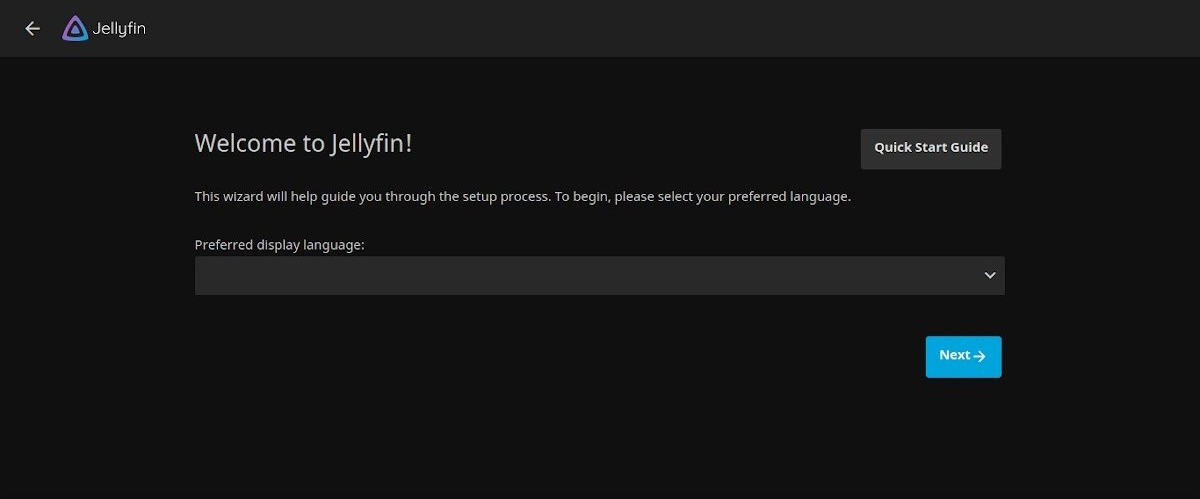
- If the container configuration is correct, you should be able to access your application by typing the IP address of your server followed by
:and the access port defined in the previous section.- For example, if the IP address of your server is 192.168.1.100, you would type:
http://192.168.1.100:8096to access Jellyfin.
4. Help request on the OMV forum
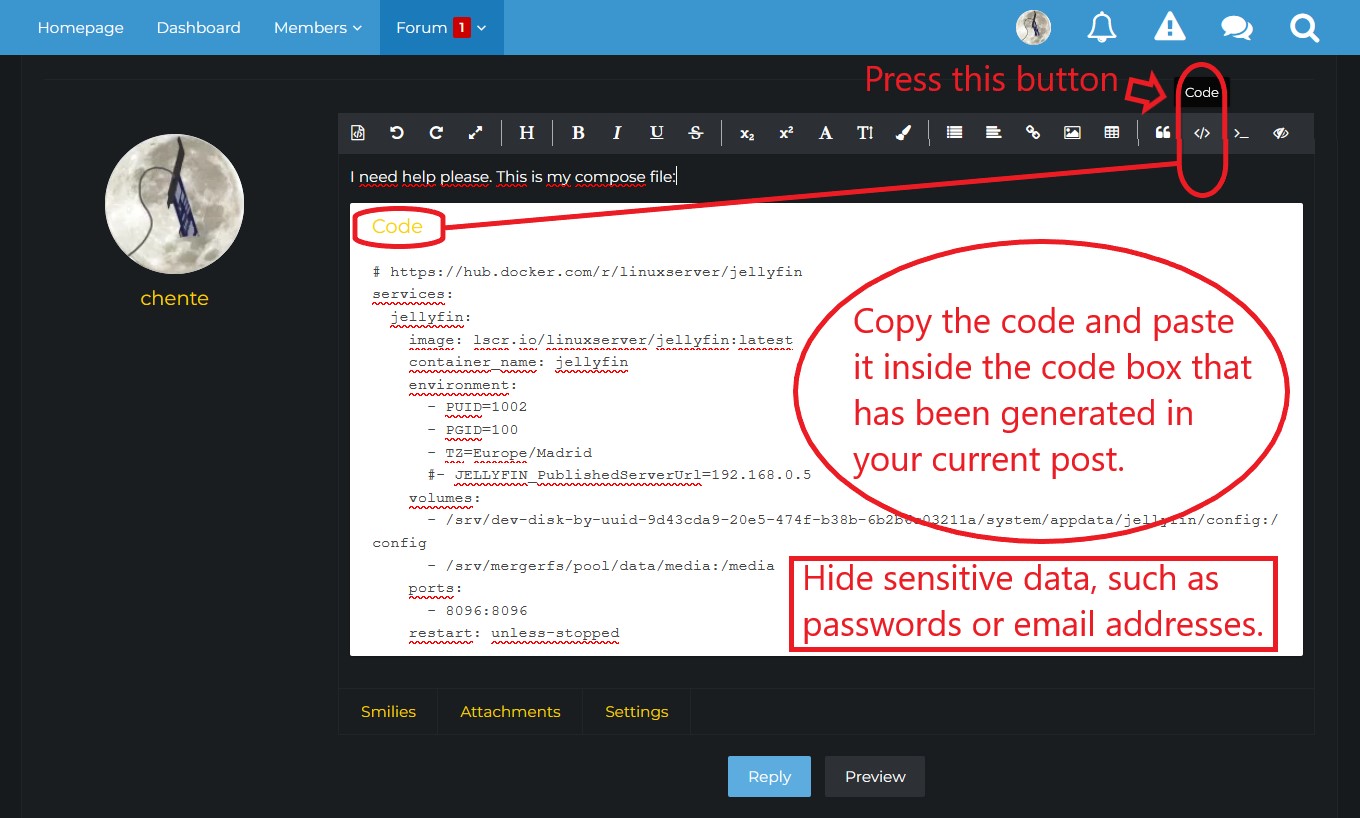
- If you have reached this point and still cannot get your container to run, you can request help on the OMV forum.
- Whenever you ask for help on the forum regarding a container, always post the compose file (and the global environment variables file, if you are using one) inside a code box.
- To insert a code box press the
</>button in the toolbar of the post editor. - Copy and paste the relevant code inside the code box.
- Make sure to hide any sensitive data, such as passwords, email addresses, or domain names.
- Finally, be polite and thankful when you receive help. Keep in mind that all forum members are volunteers, including the OMV and omv-extras developers.
Examples of configuration of some containers
The variable substitutions performed by the plugin greatly simplify the configuration of containers. Below are a few examples.
In each case, the container has been configured following the system and folder layout described in this document. Adapt it to your own server configuration if it differs.
Duplicati
A useful application to create encrypted, versioned, compressed, and deduplicated backups, either locally or remotely.

# Date: 2025/12/20
# https://hub.docker.com/r/linuxserver/duplicati
services:
  duplicati:
    image: lscr.io/linuxserver/duplicati:latest
    container_name: duplicati
    environment:
      - PUID=${{ uid:"appuser" }}
      - PGID=${{ gid:"users" }}
      - TZ=${{ tz }}
      - SETTINGS_ENCRYPTION_KEY=MyKeyOMV8 #Set a secure key
      #- CLI_ARGS= #optional
      #- DUPLICATI__WEBSERVICE_PASSWORD= #optional
    volumes:
      - ${{ sf:"appdata" }}/duplicati/config:/config
      - ${{ sf:"data" }}/duplicati/backups:/backups
      - ${{ sf:"documents" }}:/source/documents:ro   # :ro makes this volume read-only inside the container
      - ${{ sf:"photos" }}:/source/photos:ro
    ports:
      - 8200:8200
    restart: unless-stopped
###########################
# This compose file is customized according to the document:
# "Docker in OMV" from the OMV-Extras wiki.
# Adapt it to your server if the configuration is different.
# https://wiki.omv-extras.org/doku.php?id=omv8:docker_in_omv
###########################
Syncthing
An application to synchronize folders between different devices and the server, such as smartphones or PCs.

# Date: 2025/12/20
# https://hub.docker.com/r/linuxserver/syncthing
services:
  syncthing:
    image: lscr.io/linuxserver/syncthing:latest
    container_name: syncthing
    hostname: syncthing #optional
    environment:
      - PUID=${{ uid:"appuser" }}
      - PGID=${{ gid:"users" }}
      - TZ=${{ tz }}
    volumes:
      - ${{ sf:"appdata" }}/syncthing/config:/config
      - ${{ sf:"documents" }}/mary/syncthing:/mary     # If your name is not Mary, change this path
      - ${{ sf:"documents" }}/peter/syncthing:/peter   # If your name is not Peter, change this path
    ports:
      - 8384:8384
      - 22000:22000/tcp
      - 22000:22000/udp
      - 21027:21027/udp
    restart: unless-stopped
###########################
# This compose file is customized according to the document:
# "Docker in OMV" from the OMV-Extras wiki.
# Adapt it to your server if the configuration is different.
# https://wiki.omv-extras.org/doku.php?id=omv8:docker_in_omv
###########################
Nginx Proxy Manager
This container allows you to securely publish services (for example, Jellyfin) on the Internet using Let’s Encrypt certificates.
It provides a very intuitive web-based administration interface.
- As a special requirement, Nginx Proxy Manager (NPM) needs to use ports 80 and 443 on the server. By default, the OMV GUI uses these ports, so you must free them before starting the container. To do this:
- In the OMV GUI, go to SYSTEM > WORKBENCH.
- Change the HTTP and HTTPS ports to unused ones. For example:
- HTTP: 80 → 8888
- HTTPS: 443 → 8443
- Apply the changes.
- After doing this, you will need to specify the new port in your browser to access the OMV GUI. Example: http://192.168.1.50:8888
| Advanced configuration. | |
|
NPM requires ports 80 and 443 on the router to validate Let's Encrypt certificates. There are two possible approaches: 1. Free ports 80 and 443 on the server This is done by changing the OMV GUI ports as described above. This is the simplest and recommended option. 2. Use port forwarding on the router If you prefer to keep OMV using ports 80 and 443, you can forward different external ports on the router to the container. Example: Forward external port 80 → server port 30080 Forward external port 443 → server port 30443 In the compose file, NPM would then use: - 30080:80 - 30443:443 The result is the same: the container receives traffic on ports 80 and 443 internally, while OMV keeps ports 80 and 443 on the local network. | |

# Date: 2025/12/20
# https://nginxproxymanager.com
services:
  app:
    image: 'jc21/nginx-proxy-manager:latest'
    restart: unless-stopped
    ports:
      - '80:80' # Public HTTP Port
      - '443:443' # Public HTTPS Port
      - '81:81' # Admin web interface
      # Add any other Stream ports you want to expose
      # - '21:21' # FTP
    environment:
      TZ: ${{ tz }}
      # Mysql/MariaDB connection parameters:
      DB_MYSQL_HOST: "db"
      DB_MYSQL_PORT: 3306
      DB_MYSQL_USER: "npm"
      DB_MYSQL_PASSWORD: "npm"
      DB_MYSQL_NAME: "npm"
      # Optional SSL (see NPM website)
      # DB_MYSQL_SSL: 'true'
      # DB_MYSQL_SSL_REJECT_UNAUTHORIZED: 'true'
      # DB_MYSQL_SSL_VERIFY_IDENTITY: 'true'
      # Uncomment this if IPv6 is not enabled on your host
      # DISABLE_IPV6: 'true'
    volumes:
      - ${{ sf:"appdata" }}/nginxproxymanager/data:/data
      - ${{ sf:"appdata" }}/nginxproxymanager/letsencrypt:/etc/letsencrypt
    depends_on:
      - db
  db:
    image: 'jc21/mariadb-aria:latest'
    restart: unless-stopped
    environment:
      MYSQL_ROOT_PASSWORD: 'npm'
      MYSQL_DATABASE: 'npm'
      MYSQL_USER: 'npm'
      MYSQL_PASSWORD: 'npm'
      MARIADB_AUTO_UPGRADE: '1'
    volumes:
      - ${{ sf:"appdata" }}/nginxproxymanager/mysql:/var/lib/mysql
###########################
# This compose file is customized according to the document:
# "Docker in OMV" from the OMV-Extras wiki.
# Adapt it to your server if the configuration is different.
# https://wiki.omv-extras.org/doku.php?id=omv8:docker_in_omv
###########################
To access the Nginx Proxy Manager GUI, use port 81. Example:
http://192.168.1.50:81
Default credentials:
- User:
admin@example.com - Password:
changeme
You will be prompted to change these credentials on first login.
Nextcloud AIO (All In One)
Nextcloud is a private cloud platform that allows you to access your files securely over the Internet.
This container is the official Nextcloud AIO (All-In-One) distribution.
It provides a web-based configuration interface that installs and manages several containers automatically.
- Official Nextcloud AIO Docker documentation → Nextcloud AIO
- Official Nextcloud administration documentation → Nextcloud
PREREQUISITES
Before installing Nextcloud AIO, you must first install a reverse proxy, such as Nginx Proxy Manager described in the previous section.
You may use any proxy supported by Nextcloud AIO, but in this document we assume Nginx Proxy Manager.
Install NPM first and configure it by following these instructions: NPM configuration for Nextcloud AIO (Click on “click to expand” in the Nginx-Proxy-Manager section)
REQUIREMENTS FOR THIS CONTAINER
For this container to work correctly, you must do the following:
- You need a domain name.
- You can purchase one or obtain a free one, for example from Duckdns.org
- Point the domain to your router’s public IP address.
- Make sure your ISP is not using CGNAT.
- If it is, request a public IP address without CGNAT.
- You can verify DNS propagation using www.whatsmydns.net
- The IP shown must match the public IP configured on your router.
- You may need to refresh several times until it propagates.
- Point the domain to your router's public IP (make sure your ISP hasn't put you behind CGNAT. If this is the case, request a public IP without CGNAT). Use this site to check if it's working: www.whatsmydns.net The IP must be the same as the one configured on your router. You can press several times to force the expansion.
- On your router, forward ports 80 and 443 to the IP address of your OMV server.
- The reverse proxy (Nginx Proxy Manager) will receive traffic on these ports.
- The proxy will forward Nextcloud requests internally to port 11000 (or to another container, depending on the requested domain).

# Date: 2025/12/20
# https://github.com/nextcloud/all-in-one
# For custom configuration consult see:
# https://github.com/nextcloud/all-in-one/blob/main/compose.yaml
name: nextcloud-aio
services:
  nextcloud-aio-mastercontainer:
    image: ghcr.io/nextcloud-releases/all-in-one:latest
    init: true
    restart: always
    container_name: nextcloud-aio-mastercontainer
    volumes:
      - nextcloud_aio_mastercontainer:/mnt/docker-aio-config
      - /var/run/docker.sock:/var/run/docker.sock:ro
    network_mode: bridge
    ports:
      - 8080:8080
    environment:
      - APACHE_PORT=11000
      - NEXTCLOUD_DATADIR=${{ sf:"data" }}/nextcloud_data
volumes:
  nextcloud_aio_mastercontainer:
    name: nextcloud_aio_mastercontainer
###########################
# This compose file is customized according to the document:
# "Docker in OMV" from the OMV-Extras wiki.
# Adapt it to your server if your configuration is different.
# https://wiki.omv-extras.org/doku.php?id=omv8:docker_in_omv
###########################
INITIAL SETUP
Start the container and perform the initial configuration.
Follow the instructions starting from point 4 in the official documentation → How to install the Nextcloud All In One on linux
ABOUT THE NEXTCLOUD DATA DIRECTORY
Notice that the Nextcloud data directory has been configured inside the appdata folder. This is intentional, for the following reasons:
- All files managed directly by Nextcloud are tracked in its database, and Nextcloud may modify their permissions.
- This can prevent you from accessing those files directly from the host system.
- Manual changes outside of Nextcloud may corrupt the database.
- Nextcloud AIO includes its own built-in backup system, which automatically includes all user data.
- This may not be desirable if the data volume is very large and you already use another backup strategy.
RECOMMENDED APROACH FOR LARGE DATA SETS
These limitations can be easily avoided by using the Nextcloud External Storage plugin.
With this plugin, you can mount shared folders from the OMV system (for example via SMB) directly from the Nextcloud GUI. This allows you to:
- Access large media or document folders from within Nextcloud
- Keep those files outside the Nextcloud database
- Store only lightweight data (contacts, calendars, settings) in the Nextcloud data directory
As a result, the internal data directory remains small and can be safely stored on a fast disk.
IMPORTANT NOTE ABOUT BACKUPS
Nextcloud AIO spawns and manages multiple containers, which are stored internally in Docker’s own directories.
The openmediavault-compose plugin backup feature does not back up these internal containers.
If you want reliable backups, you must use the built-in Nextcloud AIO backup system.
From the Nextcloud AIO GUI you can:
- Define the backup destination
- Set the backup schedule
- Let Nextcloud AIO automatically:
- stop containers
- create the backup
- restart containers
Everything is handled internally by Nextcloud AIO.
Other containers

- Take a look at the examples provided by the Compose plugin. There are many ready-to-use compose files available.
- In the OMV GUI, go to SERVICES > COMPOSE > FILES.
- Click the ADD button and then select ADD FROM EXAMPLE.
Beginners Info Most of the example compose files will work out of the box if you run them without any modifications.
However, it is strongly recommended to adapt them to your own system configuration, following the guidelines explained in this document.
Doing so will help you avoid unexpected behaviour and permission-related issues.
Create your own custom container
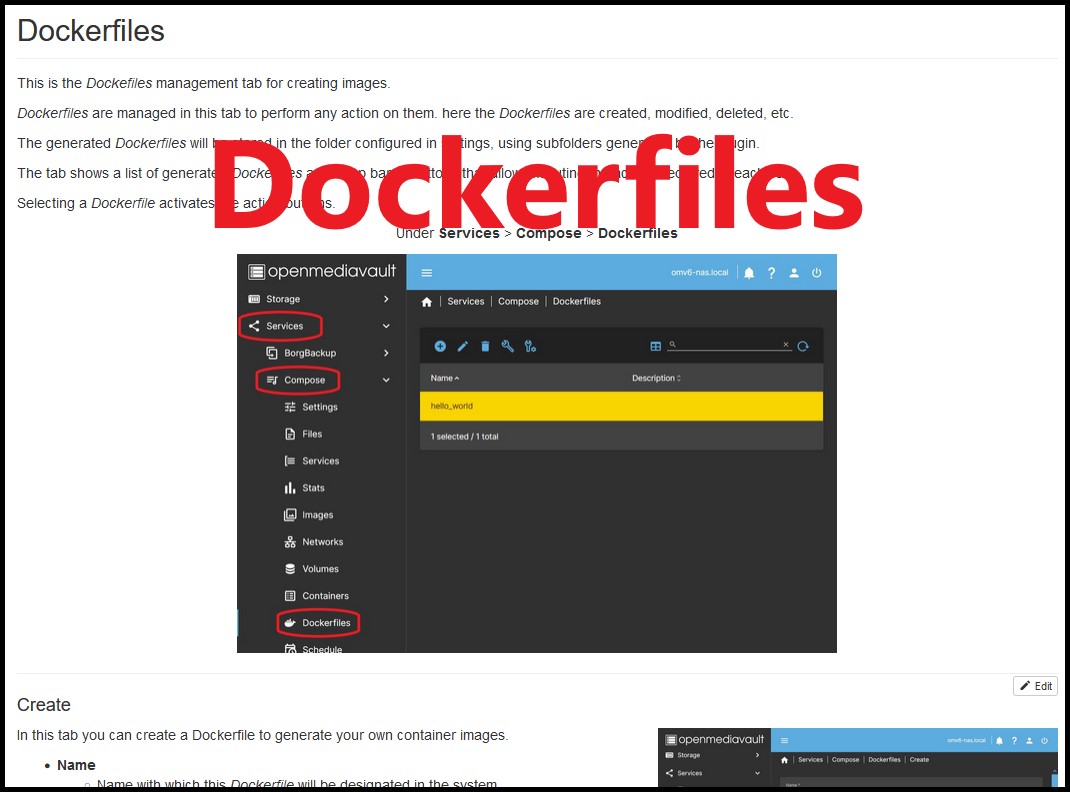 If you cannot find a container that fits your needs—either in the plugin’s example list or on the Internet—you can create your own image and run a container from it using a Dockerfile.
The openmediavault-compose plugin makes it easy to build Docker images directly from a Dockerfile.
You can see how to use this feature here → Dockerfiles
Usual procedures
How to use automatic substitutions in a Compose file
The plugin allows you to directly reference a series of values that exist in the system. These values can be:
- Shared folders.
- User UID and GID values.
- Timezone value.
How to reference a shared folder in a compose file
To reference an existing shared folder on the system, use the following expression:
${{ sf:"SHAREDFOLDER" }}
(where SHAREDFOLDER is the name of the existing shared folder)
The plugin will automatically replace this expression with the absolute path to SHAREDFOLDER.
- For example, if the shared folder documents has the absolute path
/srv/dev-disk-by-uuid-9d43cda9-20e5-474f-b38b-6b2b6c03211a/data/documents, the following expression:
- ${{ sf:"documents" }}:/documents
- will be automatically replaced by:
- /srv/dev-disk-by-uuid-9d43cda9-20e5-474f-b38b-6b2b6c03211a/data/documents:/documents
How to reference a user's parameters in a compose file
To reference the UID and GID values of an existing user in the system, use the following expressions:
${{ uid:"USERNAME" }}
${{ gid:"GROUPNAME" }}
(where USERNAME is the name of the existing user and GROUPNAME is the group of this user)
The plugin will automatically replace these expressions with the UID and GID values belonging to the user with that USERNAME.
- For example, if the user peter has the values
UID=1003andGID=100, the expressions:
- PUID=${{ uid:"peter" }}
- PGID=${{ gid:"users" }}
- will be automatically replaced by:
- PUID=1003
- PGID=100
How to reference the time zone value in a compose file
To refer to the time zone configured in the system, use the following expression:
${{ tz }}
The plugin will automatically replace this expression with the time zone value configured in the system.
- For example, in the case of a server configured with the Spanish time zone, the expression:
- TZ=${{ tz }}
- will be replaced by:
- TZ=Europe/Madrid
How to schedule container updates and/or backups
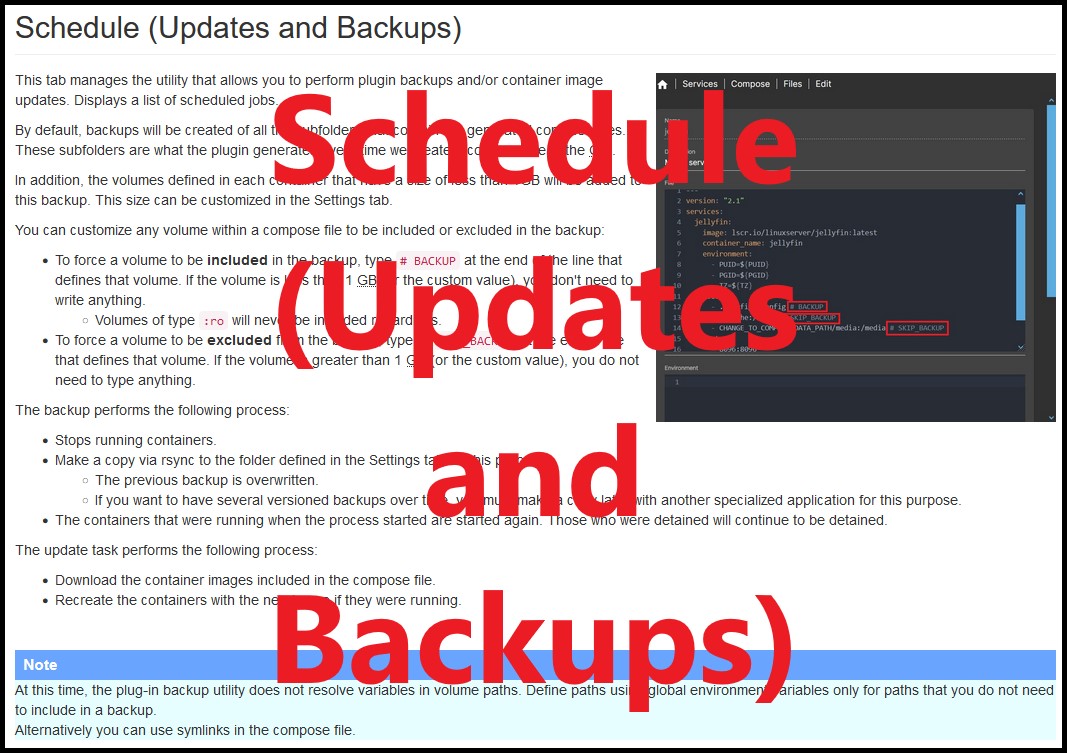 This is one of the most useful features of the Compose plugin. It allows you to:
- Schedule automatic container updates, selectively and in a controlled way.
- Create scheduled backups of containers and selected volumes.
You can learn how to configure this feature in the corresponding section of the plugin documentation in this wiki → Schedule (Updates and Backups)
How to modify the configuration of a container
If for any reason you need to modify a container configuration—for example, to change a volume path or adjust any other parameter—follow these steps:
- In the OMV GUI, go to SERVICES > COMPOSE > FILES.
- Select the container row and press the DOWN button. This will stop the container.
- Press the EDIT button.
- Modify the desired parameters in the FILE editor.
- Press SAVE.
- Select the container row again and press the UP button.
The container will now be running with the updated configuration.
How to reset a container's settings
If you want to restore a container to its initial state, proceed as follows (Warning: this will remove all configuration made inside the container):
- In the OMV GUI, go to SERVICES > COMPOSE > FILES.
- Select the container row and press the DOWN button to stop it.
- Delete the configuration folder corresponding to the container.
- Example:
/srv/dev-disk-by-uuid-9d43cda9-20e5-474f-b38b-6b2b6c03211a/appdata/jellyfin/config - This folder contains all the configuration created inside the container.
- When the container starts again, it will recreate this folder automatically.
- The container will then start in its default state, ready to be configured from scratch.
- In the OMV GUI, select the container row again and press the UP button.
How to implement a container using a yaml file
- If you have not already done so, define the folder where to store the configuration files. Go to Services > Compose > Settings In the dropdown choose a shared folder and click Save.
- Go to Services > Compose > Files Click on Add.
- Copy and paste your configuration yaml file into the File window.
- Fill in the Name field with a name for the file.
- Optionally type a description of the file in the Description field.
- Optionally copy and paste your environment parameter file into the Environment window.
- Press Save.
- Press the Up button. The image(s) of the container(s) defined in the yaml file will be downloaded and those containers will be put into operation.
How to update a single docker-compose container
- Go to Services > Compose > Services and select the container you want to update.
- Press the Pull button. This will download the latest available image from that container.
- Now go to Services > Compose > Files and select the file where that container is defined.
- Click Up. The containers defined in the yaml file will start with the latest available image downloaded. Your container is already updated.
- Press Prune and then press Image. Old images will be deleted.
How to update multiple containers defined in a single docker-compose yaml file
- Go to Services > Compose > Files and select the yaml file that defines the containers you want to update.
- Press the Pull button. This will download the latest images available from all containers defined in the yaml file.
- Click Up. The containers defined in the yaml file will be started with the latest available image downloaded from each container. Your containers are already up to date.
- Press Prune and then press Image. Old images will be deleted.
How to delete containers from a yaml file
- Go to Services > Compose > Files and select the yaml file that defines the containers you want to remove.
- Click Down to stop the containers defined in that yaml file.
- Press Prune and then press System. All data generated by those containers will be removed from the system.
- If you want to delete the yaml file, click Delete. This will remove the yaml file.
How to deploy a container using a dockerfile
- If you have not already done so, define the folder where to store the configuration files. Go to Services > Compose > Settings In the dropdown choose a shared folder and click Save.
- Create the dockerfile composition file: Go to Services > Compose > Dockerfiles Click on Create.
- Copy and paste your configuration dockerfile into the dockerfile window.
- Fill in the Name field with a name for the dockerfile.
- Optionally type a description of the dockerfile in the Description field.
- Optionally copy and paste your script file into the Script window so that the dockerfile can execute it. Write the name of this file in the Script filename field.
- Optionally copy and paste your environment parameter file into the Conf file window so that it is included in the generated image. Write the name of this file in the Conf filename field.
- Press Save.
- Create the container and run it:
- Select the dockerfile and press the Up button. The container will be created with the dockerfile commands and that container will be put into operation.
How to generate a composition yaml file with Autocompose
- Go to Services > Compose > Files and press the + and then the Autocompose button
- Expand the Container field. A list of all running containers will appear, select the container you want to generate a yaml file for.
- In the Name field, type the name you want to use for the generated file.
- In the Description field you can write a reminder summary of the file content.
- In the Version field, select the version of docker-compose that will be used to generate the yaml file.
- Press the Create button. The generated file will appear on a line in the Files tab list.
- Select this file and press the Edit button to view the content of the generated file.
- There will probably be more information than necessary to define the container, it would be advisable to clean up all the unnecessary lines.
- If you remember roughly what the original yaml file looked like, you can clean up the extra information.
- You can search the internet for existing information about this container. If there is an example yaml file you can try to adapt yours to be as similar as possible.
- Press the Save button.
- Select the file again and press the check button.
- The output can show you possible errors. If you detect any, go back to the previous step.
- Select the file and press the Up button.
- If the container is deployed without any problems the generated yaml file works. Otherwise you should keep checking for errors until it works.
How to Create a VLAN (Pi-hole, Adguard, ...)
This is useful if you need a container to have an IP within your LAN that is different from your server's.
The most common use case for this procedure is installing pi-hole in docker on an OMV server. The reason in this case is that both pi-hole and OMV need the same port to function correctly, port 53. Therefore we need pi-hole to use a different IP on our network to be able to use that port without affecting OMV. There may be other use cases besides pi-hole, depending on the needs of the container you're setting up.
Note that containers using this network will expose all their ports on the LAN, just like any other IP, eg OMV. Docker provides an additional layer of security through port mapping (similar to a firewall). Through this procedure we lose that additional security layer. This does not have to be a problem, it is normal operation in any network, but it is convenient to be aware of this circumstance. Logically it will be useless to map ports in those containers, so you can save that part.
Creation and use of the VLAN network interface with IP in our LAN
We must create the network previously to be able to define the parameters we need and use it later in the containers. We will call it mynet and we will create it as follows:
- In the OMV GUI go to Services > Compose > Networks Press the Add button.
- Choose the name for your network and write it in the Name field. For example mynet.
- In the Driver field, drop down the menu and choose macvlan.
- In the Parent Network field, drop down the menu and choose your OMV network interface. You can check it in the GUI under Network > Interfaces.
- In the Subnet field write the IP range of your local network. Usually it can be
192.168.1.0/24Adapt it to your network. - In the Gateway field write the gateway of your network, normally your router, something like this
192.168.1.1Adapt it to your network. - In the IP range field write
192.168.1.240/29Adapt it to your network.- This network range is equivalent to the IP addresses between
192.168.1.241to192.168.1.246This will allow us to assign IP addresses up to 6 containers, you can expand it if you need more. Any such website can help with this: IP calculator - So that this is not a problem with the IP assignment of your DHCP server (your router in general) you can reduce the assignment range, instead of letting it assign from 1 to 254, we can reduce it from 1 to 235 for example. This is how we make sure we have those free IPs for docker.
- In the Aux address field you can optionally define an IP address to reserve for the host. In this case it would be
host=192.168.1.247- This will be useful only if you need the host and the container to communicate with each other.
- Press the Save button. At this moment the network is already created and you can use it in the configuration of any container.
- You can inspect the network by selecting it and clicking the Inspect button to view its current values. When some container is using it, it should appear in this configuration.
Assigning this network interface in a container
In order for a container to use the created network interface you need to add the following lines to the end of your compose file, assuming docker-compose is version 3 or higher. See the documentation for older versions of docker-compose.
services:
  pi-hole:
    container_name: "pi-hole"
    .
    .
    networks:
      mynet:
        ipv4_address: 192.168.1.241
networks:
  mynet:
    external: true
This sets up the mynet interface for that container and assigns it the IP value 192.168.1.241 within our network, which was the first available. We will still be able to use up to 246 in other containers.
When we start the container we will be able to access its interface from the assigned IP and the usual port.
Reduce the IP range of the DHCP server (usually the router)
Once the above is done, in order to avoid overlapping assignable IP ranges, it would be advisable to reduce the IP range of the network's DHCP server. In the case of the previous configuration it could be set to:
- From 192.168.1.2
- Up to 192.168.1.239
This way addresses from 192.168.1.240 onwards will always be available, since the router will not assign any of these IPs if a device requests an IP assignment.
If you use the container itself as a DHCP server, for example with pi-hole, you must disable the DHCP server on your router and adapt the DHCP range in pi-hole accordingly.
If we need communication between the containers and the host
What has been applied so far is enough to use pihole, but in the case of other different containers it may be necessary for the container and the host to communicate with each other. Vlans have a limitation, by design they cannot communicate with the host. To overcome this setback and allow communication between the containers and the host, if necessary, we can create a network interface that will act as a bridge between the two.
| Warning | |
|
What follows from now on is a procedure that creates a binding interface for communication with the host via /etc/network/interfaces when OMV uses netplan. This can generate some conflict in certain circumstances. Do it at your own risk. If you have a suggestion to do this in a safe way you can post it in the forum. | |
Running the following commands would create this interface, but this configuration would not be persistent in OMV. On the first server restart it would disappear:
ip link add mynet-host link eno1 type macvlan mode bridge
ip addr add 192.168.1.239/32 dev mynet-host
ip link set mynet-host up
ip route add 192.168.1.224/28 dev mynet-host
This would create a macvlan network interface called mynet-host in bridge mode that would use the IP 192.168.1.239. The host would use this network interface thanks to the static route set in the 192.168.1.224/28 network range to communicate with the containers.
To make this configuration persistent in OMV we must do it as follows:
- Create a network interface configuration file:
nano /etc/network/interfaces.d/99-mynet-host- Copy into that file the following content:
auto mynet-host
iface mynet-host inet static
    pre-up ip link add mynet-host link eno1 type macvlan mode bridge
    address 192.168.1.239/32
    up ip link set mynet-host up
up ip route add 192.168.1.224/28 dev mynet-host- Replace
eno1with your network interface. You can see it in the GUI under Network > Interfaces. - Save changes and exit the editor.
Ctrl+XandYes - Restart the service or the server.
From now on those settings will be set every time the server is started.
| Note | |
| If for some reason you need to create many different IPs keep in mind that macvlan uses different MAC addresses for each IP. This can be a problem if your hardware has a limit on the maximum number of MACs for the same physical interface. In that case you can change the configuration to ipvlan. Consult the official docker documentation in this regard to solve other possible configuration problems with ipvlan. | |
OpenMediaVault-Compose plugin documentation
 This wiki contains the standard documentation for the openmediavault-compose plugin.
It explains how all aspects of the plugin work.
Go to OpenMediaVault-Compose Plugin Manual
Note on global environment variables
With OMV 8 and the current Compose plugin, the global environment variables system is no longer required. The plugin performs automatic substitutions for users, groups, time zones, and shared folders directly in the compose file.
If you are migrating from OMV 6 or 7 and want to keep using global variables, it is still possible, but it is optional.
A Closing Note
We, who support the openmediavault project, hope that you’ll find your openmediavault server to be
enjoyable, efficient, and easy to use.
If you found this guide to be helpful, please consider a modest donation to support the
hosting costs of this server (OMV-Extras) and the project (Openmediavault).
OMV-Extras.org
www.openmediavault.org